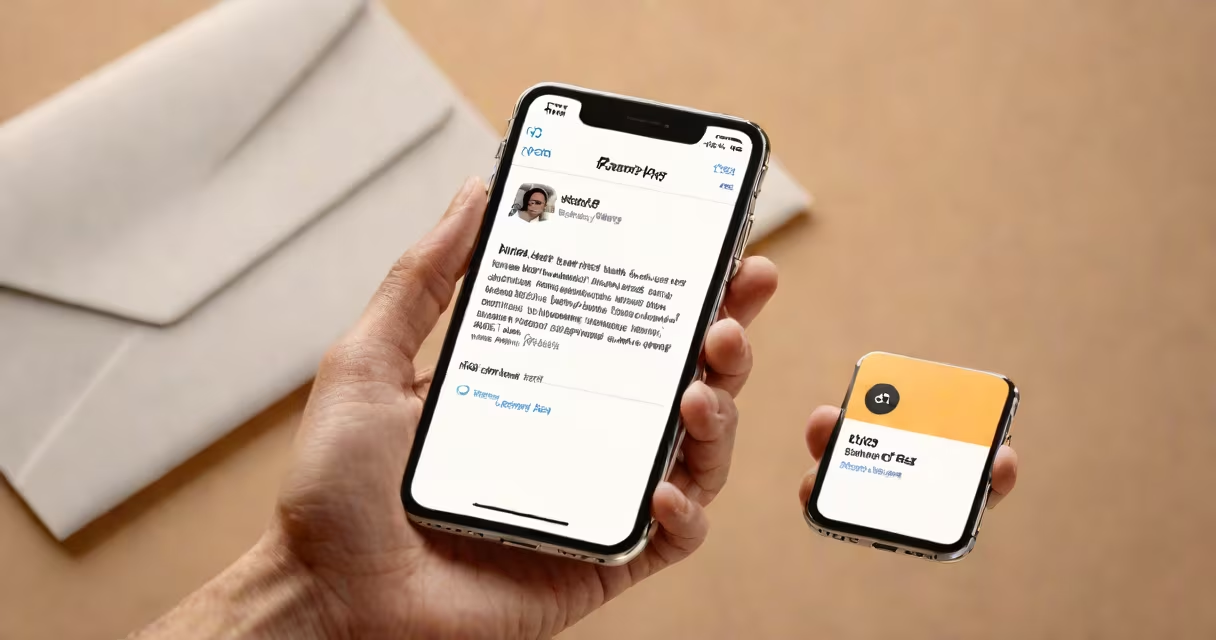
To get mail on your iPhone, open the Settings app, go to Mail, then select Accounts, and tap Add Account. Choose your email provider-Gmail, Yahoo, Outlook, or a custom domain-and enter your credentials. The phone configures the server settings automatically and adds your inbox to the Mail app.
The Mail app on iPhone uses IMAP and SMTP protocols to sync messages across devices. When you add an account, iOS detects the service type and applies the correct configuration. For most major providers, no manual setup is needed. Apple's Mail app supports push notifications, so new messages appear instantly on your lock screen and in the Notification Center.
After adding an account, you'll see your inbox in the Mail app. Tap the compose button to send a message. You can switch between multiple accounts using the account picker at the top of the inbox. The app stores sent emails, drafts, and deleted messages in designated folders unless you disable syncing.
Apple's Mail app automatically configures accounts for popular services. Enter your email address and password, and the system checks for known settings. This process works for Gmail, Yahoo Mail, iCloud, Outlook.com, and Microsoft Exchange.
For Gmail, the app uses IMAP with port 993 and SSL encryption. It also enables the "Send & Receive" feature, which keeps your inbox updated in real time. Yahoo Mail uses similar settings, with authentication via OAuth2. Custom domains (like [email protected]) require manual entry if the provider doesn't support automatic discovery.
A list of supported providers includes:
| Email Provider | Auto-Setup Supported? | Required Info |
|---|---|---|
| Gmail | Yes | Email, password, 2FA code if enabled |
| Yahoo Mail | Yes | Email, password |
| Outlook.com | Yes | Email, password |
| iCloud | Yes | Apple ID, password |
| Custom Domain (e.g., @yourcompany.com) | No (manual required) | IMAP/SMTP server addresses, port numbers, security settings |
When auto-setup fails, you must manually enter server details. For example, a typical Gmail IMAP setup requires:
Manual configuration is necessary for older email systems or enterprise setups. Apple recommends using App Passwords for Gmail if two-factor authentication is enabled. Without this, the standard password won't work.
Some users report that new emails don't appear after setup. This often happens when the "Fetch New Data" setting is disabled. Go to Settings → Mail → Accounts → Fetch New Data and ensure it's set to "Push" or "Every 15 minutes."
Another frequent problem is incorrect password entry. The Mail app doesn't show error messages during setup. If the account doesn't sync, check the password in Settings → Passwords → Website & App Passwords. Re-enter the password or generate a new app-specific password for Gmail.
Sync delays can occur if the device is in Low Power Mode. Disable it in Settings → Battery → Low Power Mode. Also, ensure the iPhone is connected to Wi-Fi or cellular data. A weak connection prevents the app from downloading messages.
You can manage up to 10 email accounts in the Mail app. To switch between them, tap the account name at the top of the inbox. You can also assign different colors to each account for visual identification.
Advanced features include Smart Folders, which group messages by sender or label. You can create custom folders and move messages between them. The app supports filters that automatically sort incoming mail based on sender, subject, or keywords.
I once set up a business email on my iPhone using a custom domain. The auto-detect failed because the DNS records weren't properly configured. After verifying MX and SPF entries with my hosting provider, I manually entered the IMAP and SMTP settings. The account synced within 30 seconds after saving the configuration.
Many assume that adding an email account requires a separate app. The Mail app is built into iOS and handles all major providers. There's no need to download Gmail or Yahoo apps unless you want additional features like calendar integration or offline access.
Another misconception is that iCloud Mail is the only way to store emails. iCloud is one option, but you can use Gmail, Yahoo, or any IMAP-compatible service. Your messages stay on the provider's servers unless you enable local storage in Settings → Mail → Accounts → Advanced → Mailbox Behaviors.
Some users try to use POP instead of IMAP. POP downloads messages and deletes them from the server. This causes issues when accessing the same inbox from another device. Always choose IMAP for consistent synchronization across all devices.