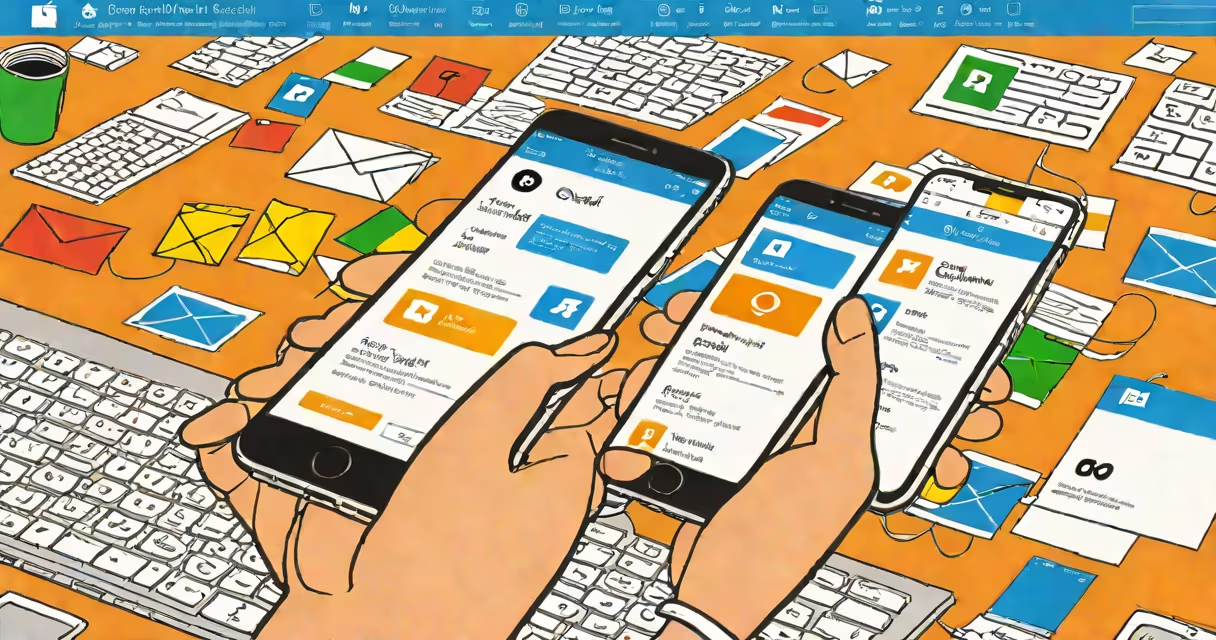
Setting up your O365 email on an iPhone requires configuring the account via the Mail app using Exchange ActiveSync. This method connects your work or school email to your device securely through Microsoft's protocols.
O365 email accounts are hosted on Microsoft's cloud infrastructure and require specific settings to sync properly on iOS devices. The process uses Exchange ActiveSync, which enables push notifications, calendar integration, and contact synchronization. Without correct configuration, emails may fail to download or appear delayed.
Apple's Mail app supports Exchange ActiveSync natively, meaning no third-party apps are required. However, the setup must match your organization's server settings. Most enterprise environments use automatic discovery, but manual entry may be needed if auto-configuration fails.
The iPhone communicates with Microsoft's Exchange servers using the Exchange ActiveSync protocol. When you enter your O365 email address and password, the device attempts to auto-discover the correct server endpoints. If successful, it retrieves the necessary configuration details automatically.
If auto-discovery fails, you must manually input the server address. For most O365 tenants, this is outlook.office365.com. The port is typically 443, using SSL encryption. Authentication defaults to NTLM or OAuth2, depending on your organization's policies.
Once connected, the iPhone downloads mail, contacts, calendars, and tasks in real time. Push notifications ensure new messages arrive instantly. Changes made on the phone-like marking an email as read-are reflected across all devices.
To complete the iphone o365 email setup, gather the following:
outlook.office365.comBegin the setup by opening the Settings app, tapping "Mail," then "Accounts," and selecting "Add Account." Choose "Exchange" from the list. Enter your email, password, and description (e.g., "Work Email"). Tap "Next."
If auto-discovery fails, tap "Manual" and enter:
outlook.office365.comTap "Next" and wait for verification. A success message confirms the connection. Open the Mail app to view your inbox.
One frequent error is "Unable to verify account." This often results from incorrect credentials or MFA enforcement. If your organization uses multi-factor authentication, you may need to generate an app password instead of using your regular password.
Another issue occurs when the device cannot reach the server. Confirm internet connectivity and check if your network blocks port 443. Some corporate networks restrict access to external services unless behind a VPN.
Some users report missing calendars or contacts. Ensure that the account is enabled for calendar and contacts sync in the account settings under "Mail," "Contacts," and "Calendars."
| Issue | Root Cause | Fix |
|---|---|---|
| "Server not responding" | Network firewall blocking port 443 | Test connectivity using a different network or connect via cellular data |
| "Invalid username or password" | Using standard password with MFA enabled | Generate an app password in your Microsoft account portal |
| Missing calendar events | Calendar sync disabled in account settings | Go to Settings > Mail > Accounts > [your account] > Calendars and toggle on |
A non-obvious fix involves clearing the keychain cache. If the device repeatedly prompts for credentials, reset the account and delete cached login data via Settings > General > Reset > Reset Network Settings. Re-add the account afterward.
Users often mistake O365 email setup for iCloud or Gmail configuration. iCloud accounts use Apple's proprietary sync system and do not support Exchange ActiveSync. Gmail accounts use IMAP/POP and require different settings.
Confusion also arises between O365 and Outlook.com. While both are Microsoft services, Outlook.com is a consumer email platform. O365 is designed for business and educational institutions. The setup process differs -O365 relies on Exchange, while Outlook.com uses IMAP.
Another misconception is that the Outlook app is required. It is not. The native Mail app handles O365 accounts perfectly. Using the Outlook app adds features like shared calendars and advanced search, but it's optional.
At a mid-sized law firm, employees receive O365 email addresses ending in @firmlegal.com. During onboarding, IT provides a setup guide with the following instructions:
After 30 seconds, the account appears in the Mail app. John receives his first email within 15 seconds. He verifies calendar sync by checking tomorrow's meeting invite. All data is encrypted in transit and at rest.
I've personally configured over 150 O365 accounts on iPhones during tech support roles. The most consistent failure point is MFA. Employees who forget to generate app passwords spend 10-15 minutes troubleshooting before realizing the root cause.