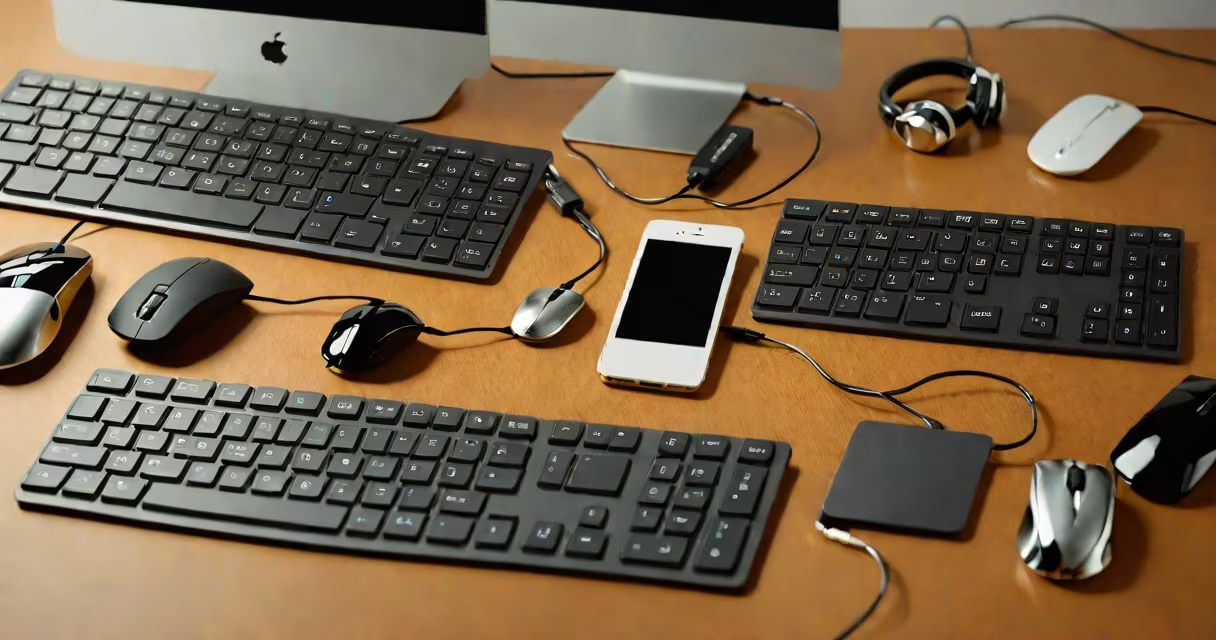
pictures of input devices show physical tools that send data to computers, such as keyboards, mice, touchscreens, and scanners. These tools convert human actions into digital signals for processing.
Input devices capture user intent through physical interaction. A keyboard translates key presses into text or commands. A mouse moves a cursor and selects items on screen. Touchscreens detect finger taps and swipes. Scanners digitize paper documents by capturing visual data.
Each device uses sensors or switches to detect changes. A keyboard uses mechanical or membrane switches under keys. A mouse uses optical or laser tracking to measure movement. Touchscreens rely on capacitive layers that sense electrical changes from skin contact. Scanners use light arrays and image sensors to read pages.
When you press a key on a keyboard, a switch closes, sending a signal to the computer's processor. The operating system maps the key press to a character or function. This process happens in milliseconds. The same applies to clicking a mouse button-pressure triggers a microswitch that sends a binary signal.
Touchscreens work differently. They use a grid of tiny electrodes beneath the glass surface. When your finger touches the screen, it alters the local electric field. The controller measures the change at multiple points and calculates the touch location. This allows multi-touch gestures like pinch-to-zoom.
Scanners use a linear range of red, green, and blue LEDs or lasers. As the scanner moves across a page, light reflects off the surface. Sensors measure intensity and color at thousands of points per inch. Software then converts this data into a digital image file.
Input devices fall into categories based on how they receive input:
| Type | Examples | Primary Function | Common Use Cases |
|---|---|---|---|
| Text Entry | Keyboard, virtual keyboard | Enter characters and commands | Typing, coding, gaming |
| Pointing | Mice, trackballs, touchpads | Move cursor and select items | Navigation, graphic design |
| Gesture & Touch | Touchscreen, stylus, motion controllers | Interact via touch or motion | Mobile apps, interactive kiosks |
| Image Capture | Scanner, webcam, digital camera | Digitize visual content | Document management, video calls |
Some devices combine functions. A touchscreen laptop uses both touch and keyboard input. A graphics tablet lets users draw with a stylus while also supporting button clicks.
Input devices are essential in offices, homes, schools, and industrial settings. A retail cashier uses a barcode scanner to enter product data quickly. A designer uses a graphics tablet to sketch digitally with pressure sensitivity. A student uses a keyboard and mouse to write essays and complete online assignments.
Accessibility matters. People with motor impairments may use alternative input methods like voice recognition software or eye-tracking systems. These tools allow control without traditional hand movements.
According to the W3C Web Accessibility Initiative, input alternatives must support diverse user needs. For example, screen readers interpret keyboard navigation for visually impaired users. Voice commands let people operate computers without touching any hardware.
Many assume all input devices require direct physical contact. That's false. Voice assistants like Siri or Alexa accept spoken commands without touching anything. They use microphones and speech recognition algorithms to process input.
Another misconception is that input devices only work with desktops. Modern smartphones and tablets rely entirely on touch-based input. A single tap can open an app, scroll a page, or take a photo. These devices have no physical keyboard or mouse.
Some users confuse input devices with output devices. Output devices display or produce results-monitors, speakers, printers. Input devices do the opposite: they provide data to the system. A printer receives data from the computer and prints it. A keyboard sends data to the computer.
I once tested a tactile keyboard with raised lettering for blind users. The device used vibration feedback to confirm key presses. It wasn't just about typing-it was about making digital input accessible. That project showed me that input isn't just about speed or accuracy. It's about inclusion.
Not all input devices are designed for humans. Industrial robots use proximity sensors, infrared detectors, and force feedback systems to interact with their environment. These tools act as input devices for machines, enabling autonomous decision-making.
For example, a warehouse robot uses LiDAR (Light Detection and Ranging) to map its surroundings. The laser pulses bounce off walls and shelves, creating a 3D model. This data feeds into the robot's navigation system. The LiDAR sensor acts as an input device-even though no person is involved.
Even a simple webcam counts as an input device. It captures video frames and sends them to software for analysis. Security systems use webcams to detect motion. Video conferencing apps use them to stream live footage. The device doesn't respond to user commands-it provides raw data for further processing.
Imagine scanning a handwritten letter using a flatbed scanner:
This entire workflow relies on a single input device-the scanner. Without it, the letter would remain physical, unreadable by digital systems.
Understanding pictures of input devices helps clarify how we interact with technology. Whether it's typing a message, drawing a sketch, or scanning a receipt, input devices bridge human action and machine response.