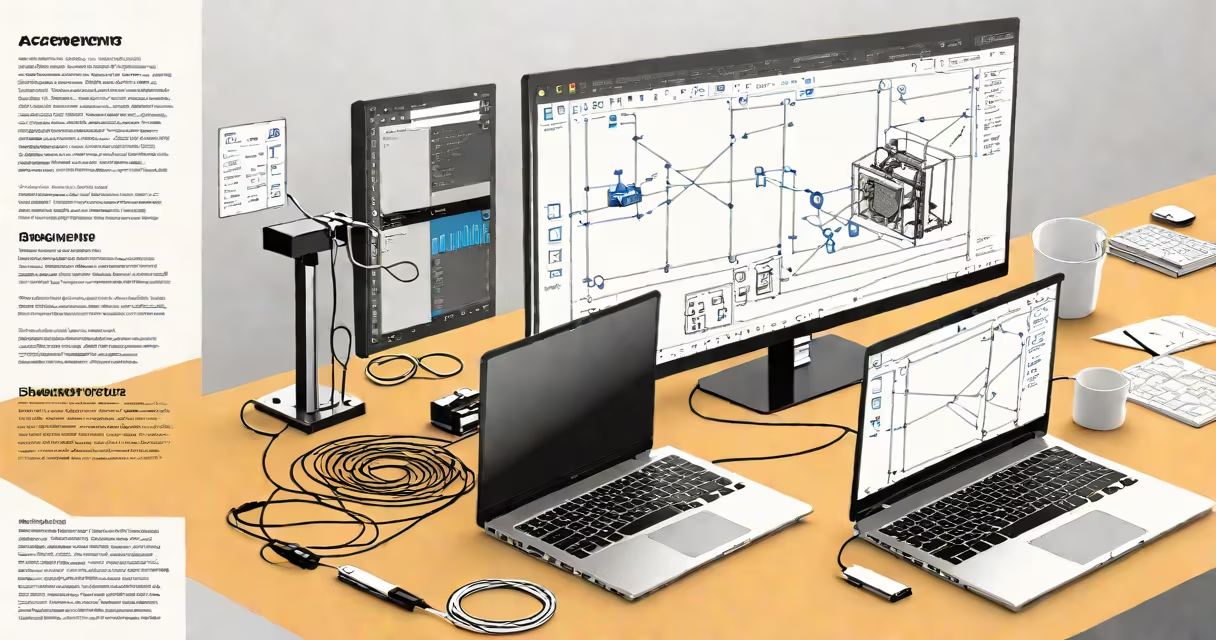
Accessing a remote desktop over the internet means connecting to a computer's graphical interface from another device across a network, enabling control as if sitting in front of it. This requires a stable internet connection, configured network settings, and secure authentication. The process supports file transfers, application execution, and system administration from afar.
Remote desktop access works through a client-server model. The host machine runs a remote desktop service (like Windows Remote Desktop or third-party software), listens for incoming connections, and authenticates users. The client device sends input commands-mouse movements, keystrokes-and receives screen updates in real time. Data travels encrypted over TCP port 3389 (for Windows RDP) or custom ports depending on the tool.
For example, a technician in New York can troubleshoot a server in Los Angeles by logging into its desktop via a remote connection. The screen appears on their monitor, and they can install software, restart services, or view logs-all without physical presence. This capability is essential for IT support, remote work, and system maintenance.
The connection begins when the client initiates a request to the host's public IP address and designated port. If the host is behind a router, port forwarding must map external traffic to the internal IP and port. Without proper configuration, the connection fails due to NAT traversal issues.
Once the connection is established, the host encrypts screen pixels and sends them to the client using a protocol such as RDP (Remote Desktop Protocol), VNC (Virtual Network Computing), or proprietary systems like TeamViewer. The client decodes the stream and renders it locally. Input actions are reversed: keyboard and mouse events travel, which processes them as if generated locally.
A real-world example: A university lab uses a Linux workstation running VNC Server. A student connects from home using a VNC client on their tablet. After entering credentials, they see the desktop environment and run MATLAB simulations remotely. The entire session operates over port 5900, secured with password authentication and TLS encryption.
Different tools serve distinct use cases based on platform, security level, and ease of setup. The table below compares common options:
| Tool | Platform Support | Security Features | Use Case |
|---|---|---|---|
| Windows Remote Desktop (RDP) | Windows, macOS, Linux (via client) | NTLMv2, TLS 1.2+, NLA | Internal corporate networks, domain-joined machines |
| Chrome Remote Desktop | Any OS with Chrome browser | Two-factor authentication, end-to-end encryption | Personal use, quick access, unattended sessions |
| TeamViewer | Windows, macOS, Linux, Android, iOS | End-to-end encryption, session passwords | IT support, cross-platform troubleshooting |
| OpenSSH (via X11 forwarding) | Linux, macOS, Windows (WSL) | Public key authentication, encrypted tunnel | Command-line access, developers, secure shell environments |
Each tool balances usability and security. For instance, RDP offers high performance but exposes systems to brute-force attacks if not protected. Chrome Remote Desktop simplifies setup but relies on Google's infrastructure and account linking.
Many assume that "remote desktop" implies unrestricted access. In reality, permissions are controlled by user accounts and group policies. A standard user cannot modify system settings unless granted elevated rights.
A critical error is exposing RDP directly to the internet without a firewall or VPN. According to Microsoft's Security Response Center, unpatched RDP servers were involved in 67% of ransomware incidents in 2023. Attackers scan public IPs for open port 3389 and exploit weak passwords or outdated patches.
Another misconception: that all remote access tools are equally secure. Chrome Remote Desktop uses end-to-end encryption, but the session is tied to a Google account. If the account is compromised, attackers gain access to all linked devices. This differs from self-hosted solutions like FreeRDP, where encryption keys remain under user control.
Never expose remote desktop services directly to the internet without additional safeguards. Use a virtual private network (VPN) to create a secure tunnel. Even then, enforce multi-factor authentication (MFA).
I once set up a Raspberry Pi as a remote access gateway for a small business. I configured OpenSSH with key-based login and restricted access via fail2ban. All remote desktop sessions went through this secure SSH tunnel. This reduced attack surface compared to opening port 3389 on the router.
Always update the operating system and remote desktop software. Disable unused protocols. Limit user access to only necessary functions. Audit logs regularly to detect unusual activity.
When handling sensitive data, avoid sharing screens with untrusted parties. Use screen-sharing features only within trusted environments. Always disconnect after use.
Understanding how to access remote desktop over internet correctly reduces risk and improves productivity. Choose tools based on your threat model, not convenience alone.