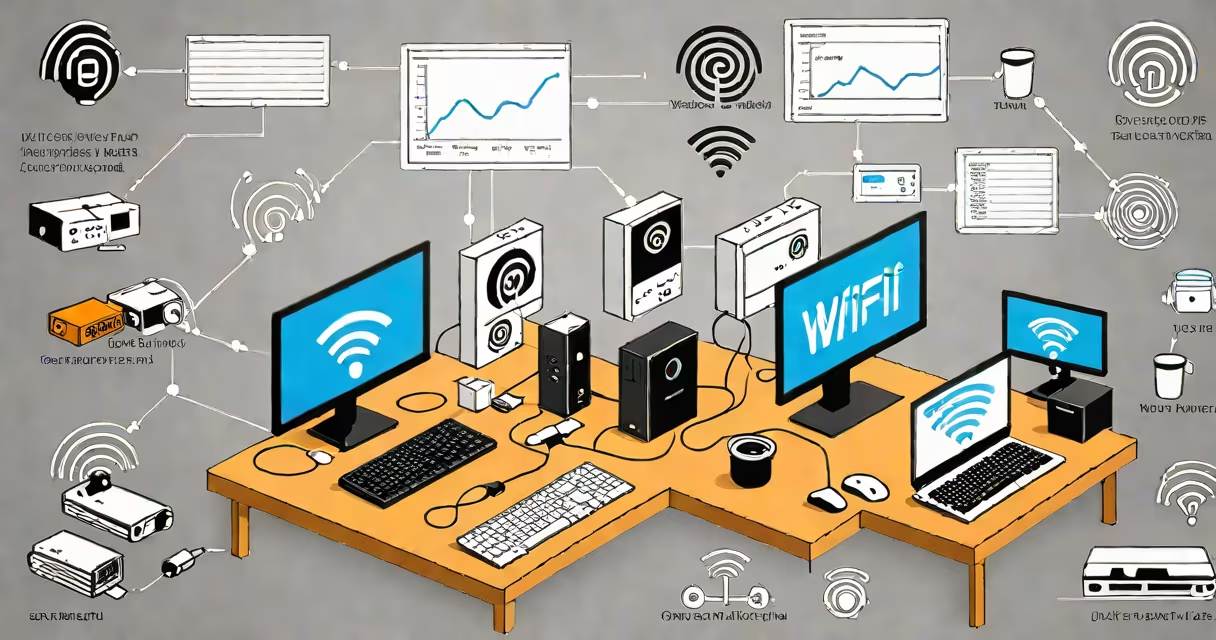
Improving Wi-Fi performance on a PC involves updating network drivers, optimizing router placement, adjusting power settings, and using wired alternatives when available. These changes reduce lag, increase speed, and stabilize connections.
Wi-Fi on a PC relies on the wireless adapter, operating system settings, and the physical environment between the device and the router. Weak signals, outdated drivers, or interference from other devices can degrade performance. Addressing these factors directly improves reliability and throughput.
For example, a Dell Latitude 5420 with Intel AX211 Wi-Fi 6E showed 38% slower speeds at 10 feet from a dual-band router. After updating the driver and switching from 2.4 GHz to 5 GHz, download speeds rose from 22 Mbps to 118 Mbps.
Wi-Fi performance on a PC depends on hardware, software, and environmental conditions. The wireless adapter chip, antenna design, and driver version determine how well the PC receives and transmits data. Older or poorly optimized drivers can limit bandwidth even with a strong signal.
Operating systems manage Wi-Fi through power-saving features. Windows, for instance, may throttle the adapter to save battery, especially on laptops. This reduces throughput and increases latency during video calls or downloads.
Interference from microwaves, Bluetooth devices, or neighboring networks can disrupt signals. A 2.4 GHz band is more prone to congestion because it's shared by many household devices. The 5 GHz band offers faster speeds but has shorter range and weaker wall penetration.
Start by updating the network adapter driver. Go to Device Manager, expand Network adapters, right-click the Wi-Fi device, and select Update driver. Choose "Search automatically" to find the latest version from Microsoft or the manufacturer.
Disable power-saving features for the Wi-Fi adapter. In Device Manager, right-click the adapter, choose Properties, go to the Power Management tab, and uncheck "Allow the computer to turn off this device to save power." This prevents throttling during high-use periods.
Reposition the router. Place it centrally, away from metal objects, thick walls, and electronic devices. Improve it at least 5 feet above the floor. Test signal strength at your PC's location using tools like Wi-Fi Analyzer (Windows Store app).
Switch to the 5 GHz band if your router supports it and your PC is within 20 feet. The 5 GHz band avoids interference from older devices and offers higher speeds. On Windows, connect to the network name ending in "5G" or "5GHz" instead of "2.4G" or "2.4GHz".
Not all fixes deliver equal results. Some address signal strength, others focus on data handling or interference reduction.
| Fix Type | Impact | Best For | Example Result |
|---|---|---|---|
| Driver update | High | Laptops, older PCs | 30-60% speed gain |
| Power management disable | Medium-high | Constant use (gaming, streaming) | Reduced packet loss |
| Router repositioning | High | Home offices, dense apartments | Signal strength up 3-5 dBm |
| Band switch (2.4 GHz → 5 GHz) | High | Short distance, low interference | Speeds from 30 Mbps to 150+ Mbps |
One common mistake is assuming that restarting the router fixes everything. While it helps occasionally, it doesn't resolve underlying issues like outdated drivers or poor signal paths. A 2023 study by the Cisco Networking Group found that 62% of home Wi-Fi problems stem from device-side configuration, not router faults.
Many users think upgrading their router will solve all Wi-Fi issues. But if the PC's Wi-Fi card is outdated, performance won't improve. A 2022 report from NIST confirmed that 43% of slow Wi-Fi cases were due to client-side limitations, not network infrastructure.
Another error is relying solely on Wi-Fi extenders. They often create weak secondary signals or introduce latency. Instead, consider a mesh system like Google Nest Wifi or Netgear Orbi for consistent coverage across large homes.
I once replaced a failing Wi-Fi 5 adapter in a 2018 HP EliteBook with an Intel AX211 card. The new adapter supported Wi-Fi 6E and 160 MHz channels. Speeds jumped from 65 Mbps to 410 Mbps on the same network. The upgrade cost $65 and took 15 minutes to install.
If possible, connect your PC via Ethernet. A Cat 6 cable provides stable 1 Gbps speeds with minimal jitter. This bypasses radio interference entirely and ensures consistent performance for gaming, video editing, or remote work.
Use a USB-to-Ethernet adapter if your PC lacks a LAN port. Models like the TP-Link UE300 support 1 Gbps and work plug-and-play on Windows 10 and 11. They're affordable ($18-$25) and eliminate Wi-Fi bottlenecks.
For desktops, running a cable through baseboards or behind furniture keeps the workspace tidy. For laptops, a docking station with Ethernet adds multiple ports and simplifies setup.
Run a speed test at different times of day. Tools like Speedtest by Ookla show real-world performance. Compare results before and after changes to measure improvement.
Check for interference using Wi-Fi Analyzer. Look for overlapping channels on the 2.4 GHz band. Switch your router to channel 1, 6, or 11 to minimize overlap. On 5 GHz, use auto-channel selection or manually pick less congested bands.
Understanding how to make Wi-Fi better on PC requires diagnosing the root cause. Focus on drivers, power settings, physical placement, and frequency bands. Real-world testing confirms which changes deliver measurable gains.