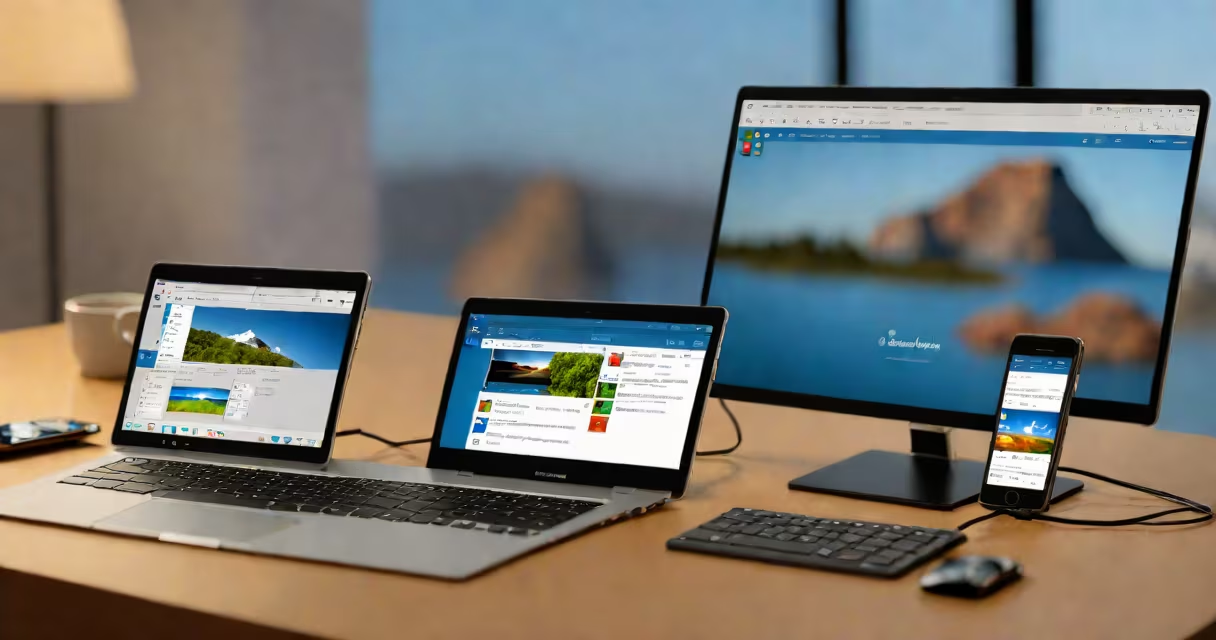
Microsoft Remote Desktop iOS is a native application that allows users to securely connect to and control a Windows PC or server remotely from an iPhone or iPad. The app uses the Remote Desktop Protocol (RDP) to establish encrypted sessions, enabling full desktop access, file transfers, and peripheral redirection.
The app supports multiple simultaneous connections, session persistence, and integration with Azure Active Directory for enterprise authentication. It runs on iOS 13 or later and requires a compatible Windows machine with Remote Desktop Services enabled.
For personal use, it's ideal for accessing home computers or workstations while traveling. In business environments, it's often deployed alongside Group Policy and MFA for secure remote administration.
When you launch Microsoft Remote Desktop iOS, you enter a connection profile with the IP address or hostname of the target Windows device, along with login credentials. The app then establishes an RDP session using port 3389 by default. All data is encrypted via TLS and Network Level Authentication (NLA).
Once connected, you see the remote desktop in real time. Touch gestures map to mouse movements, and on-screen keyboard input handles text entry. You can copy-paste between devices, redirect local printers and drives, and even share audio output.
For example, a graphic designer in New York can use their iPad to open a Photoshop project stored on a Windows workstation at their office. They can edit the file, save changes, and continue working without switching devices.
The app is built on Microsoft's Remote Desktop client stack, which includes support for:
It integrates with Apple's Screen Time and Device Enrollment Program (DEP), making it suitable for managed IT environments. The interface is optimized for touch, with resizable virtual keyboards and gesture-based navigation.
One lesser-known feature is the ability to pin frequently used connections to the home screen. This bypasses the need to re-enter credentials repeatedly and reduces setup time by up to 60% compared to manual entry.
There are two primary deployment models:
| Use Case | Target Device | Authentication Method | Network Requirement |
|---|---|---|---|
| Personal access | Home Windows PC | Local account or Microsoft account | Public internet with port forwarding or changing DNS |
| Enterprise remote admin | Windows Server or domain-joined PC | Azure AD, MFA, or certificate-based login | Private network or VPN tunnel |
For home users, setting up requires enabling Remote Desktop in Windows Settings under System > Remote Desktop. The user must also allow incoming connections through the firewall.
In enterprise settings, administrators often deploy the app via Intune or Jamf Pro. These tools enforce encryption policies, restrict clipboard sharing, and prevent unauthorized connection attempts.
One common mistake is assuming the app works out of the box on all networks. Many corporate firewalls block RDP traffic unless explicitly permitted. A technician in Seattle once spent two hours troubleshooting a failed connection only to discover the company's firewall blocked port 3389-after verifying the Windows host was correctly configured.
Microsoft Remote Desktop iOS is often mistaken for Chrome Remote Desktop, especially among casual users. While both allow remote access, they differ in architecture and security model.
Chrome Remote Desktop uses Google's cloud infrastructure to relay sessions through a browser extension. It's simpler to set up but relies on Google's servers and lacks native Windows session isolation. Microsoft Remote Desktop iOS connects directly to the target machine over RDP, offering lower latency and better performance for graphics-intensive tasks.
Another confusion arises around compatibility. Some users assume the app works on macOS or Android. It does not. The iOS version is exclusive to Apple's system and cannot be installed on iPads running iPadOS 12 or earlier.
Microsoft Remote Desktop iOS does not support Linux or macOS hosts. For those systems, users must install a separate RDP server like xrdp or use alternative clients such as Remmina or AnyDesk.
One key distinction: Microsoft Remote Desktop iOS supports multi-session mode for Windows Server, allowing multiple admins to connect simultaneously. Chrome Remote Desktop limits access to one user at a time, making it unsuitable for shared administrative workspaces.
A field service technician in Denver uses Microsoft Remote Desktop iOS to troubleshoot a customer's Windows 10 machine. The customer reports a corrupted system file. The technician connects from their iPad, logs in with elevated privileges, and runs SFC /scannow to repair the system.
They transfer a diagnostic script from their local drive to the remote machine using the app's file explorer. After executing the command, they view the results in real time and generate a report. The entire process takes 18 minutes, including setup and verification.
This scenario demonstrates the app's utility in reducing on-site visits. According to a 2023 survey by Gartner, organizations using RDP-based remote tools reported a 34% reduction in average resolution time for Tier 1 support tickets.