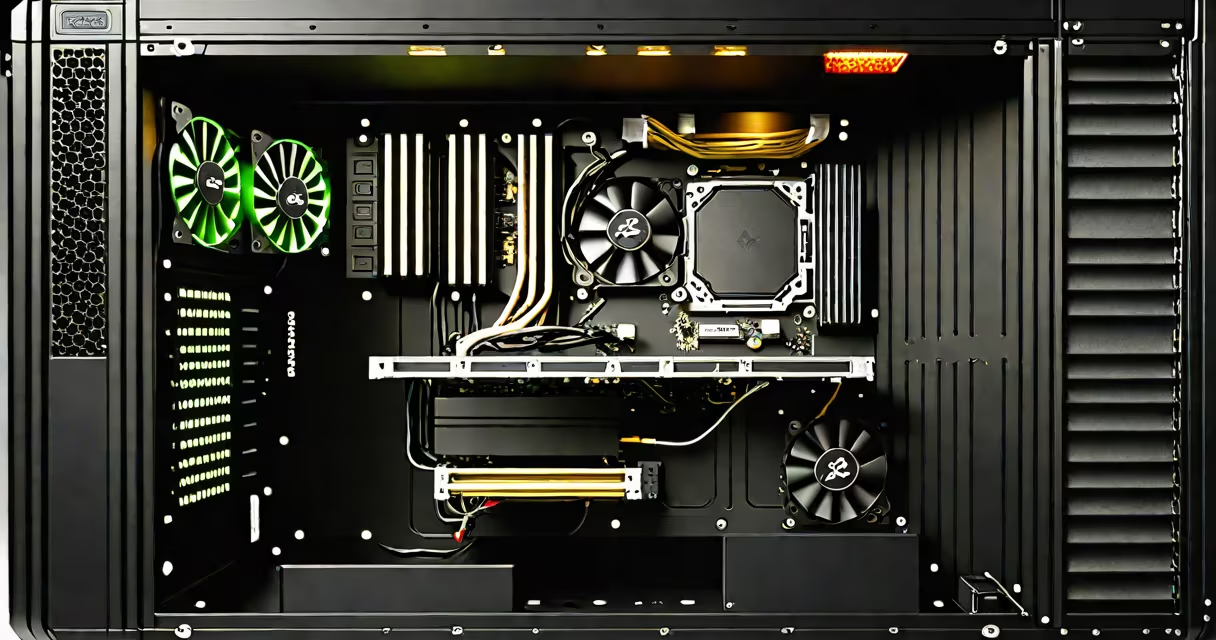
A pc build configuration is the complete set of hardware components and their compatibility relationships assembled into a functional desktop computer. It includes the CPU, GPU, motherboard, RAM, storage, power supply, and case, selected to work together under a single performance and budget goal.
Each component must meet technical requirements: the CPU socket must match the motherboard, the GPU must fit the case and draw less power than the PSU, and RAM must support the motherboard's speed and channel count. A correct configuration avoids boot failures, instability, and hardware damage.
For example, a Ryzen 5 5600X requires an AM4 socket motherboard. Installing it on an AM5 board fails due to physical and electrical mismatch. The same applies to RAM: DDR4 modules won't work on a DDR5 motherboard. These mismatches cause immediate failure during startup.
The configuration process begins with defining the intended use: gaming, video editing, software development, or general productivity. Performance needs dictate component choices. A 4K gaming rig demands a high-end GPU like the RTX 4090 and fast DDR5 RAM, while a home office machine may run well on integrated graphics and 16GB of DDR4.
Compatibility is enforced through physical, electrical, and protocol standards. The motherboard's PCIe slot version determines GPU bandwidth. A PCIe 4.0 x16 slot supports faster data transfer than PCIe 3.0. The power supply must deliver enough wattage and have the correct connectors-such as 8-pin EPS for the CPU and 6/8-pin PCIe for the GPU.
Build configurations fall into three categories based on purpose and complexity:
| Type | Use Case | Typical Components | Example Configuration |
|---|---|---|---|
| Entry-Level | Web browsing, office tasks, light media | Intel Core i3 or AMD Ryzen 3, 8-16GB DDR4, 256GB SSD, integrated graphics | Ryzen 3 3200G + 16GB RAM + 500GB SSD + ATX case |
| Mid-Range | Gaming at 1080p, content creation, multitasking | Intel Core i5 or AMD Ryzen 5, 16-32GB DDR4/DDR5, 1TB NVMe SSD, dedicated GPU | Ryzen 5 5600X + 32GB DDR4 + RTX 3060 + 1TB SSD |
| High-End | 4K gaming, 3D rendering, AI workloads | Intel Core i9 or AMD Ryzen 9, 32-64GB DDR5, dual 1TB NVMe SSDs, RTX 4090 | Ryzen 9 7950X + 64GB DDR5 + RTX 4090 + 2TB NVMe + 1200W PSU |
Entry-level builds prioritize cost efficiency. They often use integrated graphics and lower-tier components. Mid-range systems balance price and performance for mainstream users. High-end builds maximize throughput and minimize bottlenecks, requiring premium cooling and power delivery.
Some configurations emphasize size and noise. Mini-ITX builds pack everything into small cases like the Fractal Design Node 304. These require compact motherboards, low-profile coolers, and smaller PSUs. Despite size, they can achieve high performance with careful part selection.
Many assume that higher clock speeds always mean better performance. A 4.5GHz CPU doesn't outperform a 3.8GHz model if the latter has more cores and better instruction efficiency. The Intel Core i9-13900K runs at 5.8GHz boost but uses 24 cores-more threads than a 6-core 4.5GHz chip. Real-world performance depends on workload, not just frequency.
Another error is ignoring thermal design. A high-wattage GPU like the RTX 4080 generates 320 watts of heat. Without proper airflow and a quality case fan setup, temperatures exceed safe limits. Overheating causes throttling, reduced frame rates, and long-term component degradation.
I once built a system using a 650W PSU with a 3080 GPU. The system booted but crashed under load. Testing revealed the PSU's 12V rail delivered only 50A, below the 3080's peak requirement. Replacing it with a 750W 80 Plus Gold unit resolved the issue. This shows that wattage alone isn't sufficient-efficiency rating and rail capacity matter.
Always verify part dimensions. A 360mm radiator won't fit in a case with only 240mm clearance. Check the motherboard's expansion slot layout before buying a GPU. Some cards are too wide for slim cases. Measure your space or consult the case manual before purchasing.
Finally, test the build before installing the operating system. Power on the system with only the CPU, RAM, GPU, and PSU connected. If the POST screen appears and fans spin, the core components are working. Only then install the OS and drivers.
Understanding pc build configuration ensures reliability, longevity, and performance. Avoid assumptions about specs and always validate compatibility. A well-planned build reduces risk and saves time and money.