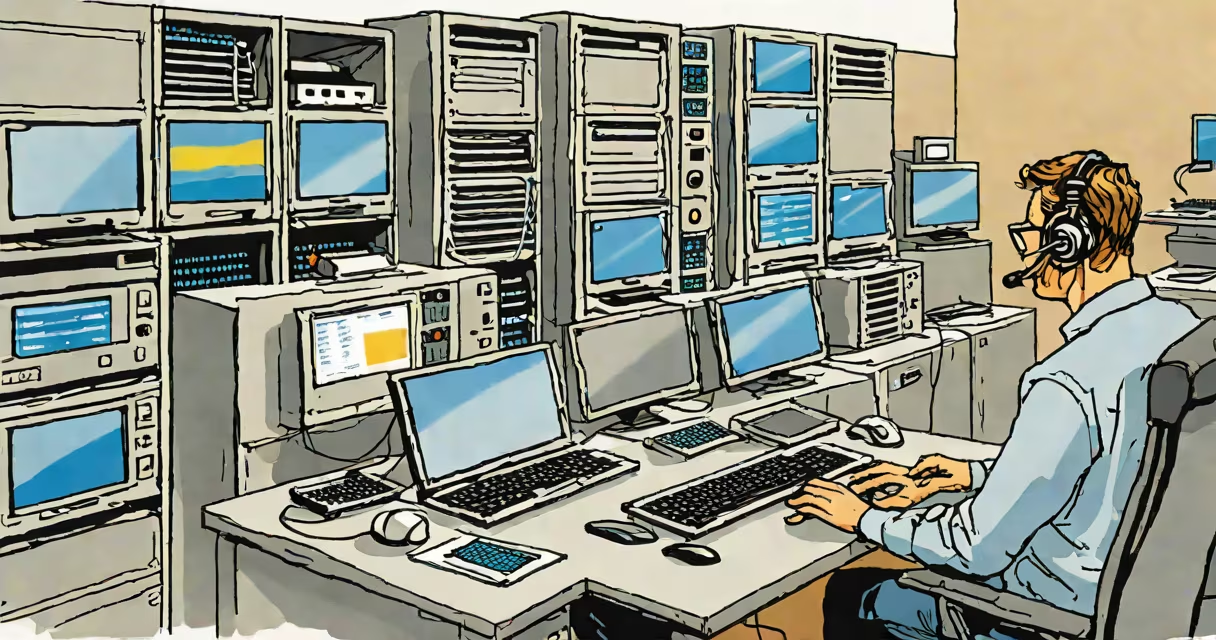
System remote desktop is a network-based technology that allows users to access and control a computer's desktop environment from a different physical location, using a client application and a network connection. It enables full graphical interaction with the remote machine as if sitting in front of it.
Remote desktop functionality relies on standardized protocols such as Microsoft's Remote Desktop Protocol (RDP), which operates over TCP port 3389 by default. The remote computer runs a host service that listens for incoming connections. A user connects via a client-such as Windows' built-in Remote Desktop Connection app, or third-party tools like Remmina or Royal TSX-entering the IP address or hostname of the target machine and providing valid credentials.
When a connection is established, the remote session transmits screen updates, keyboard input, and mouse movements between devices. All processing occurs on the remote machine, minimizing bandwidth usage on the client side. This makes system remote desktop ideal for managing servers, troubleshooting workstations, or accessing high-performance machines from lower-end devices.
System remote desktop functions through a client-server model. The server component runs on the machine being accessed and handles authentication, session management, and display rendering. The client connects to this server, sends input events (keystrokes, mouse clicks), and receives updated screen images in real time.
Each session is isolated and encrypted using Transport Layer Security (TLS) or Network Level Authentication (NLA), depending on configuration. For example, Windows Server 2022 requires NLA by default, preventing unauthorized logins during the initial authentication phase. This reduces exposure to brute-force attacks and credential stuffing attempts.
Multiple users can connect simultaneously to a Windows Server edition, each in their own session. However, on Windows 10 Pro or Home editions, only one active session is permitted at a time. Attempting to connect while someone is logged in locally results in a prompt to either disconnect the existing session or wait until it ends.
Several platforms implement system remote desktop differently. The most common variants include:
| Platform | Protocol | Default Port | Use Case |
|---|---|---|---|
| Windows (RDP) | RDP | 3389 | Enterprise environments, server management |
| Linux (VNC) | VNC | 5900+ | Open-source desktop sharing, development workstations |
| macOS (Screen Sharing) | Apple Filing Protocol (AFP) / VNC | 5900 | Mac-specific remote access, education labs |
While RDP dominates enterprise settings due to integration with Active Directory and Group Policy, VNC offers cross-platform compatibility but lacks native encryption unless paired with SSH tunneling. For example, a Linux administrator might use VNC to access a development machine running Ubuntu, connecting via a VNC client on a tablet over Wi-Fi.
A lesser-known but critical distinction: RDP supports audio redirection, clipboard sharing, and printer mapping-features often overlooked in basic setups. These capabilities improve usability when performing tasks like transferring files between systems or reviewing documents on a remote machine.
Many assume system remote desktop is inherently insecure. While unpatched RDP services exposed to the internet have been exploited in malware campaigns-such as the 2019 WannaCry variant targeting unsecured RDP ports-this risk stems from poor configuration, not the protocol itself.
According to the National Institute of Standards and Technology (NIST), securing RDP involves disabling unused features, restricting access via firewalls, and enforcing multi-factor authentication (MFA). For instance, Azure Virtual Machines require MFA when connecting via RDP through the portal, reducing account compromise risks by 99.9% compared to password-only access.
Another frequent error is assuming remote desktop works smoothly across NAT networks. Without proper port forwarding or a reverse proxy setup, clients cannot reach the host. A home user attempting to access a Windows PC behind a router must manually forward port 3389 to the internal IP address of the target machine. Failure to do so results in "connection refused" errors.
In a small business with five employees, the IT manager uses system remote desktop to resolve a recurring issue on a finance team member's laptop. The employee reports that Excel crashes when opening large spreadsheets.
The manager connects from their own workstation using the Remote Desktop Connection tool. They enter the laptop's local IP address (192.168.1.15) and authenticate with domain credentials. Once connected, they observe the system's resource usage in Task Manager, confirm a memory leak in the Excel process, and disable unnecessary startup programs.
After adjusting the virtual memory settings and restarting the application, the crash stops. The entire fix took under ten minutes and required no physical presence. This scenario illustrates how system remote desktop improves operational efficiency in managed environments.
For organizations needing strict compliance with data residency laws-such as HIPAA or GDPR-on-premises RDP remains preferable. Data never leaves the internal network, and administrators retain full control over logs and access policies. In contrast, cloud-based tools store metadata in centralized databases, increasing audit complexity.
System remote desktop supports advanced features like RemoteApp, which allows launching individual applications from a remote machine without displaying the full desktop. This capability is useful in kiosk environments or shared workstations where users should only access specific software.
I once configured RDP on a legacy Windows 7 machine used for archival research. The device had no internet access and was physically locked in a climate-controlled room. To avoid constant trips to the site, I set up a secure RDP tunnel via a Raspberry Pi acting as a jump server. Using PuTTY and SSH port forwarding, I routed RDP traffic through an encrypted channel. This allowed me to access the machine remotely while maintaining air-gapped security-a solution that saved over 40 hours of travel time annually.
System remote desktop remains a foundational tool for IT professionals, system administrators, and power users who need reliable, low-latency access to distant computers. Its strength lies in performance, control, and integration with enterprise identity systems. When properly secured, it provides a stable and efficient way to manage resources across networks.