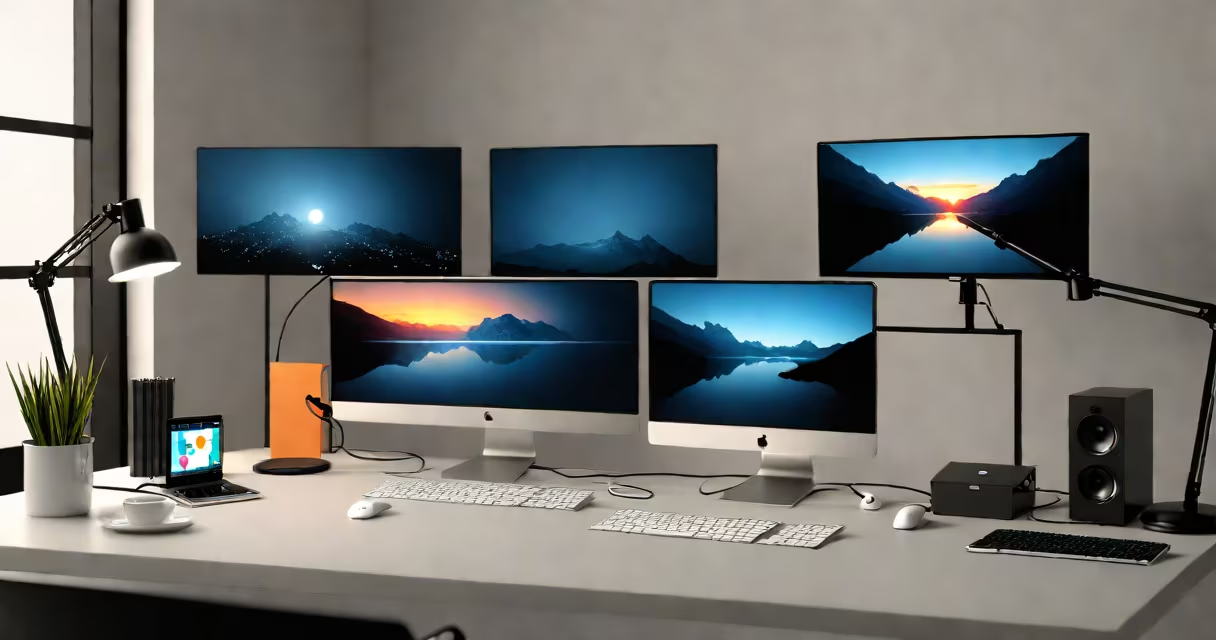
A dual monitor setup with laptop uses one laptop and two external displays to extend or duplicate the desktop environment, increasing screen real estate for multitasking. This configuration improves workflow efficiency by allowing users to run multiple applications simultaneously across separate screens.
Most laptops support dual external monitors through HDMI, DisplayPort, USB-C, or Thunderbolt ports. The actual capability depends on the laptop's graphics processor and port specifications. For example, a MacBook Pro with two Thunderbolt 4 ports can drive two 4K displays at 60Hz. A Windows laptop with a single HDMI 2.0 port may only support one 4K output unless using a dock or adapter.
To set up a dual monitor system, connect both external monitors to the laptop using compatible cables or adapters. Once connected, access the display settings via the operating system's control panel. On Windows, press Win + P to choose between extending, duplicating, or showing only one screen. On macOS, go to System Settings > Displays and select "Arrange" to position the screens relative to each other.
The laptop's GPU sends video signals to each external monitor via the selected interface. The operating system treats each monitor as a separate display zone. Users can drag windows between screens, assign specific apps to certain displays, and adjust resolution and refresh rate independently per monitor.
For optimal performance, ensure the laptop's graphics driver is updated. Older integrated GPUs like Intel UHD Graphics 620 may struggle with high-resolution outputs beyond 1080p on both monitors. Dedicated GPUs such as NVIDIA GeForce RTX 3050 or AMD Radeon RX 6600M handle dual 1440p displays smoothly.
Some users rely on docking stations to simplify connections. A Dell D6000 dock supports two 4K displays at 60Hz, plus USB peripherals and charging-all through a single USB-C cable. This reduces cable clutter and simplifies setup, especially during travel or office switching.
There are three primary ways to arrange dual monitors:
| Mode | Description | Best For |
|---|---|---|
| Extended Desktop | Each monitor shows different content. The desktop spans both screens. | Programming, design work, financial analysis |
| Duplicate | Both screens show identical content. | Presentations, training sessions |
| Second Screen Only | Laptop screen turns off; only the external monitors are active. | Using a laptop as a secondary device |
Extended mode is most common. It allows splitting tasks-e.g., coding on one screen and documentation on the other. This setup increases focus and reduces window switching.
Many users assume their laptop can drive two external monitors out of the box. Not all models support dual external outputs. Check the manufacturer's specifications. For example, the Lenovo ThinkPad X1 Carbon Gen 9 lists support for one external display via HDMI and one via USB-C, but not two simultaneous 4K displays.
Another frequent error is using low-quality HDMI or USB-C cables. A standard HDMI 1.4 cable may limit resolution to 1080p at 60Hz. For 4K at 60Hz, use HDMI 2.0 or higher. Similarly, a USB-C to HDMI adapter rated for 1080p won't deliver 4K output. Always verify cable and adapter specs match the desired resolution and refresh rate.
A real-world example: A freelance graphic designer using a 2020 MacBook Air with a USB-C to HDMI adapter experienced flickering on the second monitor. After replacing the adapter with a certified Apple USB-C Digital AV Multiport Adapter, the issue resolved. The original adapter lacked proper power delivery and bandwidth management.
People sometimes mistake a dual monitor setup with laptop for a multi-display workstation using a desktop PC. While both involve multiple screens, desktop systems typically have dedicated graphics cards and more PCIe lanes, enabling higher resolutions and frame rates. Laptops are constrained by thermal design and power limits, which affect sustained performance under load.
Another confusion arises around "mirroring." Mirroring duplicates the same image across both screens. This is useful for presentations but inefficient for productivity. Extended mode offers greater utility for tasks requiring split attention.
One non-obvious distinction: Some laptops disable external display output when the lid is closed. This behavior varies by model and OS setting. On Windows, go to Power Options > Additional Power Settings > Choose what closing the lid does. Select "Do nothing" to keep external monitors active when the lid is shut. On macOS, close the lid only if the laptop is connected to power and an external display.
I built a dual monitor setup for remote work using a Dell Latitude 7420. The laptop has one HDMI 1.4 port and one USB-C port. I used a USB-C to HDMI adapter and a passive HDMI splitter to connect two 1080p monitors. The setup failed initially-the second monitor showed a black screen. After testing each cable separately, I discovered the splitter was not powered. Replacing it with an active HDMI splitter solved the issue. The lesson: passive splitters don't always work reliably with laptops.
Studies show that dual monitors increase productivity by up to 30% in tasks involving data entry, coding, and document review. According to a 2021 study by the University of Utah, participants using dual screens completed tasks 10% faster than those using a single screen. Another report from Microsoft found that employees using extended desktops reported 25% less mental fatigue during long work sessions.
For professionals in finance, software development, or content creation, a dual monitor setup with laptop reduces context switching. Instead of alt-tabbing between browser tabs and spreadsheets, users can keep reference materials on one screen and editing tools on another.
When choosing monitors, prioritize resolution and color accuracy. A 27-inch 1440p monitor with 99% sRGB coverage delivers sharp visuals and consistent colors-critical for photo editing or video production. Avoid budget monitors with poor contrast ratios; they degrade visibility in bright rooms.
For users who frequently switch between home and office setups, consider a portable dock. The CalDigit TS4 supports dual 4K displays, multiple USB devices, Ethernet, and fast charging-all from a single connection. It reduces setup time from 10 minutes to under a minute.