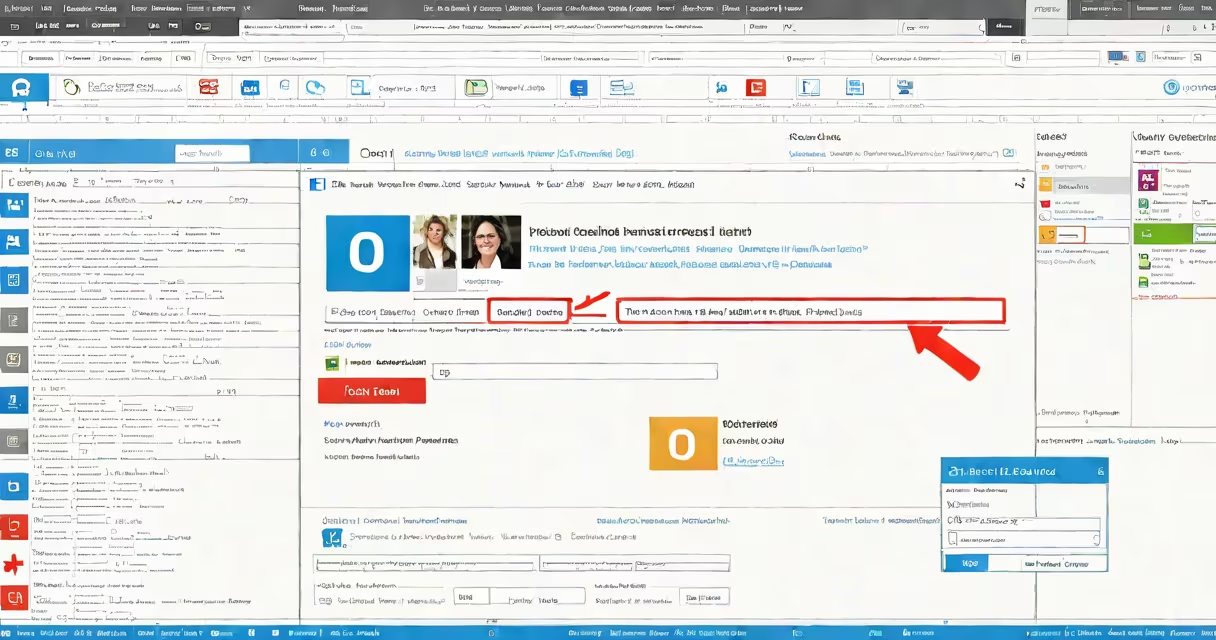
Changing your Outlook email involves updating your account's display name, primary email address, or associated account settings. You can modify these through the desktop app, Outlook on the web, or mobile apps depending on your setup.
To change your display name-the name others see when you send emails-open Outlook, go to File > Account Settings > Account Settings, select your email account, then click Change. Enter the new name in the "User Name" field and confirm. This update appears in outgoing messages immediately.
For changing your actual email address (e.g., from [email protected] to [email protected]), you must remove the old account and add a new one. Outlook doesn't allow direct replacement of the primary email address within the same profile. The process varies slightly between desktop and web versions.
In the Outlook desktop client (Windows), access Account Settings via File > Account Settings > Account Settings. Select the email account and click Change. The "User Name" field controls the display name shown in the "From" field. Enter the new name and click OK.
If you need to switch to a different email address entirely, click "Remove" under the account list, then click "Add Account." Enter the new email and password. Outlook will verify credentials and sync folders. After setup, set the new account as default in File > Options > Mail > Send/Receive.
I updated my display name from "Alex Turner" to "A. Turner" during a job transition. The change applied instantly across all sent messages. No additional configuration was needed-Outlook handles synchronization automatically.
Log in to Outlook at outlook.live.com. Click the gear icon in the upper-right corner, then select "View all Outlook settings." Go to "Mail" > "Compose and reply," and edit the "Display name" field. Save changes. This updates the sender name in all future messages.
To change the actual email address used for sending, you must sign out and sign back in with the new account. Outlook on the web does not support switching the primary email address while logged in. If you're using a Microsoft 365 work or school account, contact your admin to request a domain change.
For personal accounts, such as @outlook.com or @hotmail.com, you can create a new mailbox and transfer data manually. Use the "Export" feature in the desktop app to save emails, contacts, and calendar entries to a.pst file, then import them into the new account.
On iOS or Android, open the Outlook app. Tap your profile picture in the top-left corner, then select "Settings." Tap "Accounts," choose your email, and tap "Edit." Here, you can change the display name under "Account name."
Changing the primary email address requires removing the current account and adding a new one. The mobile app does not support editing the login email. Once removed, restart the app and sign in with the new address. Sync may take several minutes depending on connection speed.
Some users assume they can edit their email address directly in the mobile app. This is not supported. The app treats the email as a login credential, not a configurable field. Attempting to change it results in authentication failure.
Many people confuse changing the display name with altering the actual email address. These are separate functions. The display name affects who sees your name in the "From" field. The email address determines where messages are delivered and received.
Another misunderstanding is thinking Outlook allows multiple primary addresses. You cannot have two active email addresses in one account. Each account has one unique login email. To manage multiple identities, create separate accounts and use the "Add another account" feature.
Some users try to edit the email address in the "From" dropdown. This option only lets you choose which account to send from-it doesn't change the underlying account settings. To switch accounts, you must log out and back in.
| Feature | Desktop (Windows) | Web (outlook.live.com) | Mobile (iOS/Android) |
|---|---|---|---|
| Change display name | Yes - via Account Settings | Yes - under Mail settings | Yes - in Account settings |
| Change login email | No - must remove and re-add | No - must sign out and back in | No - requires account removal |
| Set default account | Yes - via Send/Receive | Yes - via Account selection | Yes - in Account settings |
A key distinction often missed: changing your display name does not affect inbox filtering rules. Rules based on sender email remain unchanged even if the display name shifts. For example, if you filter all messages from "[email protected]" to a folder, renaming the sender to "John Smith" won't alter the rule's behavior.
According to Microsoft Support, display names are stored locally in the user profile and synced across devices. However, the actual email address is verified at the server level. Any attempt to spoof the sender address fails because SMTP validation checks the envelope sender against the authenticated account.
When managing multiple accounts, always test sending a message to a personal email address after making changes. Verify both the display name and the actual email address appear correctly in the recipient's inbox.
For business users, consider migrating to a Microsoft 365 plan. These offer centralized administration tools to manage email aliases and user profiles across teams. Contact your IT administrator to enable email aliasing if available.
Understanding how to change your Outlook email ensures consistent communication. Always verify changes in a test environment before applying them to critical accounts.