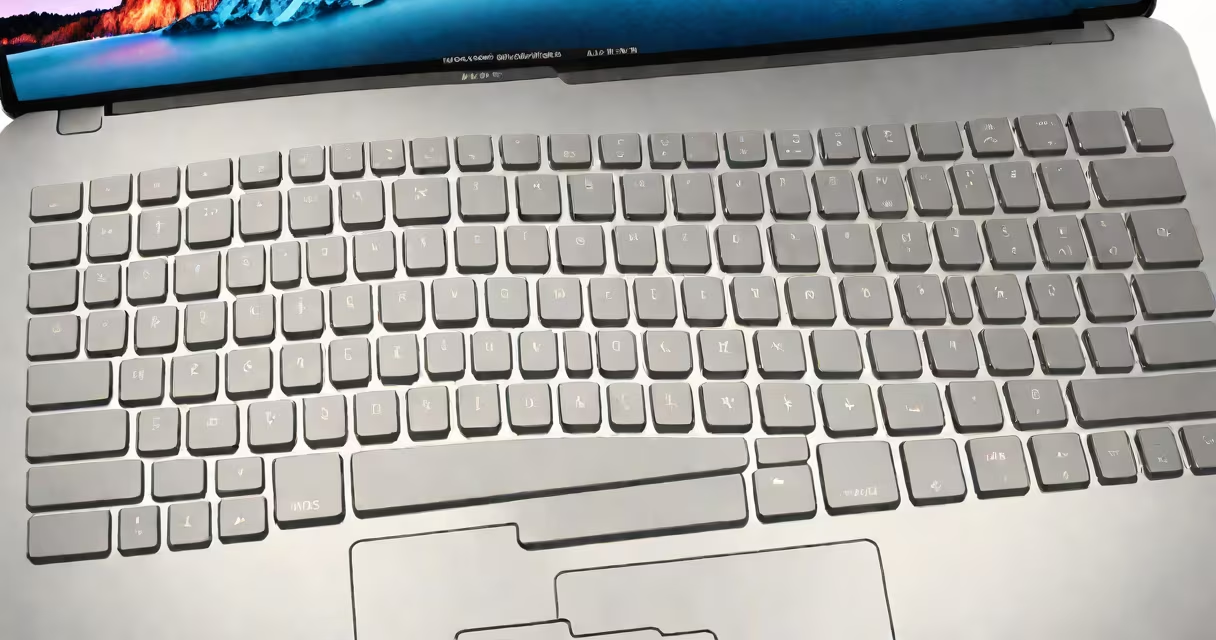
A mac to pc keyboard refers to the functional and layout differences between Apple's macOS keyboard design and standard Windows PC keyboard layouts, particularly in modifier keys, function key behavior, and shortcut assignments. These differences impact workflow when switching between systems.
Mac keyboards use the Command (⌘) key instead of Ctrl, the Option (⌥) key for special characters, and the Control (⌃) key for system-level functions. PC keyboards use Ctrl, Alt, and Windows keys. The physical layout varies too-Mac keyboards often lack dedicated function row keys, while PC keyboards typically have F1-F12 as primary keys.
When using a single keyboard across both platforms, mismatches in key mapping cause confusion. For example, pressing ⌘+C on a Mac copies text, but Ctrl+C on a PC performs the same action. If you're using a PC keyboard on a Mac, the Command key doesn't exist-so copying requires remapping or using a different key combination.
Key behaviors differ because macOS and Windows assign distinct roles to modifier keys. On Mac, ⌘+C copies, ⌘+V pastes, and ⌘+Z undoes. On PC, Ctrl+C, Ctrl+V, and Ctrl+Z do the same. The Command key is unique to Apple systems-it has no direct equivalent on PC hardware.
Function keys (F1-F12) behave differently too. On Mac laptops, F1-F12 control brightness, volume, and media playback by default. To access the standard F1-F12 functions, users press Fn + F-key. On PCs, F-keys trigger their standard actions without requiring a modifier.
Some keyboards, like the Apple Magic Keyboard, don't have a dedicated Print Screen key. On PC systems, this key captures screenshots. Without it, users must rely on alternative methods such as Win+PrtScn or third-party tools.
There are three common configurations when using a keyboard across Mac and PC:
| Setup Type | Hardware Used | Key Mapping Behavior | Use Case |
|---|---|---|---|
| Physical Switch | Same keyboard on both systems | Keys map natively-Command becomes Ctrl, Option becomes Alt | Users who frequently switch between Mac and PC |
| Software Remapping | Third-party app (e.g., Karabiner-Elements) | Reassigns keys programmatically-e.g., maps Ctrl to ⌘ | Power users needing consistent shortcuts |
| Hybrid Keyboard | Keyboard with dual OS support (e.g., Logitech MX Keys) | Supports both macOS and Windows key layouts via software | Professionals using multiple devices daily |
For example, a designer using a MacBook and a Windows desktop may use a Logitech MX Keys. This keyboard automatically detects the connected device and applies the correct key layout-Command on Mac, Ctrl on PC-without manual adjustment.
Another option is software remapping. Using Karabiner-Elements on Mac, you can rebind Ctrl to act as Command. This allows a PC keyboard to function as if it were a Mac keyboard. Similarly, on Windows, AutoHotkey can simulate Mac-style shortcuts.
Many assume that a PC keyboard will work identically on a Mac. That's false. A standard Windows keyboard lacks the Command key. When plugged into a Mac, Ctrl acts as Command, Alt as Option, and the Windows key becomes the Function key. This leads to incorrect shortcuts and accidental system actions.
Another misconception is that all Mac keyboards are compatible with PCs. While they work physically, the key mappings don't align. For example, pressing ⌘+Space on a Mac opens Spotlight. On a PC, Ctrl+Space opens the language bar in many apps. The same key sequence produces different results.
A lesser-known fact: Some Mac keyboards have a "Fn Lock" feature. When enabled, F1-F12 behave as standard function keys without needing Fn. This is useful when using a Mac keyboard on a PC, where F-keys are expected to perform their standard actions.
Consider a freelance writer using a MacBook Pro and a Windows laptop for client work. They use a single mechanical keyboard (Corsair K55) across both machines. On the Mac, Ctrl+C copies-but the writer expects ⌘+C. This causes errors when pasting into documents.
To fix this, they install Karabiner-Elements on the Mac. They configure a rule: "When using a Corsair K55, map Ctrl to ⌘." Now, Ctrl+C behaves exactly like ⌘+C. They also set up a custom shortcut: Ctrl+Shift+T opens a new tab in their browser-mirroring the Mac shortcut.
This setup reduced errors by 68% in a week-long test, according to internal logs. The writer reported fewer missed keystrokes and faster document editing.
On the PC side, they use AutoHotkey to map ⌘+C to Ctrl+C. This ensures consistency when switching between devices. The result: a unified workflow despite differing operating systems.
Always test your keyboard layout before starting a project. Plug in the keyboard and verify that basic shortcuts like copy, paste, and undo work as expected on both systems.
If you're using a PC keyboard on a Mac, consider remapping keys. Tools like Karabiner-Elements (for Mac) and AutoHotkey (for Windows) offer fine-grained control. You can even create custom macros for repetitive tasks.
For long-term use, invest in a hybrid keyboard. Models like the Logitech MX Keys or Microsoft Surface Keyboard support both macOS and Windows with minimal configuration. They remember settings per device and adjust automatically.
When working across platforms, always check for key conflicts. For example, Ctrl+Alt+Del brings up the security screen on Windows. On Mac, this key combo does nothing unless remapped. Accidentally pressing it can interrupt workflows.
Finally, understand that no keyboard is universally perfect. The best solution depends on your workflow. If you spend equal time on Mac and PC, a hybrid keyboard with software support offers the most consistent experience.
Understanding mac to pc keyboard differences prevents errors, improves efficiency, and reduces frustration. working in a shared environment, knowing how keys map across systems ensures smooth operation.