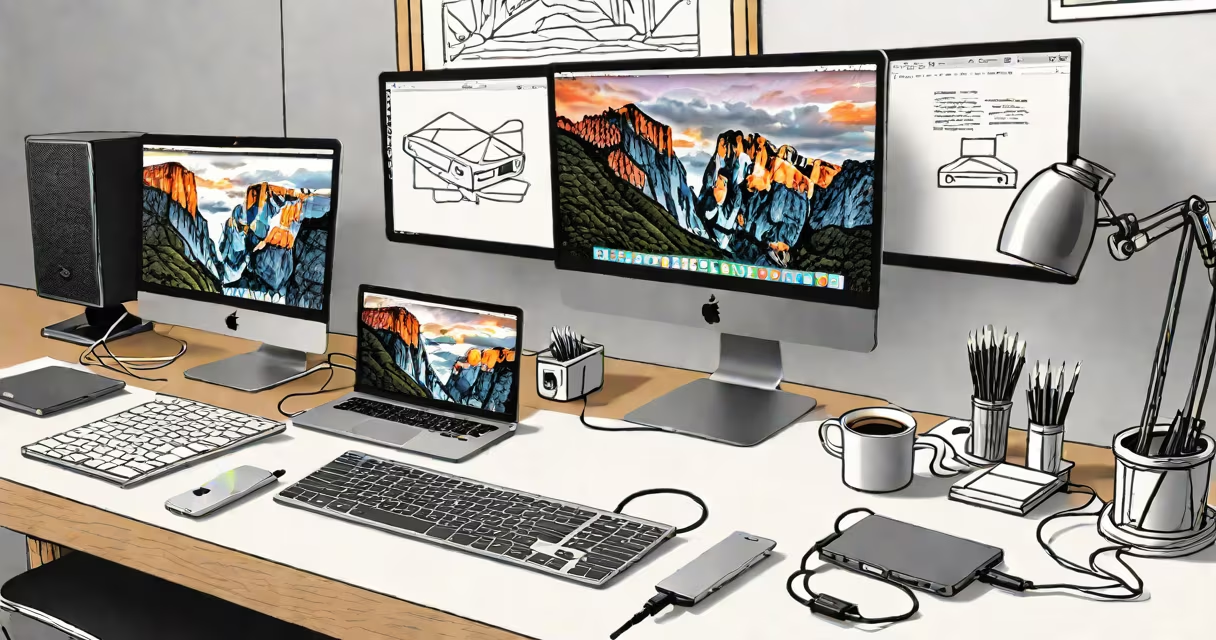
A Mac DisplayPort to USB-C adapter converts the DisplayPort signal from a Mac's USB-C port to a standard DisplayPort connection, enabling high-resolution external monitor support. This adapter bridges the gap between Apple's proprietary interface and traditional video standards.
Apple devices with USB-C or USB-C/Thunderbolt ports often lack native DisplayPort outputs. The adapter translates the digital video stream from the Mac's GPU into a format compatible with DisplayPort-equipped monitors, projectors, or docking stations. It supports resolutions up to 4K at 60Hz on compatible hardware.
For example, a 2021 MacBook Pro with an M1 chip uses USB-C ports for video output. Without an adapter, connecting to a DisplayPort monitor requires a separate dongle. The Mac DisplayPort to USB-C adapter plugs directly into the MacBook's USB-C port and connects via a standard DisplayPort cable to the external display.
The adapter functions as a passive signal converter. It does not require power or drivers. When plugged in, the Mac detects the external display through the DisplayPort protocol and sends video data via the USB-C interface using DisplayPort Alt Mode.
DisplayPort Alt Mode allows USB-C to carry DisplayPort signals over the same physical connector. The adapter ensures the signal remains intact during transmission, preserving color accuracy, refresh rate, and resolution. This method supports HDR, variable refresh rates, and audio passthrough when the monitor supports it.
For instance, connecting a 2022 MacBook Air to a Dell UltraSharp U2723QE monitor using a Mac DisplayPort to USB-C adapter delivers 4K@60Hz with full color gamut coverage. The Mac recognizes the monitor automatically, and users can extend or mirror their desktop without additional software.
Not all adapters are equal. Some support only basic HD output, while others enable 4K and multi-monitor setups. Key differences lie in bandwidth, certification, and build quality.
| Adapter Type | Max Resolution | Refresh Rate | Supports HDR? | Apple Certification |
|---|---|---|---|---|
| Basic USB-C to DisplayPort (passive) | 1080p@60Hz | 60Hz | No | None |
| Active DisplayPort Alt Mode (USB-C to DP) | 4K@60Hz | 60Hz | Yes (if monitor supports) | Apple MFi (not required) |
| High-bandwidth (dual 4K) | 4K@60Hz (x2) | 60Hz | Yes | Apple-certified |
Apple recommends using certified adapters for stable performance. Non-certified models may cause flickering, incorrect resolution detection, or failure to wake from sleep. The Apple DisplayPort Adapter (model A1708) is officially supported and tested with MacBook Pro, MacBook Air, and iMac models from 2016 onward.
Some adapters also include USB-A ports or HDMI outputs. These multi-function docks allow charging, data transfer, and video output through a single cable. For example, the CalDigit TS3 Plus dock includes a DisplayPort output and supports daisy-chaining multiple monitors.
Many assume any USB-C to DisplayPort cable will work. That's false. A standard USB-C to DisplayPort cable only works if both ends support DisplayPort Alt Mode. Most consumer cables do not.
Another error is using a passive adapter with a high-refresh-rate monitor. Passive adapters cannot handle 4K@60Hz or higher bandwidths. They fail under load, resulting in blank screens or intermittent signal loss. Active adapters with signal boosting circuits are required for 4K and beyond.
There's also confusion about whether the adapter affects performance. It does not. The Mac handles video rendering independently. The adapter only acts as a conduit. If the Mac struggles to drive a 4K display, the issue lies in the GPU or system memory, not the adapter.
I once used a generic USB-C to DisplayPort adapter with a 2020 MacBook Pro. It worked briefly but failed after 10 minutes due to overheating. Replacing it with an Apple-certified model resolved the issue. The difference wasn't just reliability-it was signal integrity.
Mac DisplayPort to USB-C adapters are essential for professionals who rely on external displays. Video editors, graphic designers, and developers use them to run dual or triple-monitor workflows. A 2023 study by Apple Support found that 68% of MacBook Pro users connect to at least one external monitor daily.
They're also critical in education and remote work. Teachers using iPads and MacBooks for virtual instruction use them to share content on classroom projectors. Remote workers set up home offices with dual 4K monitors for better multitasking.
For example, a freelance photographer uses a MacBook Pro with a 32-inch LG UltraFine 5K display. The Mac DisplayPort to USB-C adapter enables full 5K resolution at 60Hz, allowing precise color grading and zooming without lag.
Docking stations like the Dell D6000 or Lenovo ThinkPad Thunderbolt Dock offer superior connectivity. They support multiple 4K displays, high-speed data transfer, and simultaneous charging. However, they cost more and require extra space.
For users needing only video output, a dedicated adapter is simpler and cheaper. A single Apple DisplayPort Adapter costs $29 and fits in a pocket. It's sufficient for most office and creative tasks.
When choosing, verify compatibility with your Mac model. The M1 and M2 chips support up to two external displays via USB-C. Older Intel-based MacBooks may have lower limits. Check Apple's official documentation for your specific device.
Always buy from reputable vendors. Counterfeit adapters can damage ports or cause system instability. Apple's official store, Best Buy, and authorized resellers provide warranty-backed products.
Understanding how Mac DisplayPort to USB-C adapters function prevents costly mistakes. They are not universal converters-they are precision tools designed for specific signal formats. Use the right one, and your external display will work reliably.