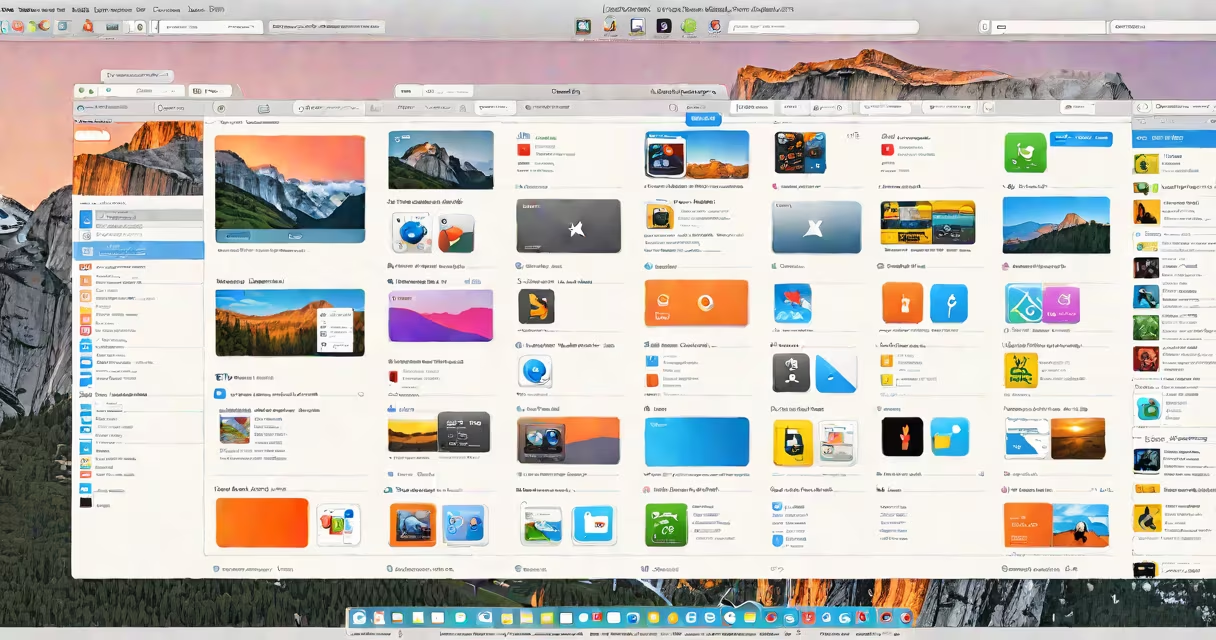
The macOS Library folder contains system and user-specific configuration files, application support data, caches, and preferences. It's hidden by default and not meant for casual browsing.
Every macOS user has a Library folder located at ~/Library/ (your home directory). System-wide libraries exist at /System/Library/ and /Library/. These directories hold critical data that apps and the OS use to function properly.
Apple designates the Library folder as hidden because most users don't need to interact with its contents. Modifying files here can break applications or cause system instability. Only advanced users or developers should access it directly.
When you install an app or change a setting, macOS often writes data to the Library folder. For example, when you adjust your desktop background, the system saves the image path and metadata in ~/Library/Preferences/com.apple.desktop.plist.
Applications store their private data in ~/Library/Application Support/. The app Spotify uses this location to save playlists, offline music, and playback history. If you delete this folder, Spotify loses your local data and may require re-login.
Each subfolder in the Library folder serves a distinct purpose. Here's what you'll find:
| Folder | Purpose | Example File |
|---|---|---|
Preferences |
Stores app settings and user preferences | com.google.Chrome.plist |
Application Support |
Holds app-specific data like saved projects or databases | Adobe/Photoshop/Presets/ |
Caches |
Temporary files to improve load times | com.apple.Safari/Cache.db |
Logs |
Records system and app activity for troubleshooting | system.log |
MobileBackups |
Contains backups from iOS devices via iTunes or Finder | Backup_2023-10-05_14-30-00.plist |
Some folders, like Preferences, contain .plist files-XML-based configuration files readable by both humans and programs. Editing them manually can alter app behavior, but doing so incorrectly may prevent an app from launching.
Many users assume the Library folder is a place to store personal files. It is not. It's not designed for documents, photos, or downloads. Placing user data here risks corruption during system updates or app reinstalls.
Another misconception is that clearing the Library folder fixes performance issues. While deleting cache files can free space, removing preference files or application support data can force apps to reset or fail entirely. Apple's official support page warns against deleting contents without understanding the consequences.
A lesser-known fact: the ~/Library/Group Containers/ folder holds shared data between apps using iCloud. If you see multiple containers with long UUIDs, those represent app groups syncing data across devices. Deleting them disrupts iCloud sync for associated apps.
You should only open the Library folder when troubleshooting specific issues. For example, if an app crashes on startup, checking ~/Library/Preferences/ for corrupted .plist files may reveal the root cause.
I once diagnosed a persistent issue with Adobe Creative Cloud where the app wouldn't launch. After inspecting ~/Library/Preferences/com.adobe.CCXProcess.plist, I found a malformed entry causing a loop. Removing the file forced a fresh config, and the app launched normally. This confirmed that even small changes in Library files can have major effects.
To view the Library folder in Finder, press Cmd+Shift+G, then enter ~/Library. Use the Go menu to access it quickly. Always back up important data before modifying anything.
Understanding the macOS Library folder helps you avoid unnecessary edits and recognize when deeper system issues arise. It's not a storage area-it's a functional component of macOS's architecture.
Knowing what the macOS Library folder is and how it functions prevents accidental damage. It's not a user workspace. It's a behind-the-scenes repository for system and app data. Treat it with care.