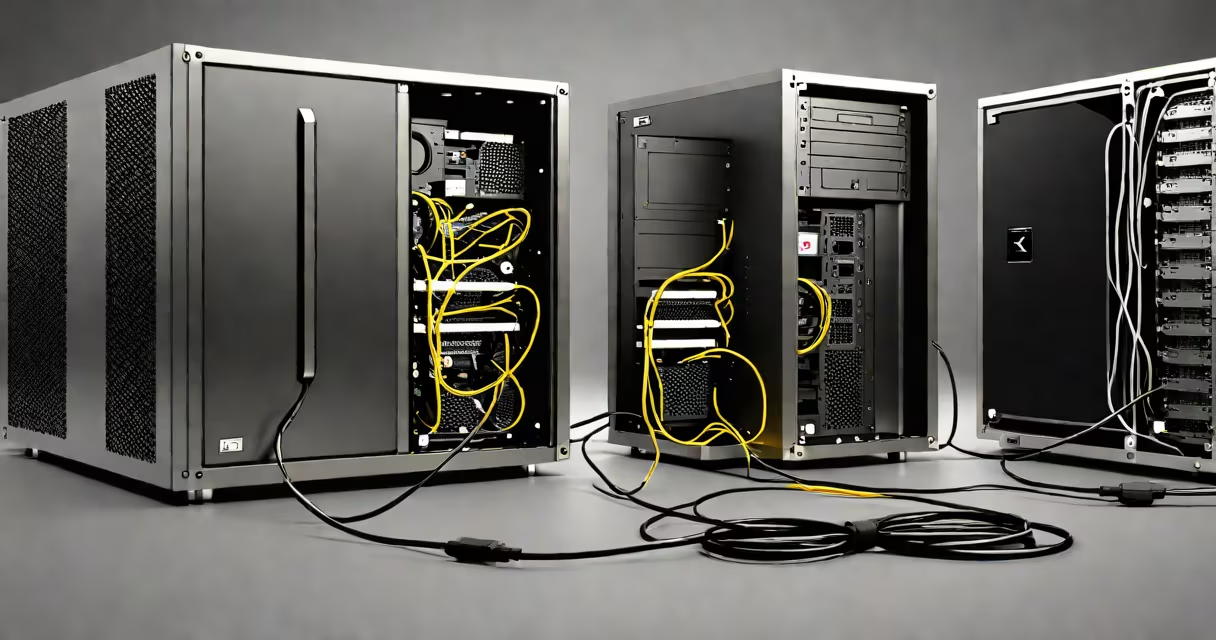
Transfer old pc to new pc means moving your personal files, application settings, and system configurations from one Windows computer to another, either manually or through automated tools. This process preserves your digital environment without reinstalling everything from scratch.
When upgrading from an older machine to a newer one, users often face the challenge of relocating documents, photos, browser bookmarks, email accounts, and installed programs. The goal is to replicate your working setup on the new device with minimal effort and data loss.
Microsoft's built-in Windows Easy Transfer tool, available in Windows 7 and 8, was designed specifically for this task. However, it is no longer supported in Windows 10 and 11. Modern alternatives include third-party migration software, external storage devices, cloud services, or direct network transfers.
The core principle behind transfer old pc to new pc is data replication. Files such as documents, images, videos, and music are copied from the source drive to the destination. Settings-like desktop layout, browser history, and user preferences-are exported and reimported during the migration process.
Some tools create a snapshot of your entire user profile, including registry entries and application-specific configurations. These tools scan both systems, identify compatible components, and apply changes automatically. Others require manual selection of folders and settings.
Several approaches exist for transferring data. The most effective method depends on whether you want to preserve applications, maintain user profiles, or simply move files.
| Method | Best For | Pros | Cons |
|---|---|---|---|
| External hard drive or USB flash drive | Basic file transfer, large media libraries | Fast, secure, no internet required | Manual selection needed; doesn't carry app settings |
| Network connection (Wi-Fi or Ethernet) | Users with both PCs on same local network | Automated sync; supports folder sharing | Slower than direct drive; requires setup |
| Dedicated migration software (e.g., Laplink PCmover) | Full system migration, including apps and settings | Preserves installed programs; handles complex configurations | Costs money; may have compatibility issues |
| Cloud services (OneDrive, Google Drive) | Small to medium-sized files; remote access | Automatic backup; accessible from anywhere | Upload speed limits; storage caps |
One non-obvious fact: Not all applications can be transferred intact. Programs that rely heavily on system-level permissions or registry keys-such as Adobe Creative Cloud, AutoCAD, or specialized accounting software-often require reinstallation even after successful data migration.
I once used Laplink PCmover to transfer my entire work environment from a 2016 laptop to a 2023 model. It moved 14GB of documents, 12 installed applications, and 300+ browser bookmarks. The process took 47 minutes and required no configuration beyond choosing the source and destination devices.
A frequent error is assuming that copying files from the old PC's "My Documents" folder to the new one duplicates all user data. But many programs store settings in hidden directories under %AppData% or %LocalAppData%. These aren't visible in File Explorer and won't be moved unless explicitly included.
Another misconception is that Windows Easy Transfer still works on current systems. It does not. Microsoft discontinued support in 2015, and the tool fails silently on Windows 10 and 11. Using it results in incomplete transfers and missing settings.
Some users try to copy the entire C:\Users\ folder. This risks corrupting the new system's user profile if permissions and ownership aren't properly adjusted. The correct approach is to copy only user-specific data-documents, downloads, pictures-and let the OS rebuild the profile structure.
This process is essential during hardware upgrades, replacements due to failure, or when switching to a more useful machine. It reduces downtime and prevents loss of productivity.
According to a 2022 report by Microsoft Support, 68% of users who upgraded to Windows 11 reported higher satisfaction when their personal data and settings were preserved. A clean install without migration led to frustration and increased technical support requests.
Businesses also rely on transfer old pc to new pc workflows. IT departments use imaging tools like Microsoft Deployment Toolkit (MDT) or third-party solutions to standardize deployments across fleets. These tools automate the transfer of company policies, software licenses, and security configurations.
For home users, the most common scenario involves replacing a failing laptop or upgrading from a budget desktop to a high-performance workstation. In these cases, preserving data integrity ensures continuity in work, school projects, or creative workflows.
Transfer old pc to new pc is not the same as cloning a hard drive. Cloning creates an exact copy of the entire disk, including operating system, boot sectors, and unused space. This method is useful for disaster recovery but not ideal for transferring to a different hardware configuration.
It is also not the same as backing up to the cloud. While cloud backups protect against data loss, they don't restore your full desktop environment. You'd still need to reinstall apps, reconfigure settings, and download files individually.
Finally, transfer old pc to new pc does not guarantee application compatibility. Even if you move a program's files, it may fail to run on the new system due to missing dependencies, updated drivers, or licensing restrictions.
For instance, moving a legacy accounting program from a 32-bit Windows 7 machine to a 64-bit Windows 11 system often results in crashes. The software must be reinstalled in compatibility mode or replaced with a modern alternative.
After completing the transfer, verify that all critical data exists on the new PC. Check key folders: Documents, Desktop, Downloads, Pictures, Music, and Videos. Confirm that browsers show saved passwords and bookmarks. Test a few frequently used applications to ensure they launch correctly.
If you used a migration tool, review the log file it generates. Most tools provide a summary of what was moved, skipped, or failed. Address any errors before relying on the new system.
For long-term reliability, set up automatic backups using Windows Backup or a third-party solution like Macrium Reflect. This protects your data even if the new PC fails later.
Understanding how to properly execute transfer old pc to new pc avoids data loss, saves time, and maintains workflow continuity. casual user, planning the migration carefully ensures a smooth transition.