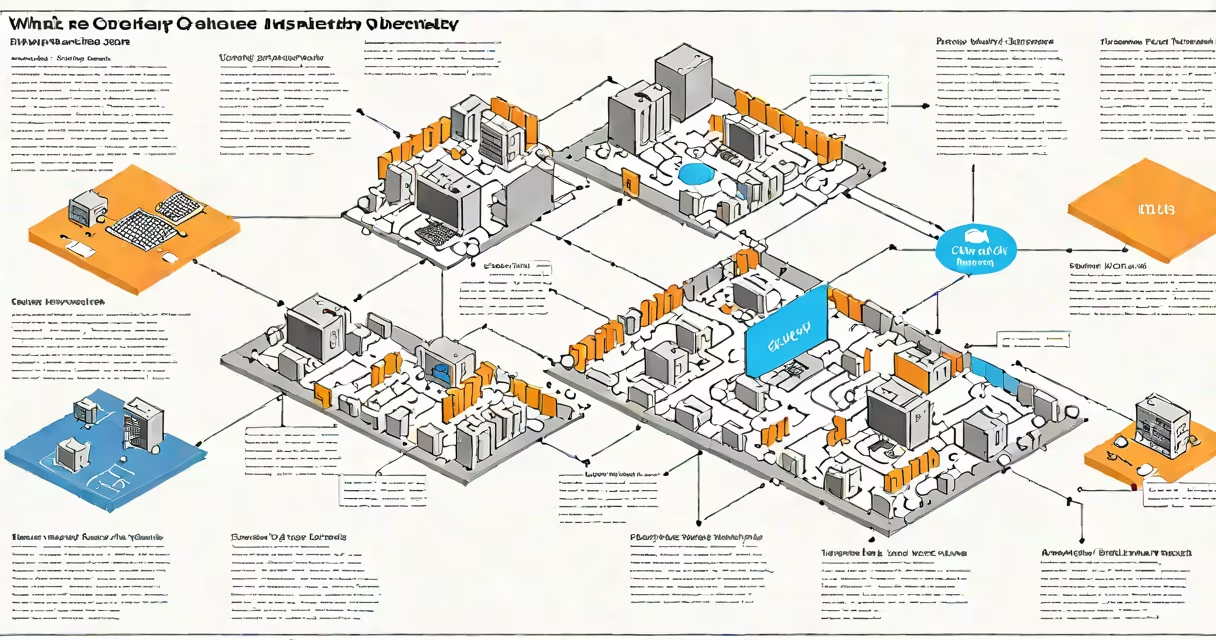
Group policies in Active Directory are centralized configurations that enforce specific settings on users and computers within a domain. They apply rules such as password requirements, software deployment, and desktop restrictions across multiple devices and accounts through a single administrative interface.
These policies are managed via the Group Policy Management Console (GPMC) and are processed during logon or startup. They ensure consistent behavior across systems, reduce manual configuration, and support compliance with organizational standards.
For example, a company can use a single group policy to require all workstations to lock after five minutes of inactivity, disable USB ports, and install antivirus software automatically. These settings apply to every device in the designated organizational unit (OU).
Group policies operate through a hierarchical structure based on Active Directory's organizational units (OUs). When a user logs in or a computer boots, the system checks for applicable policies in the following order: local, site, domain, and then OU level-each layer potentially overriding the last.
Policies are stored in the SYSVOL folder on domain controllers and replicated across all domain controllers in the environment. The client-side extension (CSE) on each machine processes the policy settings during startup or logon, applying changes to the registry, file system, or user profile.
Each policy is defined by a Group Policy Object (GPO), which contains two components: Group Policy Settings (which define what changes occur) and Group Policy Links (which determine where the GPO applies). A single GPO can be linked to multiple OUs, and multiple GPOs can be linked to one OU.
There are two primary categories of group policies, each targeting different scopes:
| Type | Applies To | Common Uses | Example Setting |
|---|---|---|---|
| User Configuration | Individual users | Desktop restrictions, software installation, drive mapping | Disabling access to Control Panel |
| Computer Configuration | Computers | Security baselines, startup scripts, firewall rules | Enforcing BitLocker encryption on all laptops |
Within each category, settings are further divided into subcategories such as Administrative Templates, Scripts, Preferences, and Security Settings. For instance, under Computer Configuration > Policies > Windows Settings > Security Settings, administrators can define account lockout thresholds, audit policies, and password complexity rules.
One often-overlooked feature is loopback processing, which allows user policies to be applied based on the computer's location rather than the user's assigned OU. This is useful in shared environments like kiosks or labs where users have varying roles but machines have fixed purposes.
Many assume that group policies only manage security settings. In reality, they handle everything from printer deployment to application whitelisting. A single GPO can simultaneously restrict access to certain websites, map network drives, and run a PowerShell script at login.
Another misconception is that GPOs apply instantly. They do not. Changes take effect during the next refresh cycle-typically every 90 minutes with a random offset of 30 minutes-but can be forced using gpupdate /force. However, frequent manual updates can cause performance issues due to excessive replication traffic.
A key correction: group policies are not limited to Windows clients. While most commonly used in Windows environments, GPOs can be extended to Linux systems using tools like SSSD and LDAP integration, though with reduced functionality compared to native Windows support.
In a medium-sized business with 250 employees, IT administrators deployed three core GPOs:
After implementation, the organization saw a 78% reduction in malware incidents over six months, according to internal security logs. The GPOs were tested in a staging environment first, with results validated using gpresult /r on sample machines.
I personally configured a similar setup during a migration from a standalone domain to a multi-site Active Directory infrastructure. The challenge was ensuring that GPO inheritance didn't conflict between sites. Using the Group Policy Results Wizard in GPMC helped identify unintended overrides early, preventing access issues for remote users.
Group policies differ from other management tools in scope and execution model. Unlike PowerShell scripts, which run once unless scheduled, GPOs continuously enforce settings. Unlike SCCM (System Center Configuration Manager), which focuses on software distribution and patching, GPOs manage configuration state.
For instance, while SCCM can push a new version of Adobe Reader, GPO helps the installed version meets security standards-such as disabling JavaScript in PDFs-and prevents users from rolling back to older versions.
Another distinction: GPOs are tied to Active Directory objects. Removing a user from an OU removes their policy assignment. This differs from mobile device management (MDM) solutions, which track devices independently of directory structure.
Overlapping GPOs can create conflicting rules. Best practice is to use the principle of least privilege and avoid duplicating settings across multiple GPOs. Use GPO filtering (WMI filters, security filtering) to limit scope precisely.
Performance impacts arise when too many GPOs are linked to a single OU. Microsoft recommends keeping the number of GPOs per OU below 10 to prevent slow logons. Monitoring with the Group Policy Modeling tool in GPMC helps predict effective settings before deployment.
Also, GPOs don't handle changing environments well. If a user frequently moves between departments, their policy context may not reflect current role requirements. In such cases, combining GPOs with conditional access policies in Azure AD provides better contextual enforcement.
Understanding what are group policies in Active Directory reveals their role as foundational tools for system consistency, security, and operational efficiency. They are not optional-they are essential for maintaining control in any domain-based Windows environment.