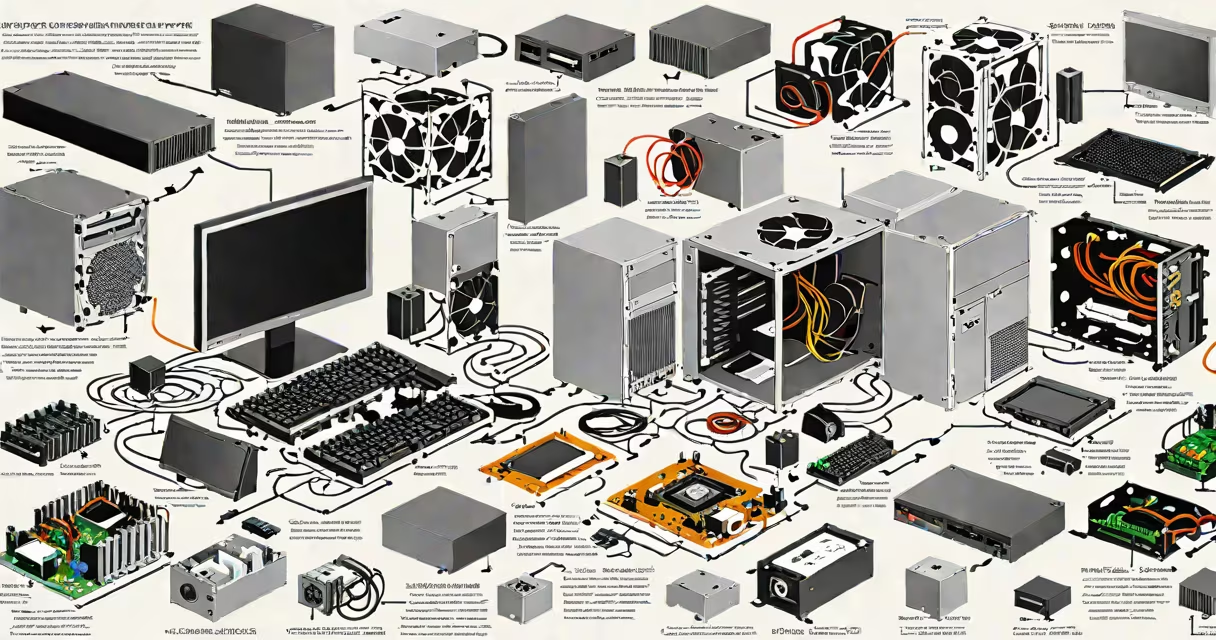
The components of a desktop are the physical parts that make up a standalone computer system, including the central processing unit (CPU), motherboard, memory (RAM), storage drives, graphics card (GPU), power supply unit (PSU), and chassis. These elements work together to process data, store information, render visuals, and deliver power.
A desktop functions by routing electrical signals through interconnected hardware. The CPU executes instructions from software, while the motherboard acts as the central hub connecting all components via buses and slots. Data flows from storage devices to RAM, where it's temporarily held for quick access by the CPU. The GPU renders images on the screen, and the PSU delivers stable voltage to every part.
Modern desktops rely on standardized interfaces like PCIe for GPUs, SATA or M.2 for storage, and DDR4/DDR5 for RAM. Without proper compatibility between these components, the system won't boot. For example, installing a DDR5 RAM module into a motherboard designed for DDR4 results in a failure to start.
Each component in a desktop serves a distinct function critical to operation. The CPU handles logical operations and program execution. The motherboard provides connectivity and power distribution. RAM enables fast temporary data storage during active tasks. Storage holds the operating system, applications, and files. The GPU processes visual output, especially important for gaming and video editing. The PSU converts AC wall power into regulated DC voltages. The case houses and protects all internal parts.
For example, a desktop using an Intel Core i7-13700K processor requires a compatible LGA 1700 socket motherboard. If paired with a B760 chipset board, it supports up to 128GB of DDR5 RAM and two M.2 NVMe SSDs. This configuration allows high-speed multitasking and rapid application loading.
Some components are interchangeable based on performance needs. A budget build may use integrated graphics (like Intel UHD Graphics), eliminating the need for a discrete GPU. High-end systems often include dual NVMe SSDs for faster boot times and large file transfers. According to Intel's official documentation, modern CPUs integrate thermal sensors and changing frequency scaling to prevent overheating under load.
| Component | Function | Common Specifications |
|---|---|---|
| CPU | Executes program instructions | Intel Core i5/i7/i9, AMD Ryzen 5/7/9, 6-24 cores |
| Motherboard | Connects all components | ATX, Micro-ATX; LGA 1700, AM5 sockets |
| RAM | Temporary data storage | 16-128GB, DDR4/DDR5, 3200-6400 MHz |
| Storage | Long-term data retention | SSD (M.2 NVMe), HDD (3.5-inch SATA) |
| GPU | Processes graphics output | NVIDIA GeForce RTX 40-series, AMD Radeon RX 7000 |
| PSU | Converts AC to DC power | 500W-1200W, 80 Plus Bronze to Platinum certified |
| Case | Houses and ventilates internal parts | Full-tower, mid-tower, compact; supports multiple drive bays |
Many assume that higher clock speeds always mean better performance. While base frequency matters, real-world speed depends on architecture, cache size, and multi-threading efficiency. For example, an AMD Ryzen 5 5600X runs at 3.7 GHz base but outperforms older Intel chips with higher clocks due to superior IPC (instructions per cycle).
Another misunderstanding is that more RAM equates to faster performance. Adding 64GB to a system running light web browsing and office apps offers no measurable benefit. The actual gain appears only when handling memory-intensive tasks like 4K video rendering or virtual machines.
There's also confusion between desktops and laptops. Desktops offer greater upgradeability and cooling capacity. A typical desktop can support up to four RAM sticks and multiple GPUs, whereas most laptops limit expansion to one RAM slot and no dedicated GPU. As noted by Tom's Hardware, desktops maintain higher sustained performance under load due to better thermal management.
To illustrate how the components of a desktop interact, consider assembling a system for 1080p gaming. Start with a motherboard supporting PCIe 4.0, such as the ASUS ROG Strix B650-E. Install an AMD Ryzen 7 7700X CPU and pair it with 32GB of DDR5 RAM at 6000MHz. Add a 1TB NVMe SSD for the OS and games, and a 2TB HDD for media storage.
Attach a NVIDIA GeForce RTX 4070 GPU to a PCIe x16 slot. Power the system with a 750W 80 Plus Gold PSU. Place everything inside a mid-tower case with front-panel fans for airflow. After connecting the monitor to the GPU, boot the system and install Windows 11 from a USB drive.
This setup achieves 120+ FPS in titles like Cyberpunk 2077 and Apex Legends at max settings. The GPU handles complex lighting and textures, while the fast SSD reduces level load times from 15 seconds to under 3. The motherboard's VRM design maintains stable voltage under heavy CPU-GPU loads, preventing throttling.
I built a similar system last year for a friend who plays competitive shooters. We used a 3000 RPM case fan and a liquid cooler for the CPU. Over six months of daily use, the system ran consistently below 75°C under stress tests, proving that proper component selection prevents thermal throttling.
The components of a desktop do not include cloud services, remote access tools, or software applications. While these improve usability, they're not physical parts. A desktop cannot function without hardware; even the most advanced operating system fails to run without a working CPU and RAM.
Also, external peripherals like keyboards, mice, and monitors are not part of the core components. They connect via USB, HDMI, or Bluetooth but aren't essential to the system's operation. A desktop can boot and run programs without them, though they're necessary for interaction.
Finally, the term "desktop" refers to the form factor, not the operating system. A desktop can run Windows, Linux, or macOS (on Apple models), but the hardware remains the same regardless of software choice. The components of a desktop are independent of the OS installed.