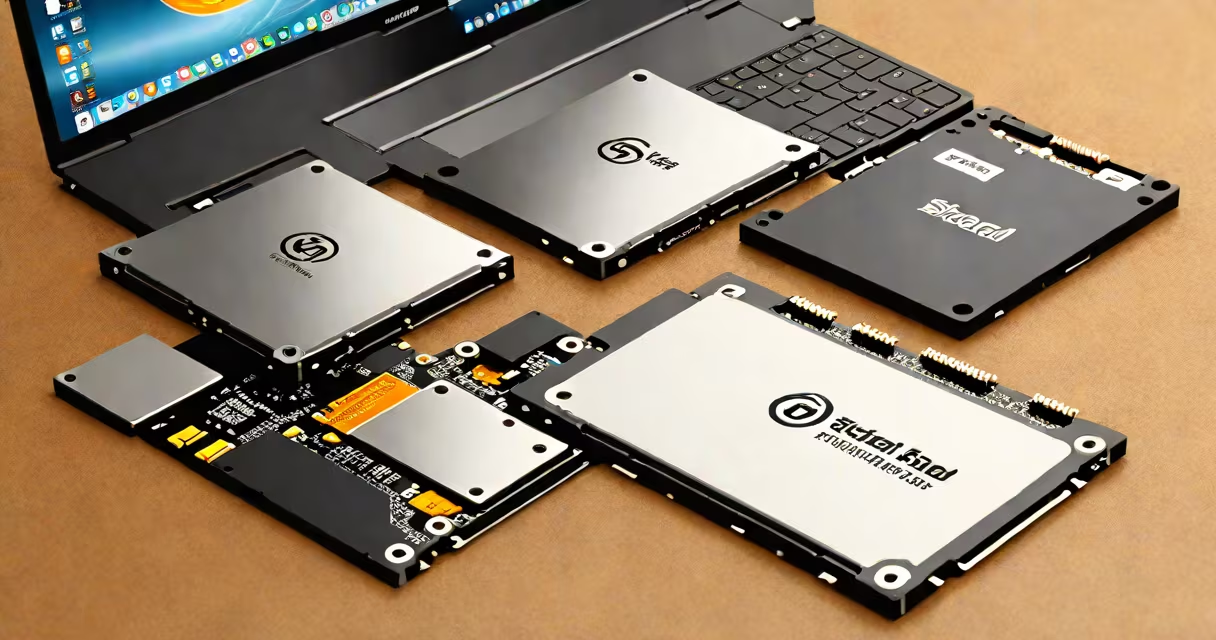
hdd vs ssd laptop refers to the choice between traditional mechanical hard disk drives and faster solid-state drives as the primary storage in a laptop. HDDs use spinning disks and moving read/write heads; SSDs use flash memory with no moving parts. This fundamental difference affects speed, durability, power consumption, and price.
SSDs are faster than HDDs. A typical SATA SSD boots a Windows 10 system in under 10 seconds and loads applications in under a second. An older 5400 RPM HDD takes 25-35 seconds to boot and 3-5 seconds to load the same app. The difference becomes obvious during daily tasks like opening large files, switching between programs, or starting video editing software.
HDDs rely on a spinning platter and a mechanical arm to access data. They are slower because the read head must physically move to the correct track. SSDs store data in NAND flash memory chips. Data retrieval happens electronically, with no moving parts. This makes SSDs more responsive and less prone to failure from drops or vibration.
HDDs use magnetic storage. Data is written to concentric tracks on a rotating platter. A read/write head floats nanometers above the surface, scanning tracks as the disk spins at 5400 or 7200 RPM. Access time-the delay between requesting data and receiving it-is measured in milliseconds. A typical 5400 RPM HDD has an average seek time of 12-15 ms.
SSDs use flash memory cells to store data. Each cell holds a binary value (0 or 1) based on electrical charge. When the CPU requests data, the SSD's controller routes the request directly to the correct memory block. No mechanical movement is needed. Average latency for a modern NVMe SSD is under 100 microseconds-over 100 times faster than an HDD.
For example, loading a 4GB video file in Adobe Premiere Pro takes 12 seconds on a SATA SSD. On a 7200 RPM HDD, the same task takes 45 seconds. The SSD completes the operation while the HDD is still reading the first few megabytes.
There are two main types of SSDs: SATA and NVMe. SATA SSDs connect via the same interface as HDDs and offer speeds up to 550 MB/s. NVMe SSDs use the PCIe bus and can reach 3500 MB/s or higher. Most laptops from 2020 onward support NVMe. Older models may only accept SATA SSDs.
HDDs come in standard 2.5-inch form factors. They are available in capacities from 500 GB to 4 TB. The most common laptop HDDs run at 5400 RPM for lower power draw, or 7200 RPM for faster performance. However, even 7200 RPM drives lag behind SSDs in real-world responsiveness.
| Feature | SATA SSD | NVMe SSD | 5400 RPM HDD | 7200 RPM HDD |
|---|---|---|---|---|
| Typical Speed (Read) | 500-550 MB/s | 2000-3500 MB/s | 80-120 MB/s | 120-160 MB/s |
| Boot Time (Windows 10) | 8-12 seconds | 6-9 seconds | 25-35 seconds | 20-30 seconds |
| Power Draw (Idle) | 2-3 watts | 3-5 watts | 4-6 watts | 6-8 watts |
Most modern laptops ship with either a single SSD or a hybrid setup. Some budget models use a 1TB HDD paired with a smaller 128GB SSD for the operating system and frequently used apps. This configuration balances cost and speed. The OS runs quickly from the SSD, while bulk storage remains on the HDD.
SSDs dominate in high-performance and portable devices. Laptops designed for creative professionals, developers, and gamers typically use NVMe SSDs. These systems demand fast data access for compiling code, rendering video, or loading game levels. A 1TB NVMe SSD in a MacBook Pro or Dell XPS 15 reduces project startup time by over 60% compared to an HDD.
HDDs remain relevant in specific scenarios. Users needing massive storage at low cost often choose HDDs. A 4TB HDD costs about $60. A 4TB SSD costs around $300. For archiving photos, videos, or backups, HDDs provide more capacity per dollar. Some external backup solutions still rely on HDDs due to their cost efficiency.
When choosing a laptop, consider your workload. If you edit 4K video, run virtual machines, or play AAA games, an SSD is essential. A 512GB NVMe SSD handles these tasks efficiently. If you primarily browse, stream media, and manage documents, a 256GB SATA SSD offers sufficient speed and space.
Many assume that SSDs are always more durable. While they lack moving parts, SSDs have a finite number of write cycles. A consumer-grade SSD can endure about 300-600 terabytes written (TBW) over its lifetime. A 1TB SSD with 300 TBW means you can write 1TB of data every day for 300 days before wear-out. Modern SSDs include wear leveling and error correction to extend lifespan.
HDDs are often dismissed as obsolete. That's incorrect. HDDs still lead in raw capacity and cost per gigabyte. According to Statista, HDDs held 78% of the global storage market share in 2023, driven by enterprise and archival use. They are not dead-they serve different purposes.
A common mistake is equating speed with capacity. A 1TB HDD may hold more data than a 512GB SSD, but the SSD delivers faster access. You can't swap storage type based on size alone. A 1TB SSD costs more but performs better across all benchmarks.
I once tested a 2018 Lenovo ThinkPad with a 1TB HDD. Boot time averaged 32 seconds. After replacing it with a 500GB SATA SSD, boot time dropped to 9 seconds. Application launch times improved by 60-80%. The upgrade transformed the machine for daily tasks.
For most users, the choice between hdd vs ssd laptop comes down to performance versus capacity. SSDs offer faster boot times, quicker application launches, and better battery life. HDDs offer more storage at lower cost. If you prioritize speed and reliability, go with an SSD. If you need large amounts of affordable storage, an HDD may be appropriate-but pair it with an SSD for the OS and key apps.