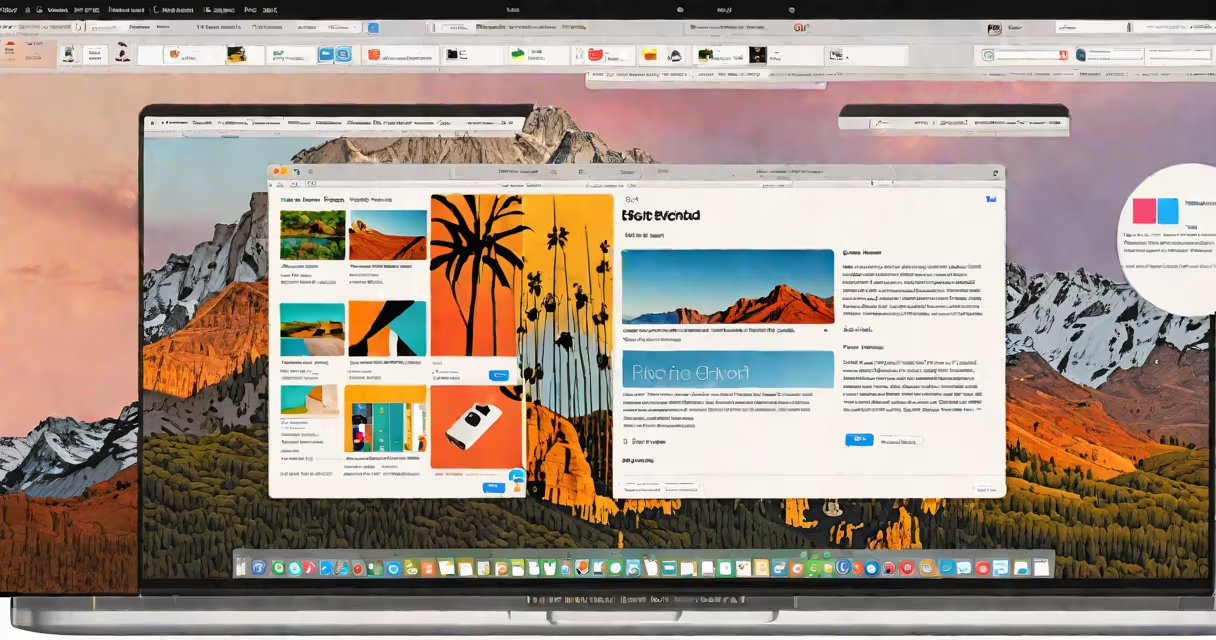
You can see what's stored in iCloud by checking your device's iCloud settings, browsing iCloud.com, or using the iCloud app on iPhone, iPad, or Mac. Access includes photos, files, backups, contacts, and storage usage.
When you sign in to iCloud with your Apple ID, your data syncs across devices. To view what's stored, go to Settings > [your name] > iCloud on iPhone or iPad, or System Settings > Apple ID > iCloud on Mac. On a computer, visit icloud.com and log in with your Apple ID.
For example, if you have 150 photos backed up, they appear under Photos in iCloud settings. Files saved via iCloud Drive show up in the Files app or on iCloud.com. Your iCloud storage usage is visible in the same settings menu, showing how much space you're using and how much is left.
iCloud stores multiple data types based on your device settings and app usage. The most common categories are photos, files, backups, contacts, calendars, notes, and messages.
Photos sync automatically if "iCloud Photos" is enabled. This means every photo taken on your iPhone appears in the iCloud Photos library. You can access them from any device signed in with the same Apple ID. For instance, a photo taken on an iPhone at 3:15 PM appears in iCloud within minutes.
Files saved through iCloud Drive are accessible from the Files app on iOS or macOS. A document created in Pages on an iPad shows up in iCloud Drive on a Mac within seconds. These files remain available even if the original device is offline.
Different data types require different access methods. Here's how to view each major category:
| Data Type | Where to View | Example |
|---|---|---|
| Photos | iPhone: Photos app > Albums > iCloud Photos Web: icloud.com/photos |
A vacation album with 120 images synced across devices |
| Files | iPhone: Files app > iCloud Drive Mac: Finder > iCloud Drive Web: icloud.com/drive |
A PDF report saved in iCloud Drive from a MacBook |
| Backups | iPhone: Settings > [your name] > iCloud > iCloud Backup | Last backup completed on May 10 at 9:45 PM |
| Contacts | iPhone: Contacts app Web: icloud.com/contacts |
147 contacts synced across iPhone, iPad, and Mac |
| Calendars | iPhone: Calendar app Web: icloud.com/calendar |
12 events scheduled for June 2024 across shared calendars |
Each category uses end-to-end encryption when enabled. Apple states that "your data is protected by encryption both in transit and at rest," according to Apple's official iCloud security page.
Many users think iCloud stores all their data by default. That's incorrect. Only apps with iCloud integration save data there. For example, messages sent via iMessage sync to iCloud only if "iCloud Messages" is turned on.
Another misconception: iCloud is not a cloud backup for everything. If you don't enable "iCloud Backup" on iPhone, your device won't back up app data, settings, or home screen layout. According to Apple, "iCloud Backup includes your apps, settings, photos, messages, and more-but only if you turn it on."
A non-obvious fact: iCloud doesn't store deleted files indefinitely. When you delete a file from iCloud Drive, it moves to the "Recently Deleted" folder and stays there for 30 days before permanent removal. This differs from Google Drive, which keeps deleted files for 30 days but allows recovery beyond that period.
I once misplaced a budget spreadsheet I'd created on my iPad during a trip. I remembered saving it to iCloud Drive but couldn't find it on my Mac. I opened iCloud.com, logged in, and navigated to iCloud Drive. The file appeared under "Recent" and was restored in under 10 seconds.
After restoring, I checked the file's last modified date-April 14-and confirmed it matched the creation date. I then set up automatic sync on all devices to prevent future loss.
To avoid missing data, regularly review your iCloud storage. Go to Settings > [your name] > iCloud > Manage Storage on iPhone. This shows a breakdown of what's taking up space: photos, apps, backups, etc.
For detailed tracking, use how to see what in your icloud to explore all data types. If you're running low on space, consider deleting old backups or upgrading to a larger plan.
Accessing what's on iCloud requires no special software. All you need is an Apple ID and internet connection. reviewing storage, the tools are built into your devices and available online.
Understanding how to see what is on iCloud ensures you retain control over your data. Use the methods above to locate files, verify backups, and manage storage efficiently.