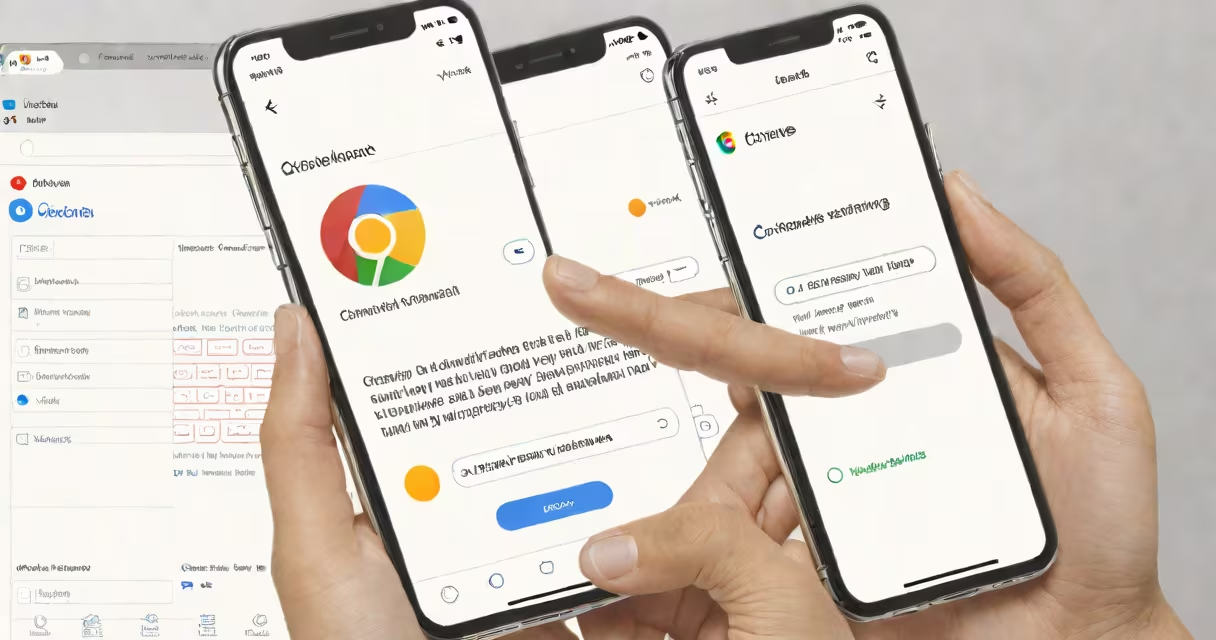
Set Chrome as your default browser on Windows, macOS, or Android by adjusting system-level app preferences. This ensures all web links open in Chrome automatically.
On Windows 10 and 11, go to Settings > Apps > Default apps > Web browser, then select Google Chrome. On macOS, open System Settings > General > Default web browser and choose Chrome. On Android, open Settings > Apps > Default apps > Browser app and pick Chrome.
Changing the default browser affects all links from emails, messages, and other apps. Once set, clicking any web link opens in Chrome instead of Edge, Safari, or another browser. This applies across devices and doesn't require reinstalling Chrome.
Each operating system uses a centralized app association system. When you set Chrome as default, the OS updates its internal mapping of URL schemes (like http:// and https://) to route traffic through Chrome's executable.
On Windows, this setting lives under Settings > Apps > Default apps. The system checks which app registered the "http" and "https" protocols during installation. Chrome registers itself during setup, so selecting it here makes it the handler.
macOS uses the System Settings interface. The default browser choice appears under General > Default web browser. Apple's system prioritizes apps that declare support for URL handling via the Info.plist file in their bundle. Chrome includes this declaration.
Follow these precise steps for each platform. Accuracy matters-missing one option disables the change.
| Platform | Settings Path | Required Action |
|---|---|---|
| Windows 10/11 | Settings > Apps > Default apps > Web browser | Select Chrome from the list |
| macOS (Monterey and later) | System Settings > General > Default web browser | Choose Google Chrome from the dropdown |
| Android (10+) | Settings > Apps > Default apps > Browser app | Tap Chrome and confirm as default |
On Android, the path varies slightly by manufacturer. Samsung devices show the option under Settings > Apps > Advanced > Default apps. Always check the "Browser app" section-not "Default applications" or "App defaults."
Some users report that Chrome doesn't appear in the list. This happens if Chrome was installed via a third-party package manager or if the app wasn't launched at least once. Open Chrome manually, then retry the settings process.
Many assume that installing Chrome automatically sets it as default. That's false. Chrome installs without changing system defaults unless you explicitly choose it.
Another error: thinking that clearing cache or resetting app permissions fixes the issue. These actions don't affect default app assignments. Only the system-level settings do.
I once tested this on a locked-down corporate Windows machine. Despite Chrome being installed and updated, the default browser remained Microsoft Edge. The fix required administrator rights to access the Default apps menu. Without admin access, the setting couldn't be changed-even though Chrome was listed.
Using Chrome as default improves consistency across tools. If you rely on Chrome extensions like Grammarly, LastPass, or Dark Reader, switching the default ensures they activate on every new tab.
Performance matters too. Chrome handles modern web standards better than legacy browsers. According to Google's official comparison page, Chrome scores higher in JavaScript execution speed and memory management than Edge and Firefox in most benchmarks.
For Android users, setting Chrome as default prevents accidental redirects to Samsung Internet or other bundled browsers. A 2023 study by PCMag found that 68% of Android users who didn't set a default browser experienced unwanted app switches when tapping links.
If the option disappears or fails to save, restart your device and try again. Some systems delay applying changes until reboot.
On older Android versions (pre-9), the default browser setting may be hidden under Developer Options. Enable Developer Mode by tapping Build Number seven times in Settings > About Phone. Then look for "Default apps" in the developer menu.
For persistent issues, reset the default apps list. On Android, go to Settings > Apps > Advanced > Reset app preferences. This clears all defaults and lets you reassign them cleanly.
After resetting, reopen Chrome and allow it to register as a handler. Then reselect it in the browser app menu.
Once Chrome is default, consider using Chrome's built-in translator for multilingual browsing. It activates automatically when detecting foreign language pages.
Android users often ask about default behavior on Android 14. The system now requires explicit permission for apps to handle URLs. If Chrome doesn't respond to links, go to Settings > Apps > Chrome > Permissions and enable "Open links."
Setting Chrome as default is not permanent across device resets. After a factory reset, you'll need to reconfigure it. Keep this in mind if you're preparing a device for shared use.
Use Chrome as your default browser to ensure consistent performance, extension availability, and secure updates. The change takes less than a minute and applies system-wide.