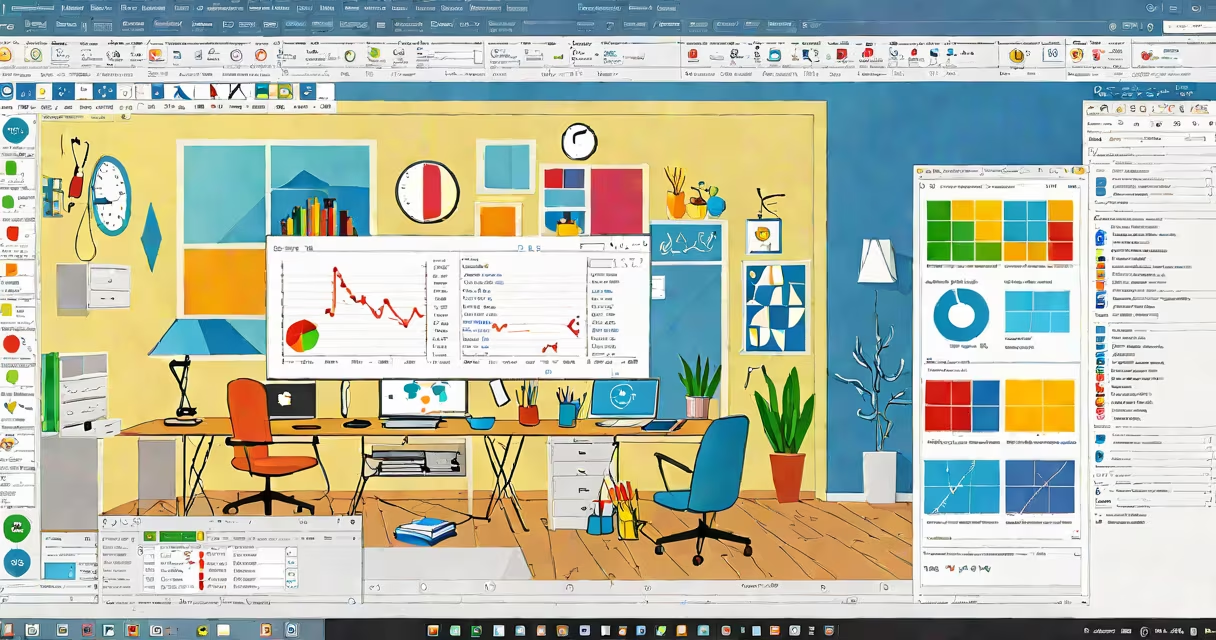
RStudio for Windows is a free, open-source integrated development environment (IDE) designed specifically for the R programming language. It provides a user-friendly interface with tools for coding, debugging, visualization, and project management, making statistical computing and data analysis more accessible on Windows operating systems.
RStudio runs on Windows 7 SP1 and later, including Windows 10 and Windows 11. It supports both the desktop version (RStudio Desktop) and the server version (RStudio Server), though the desktop edition is most commonly used by individual analysts and researchers. The software integrates tightly with R, allowing users to execute code, view plots, manage packages, and track variables-all within a single windowed application.
Unlike basic text editors or command-line interfaces, RStudio for Windows includes features such as a built-in console, file browser, workspace viewer, and plot preview. These components reduce context switching and improve workflow efficiency. For example, when analyzing survey data, a user can load a CSV file, run descriptive statistics, generate a histogram, and save the output-all without leaving the RStudio environment.
RStudio for Windows operates as a client application that communicates with the R engine installed separately on the system. When you run code in the editor, RStudio sends the commands to the R process running in the background. Results-including printed output, error messages, and graphical plots-are returned and displayed in designated panes.
The interface is divided into four main panels: the script editor (top-left), console (bottom-left), environment and history (top-right), and files, plots, packages, and help (bottom-right). This layout allows users to write code while simultaneously monitoring results and managing their project structure.
For instance, typing summary(mtcars) in the script editor and pressing Ctrl+Enter executes the command in the console. The output appears instantly, showing summary statistics for the mtcars dataset-a built-in dataset included with R. A histogram generated via hist(mtcars$mpg) displays in the Plots tab, ready for export or further editing.
RStudio for Windows includes several core tools that improve productivity:
One non-obvious feature is the ability to render R Markdown documents directly inside RStudio. This allows users to combine narrative text, code, and output into changing reports. For example, a researcher can write a report about climate trends using R code to calculate temperature anomalies, then export the entire document as a PDF or HTML file with a single click.
RStudio for Windows is not a standalone version of R. It requires R to be installed first. The R software itself handles mathematical computation, while RStudio provides the interface. Installing RStudio without R results in a blank screen and an error message.
Another common confusion is between RStudio and R. R is the programming language and runtime environment. RStudio is a tool that makes working with R easier. Think of R as the engine and RStudio as the dashboard and steering wheel.
A third misconception is that RStudio for Windows is limited in functionality compared to the macOS or Linux versions. This is false. All platform-specific features are available on Windows. Performance differences are negligible when using standard workflows. The Windows version supports the same keyboard shortcuts, themes, and extensions as other platforms.
To install RStudio for Windows, download the latest installer from the official website (https://posit.co/download/rstudio-desktop/). The installer supports both 64-bit and 32-bit versions of Windows 7 SP1 and newer. A minimum of 2 GB RAM and 1 GB of free disk space is recommended.
Before installing RStudio, ensure R is installed. Download R from https://cran.r-project.org/-choose the Windows version under "Download R for Windows." After installing R, run the RStudio installer. The setup completes in under five minutes.
After installation, launch RStudio. The first time, it may prompt you to set a default working directory. Choose a dedicated folder for your projects-for example, C:\Users\YourName\Documents\R_Projects. This ensures consistent file paths and avoids permission issues.
Data scientists use RStudio for Windows to build predictive models. For example, a retail analyst might load sales data from a CSV file, clean missing values using the dplyr package, fit a linear regression model with lm(), and visualize residuals with plot(model). All steps occur within RStudio's unified interface.
Academic researchers rely on RStudio for replicable research. A biology student studying gene expression levels can use RStudio to import microarray data, perform principal component analysis (PCA), and generate publication-quality plots using ggplot2. The project's structure-scripts, data, figures-is preserved in a single folder, enabling peer review and replication.
One personal observation: during a university course on econometrics, I used RStudio for Windows to replicate a paper's regression results. The ability to save the entire workflow-from data import to final output-meant I could revisit the analysis months later with confidence. Without RStudio, tracking changes across multiple scripts would have been error-prone.
| Feature | RStudio for Windows | Visual Studio Code (with R extension) | Basic R Console |
|---|---|---|---|
| Integrated Console | Yes | Yes (via terminal) | Yes |
| Variable Browser | Yes | No (requires add-on) | No |
| Plot Preview | Yes | Yes (if configured) | No |
| Project Management | Native support | Manual setup required | None |
| Markdown Rendering | Real-time preview | Requires plugin | Not supported |
While Visual Studio Code offers flexibility for developers familiar with advanced text editors, RStudio remains the most efficient choice for users focused on data analysis and statistics.
For users still running older systems, RStudio for Windows is compatible with Windows 7 SP1. However, Microsoft ended extended support for Windows 7 in January 2020. Running RStudio on unsupported OS versions increases security risks and may lead to compatibility issues with updated R packages. Consider upgrading to Windows 10 or 11 for long-term stability. avast windows 7 can help detect malware on legacy systems, but it cannot fix underlying OS limitations.
When troubleshooting, check that R is properly installed and recognized by RStudio. Go to Tools → Global Options → R Sessions and verify the R version path points to the correct R installation. If the console shows "Error: cannot find function '...'", the required package is likely not loaded. Use install.packages("dplyr") to resolve this.
RStudio for Windows delivers a useful, intuitive environment for anyone using R. Whether analyzing public health data, building financial forecasts, or teaching statistics, RStudio streamlines the entire analytical pipeline. Its widespread adoption in academia, industry, and government underscores its reliability and effectiveness.
Understanding RStudio for Windows enables faster, more accurate data work. With proper setup and clear project organization, users gain deeper insights and produce higher-quality outputs-without needing to master complex command-line operations.