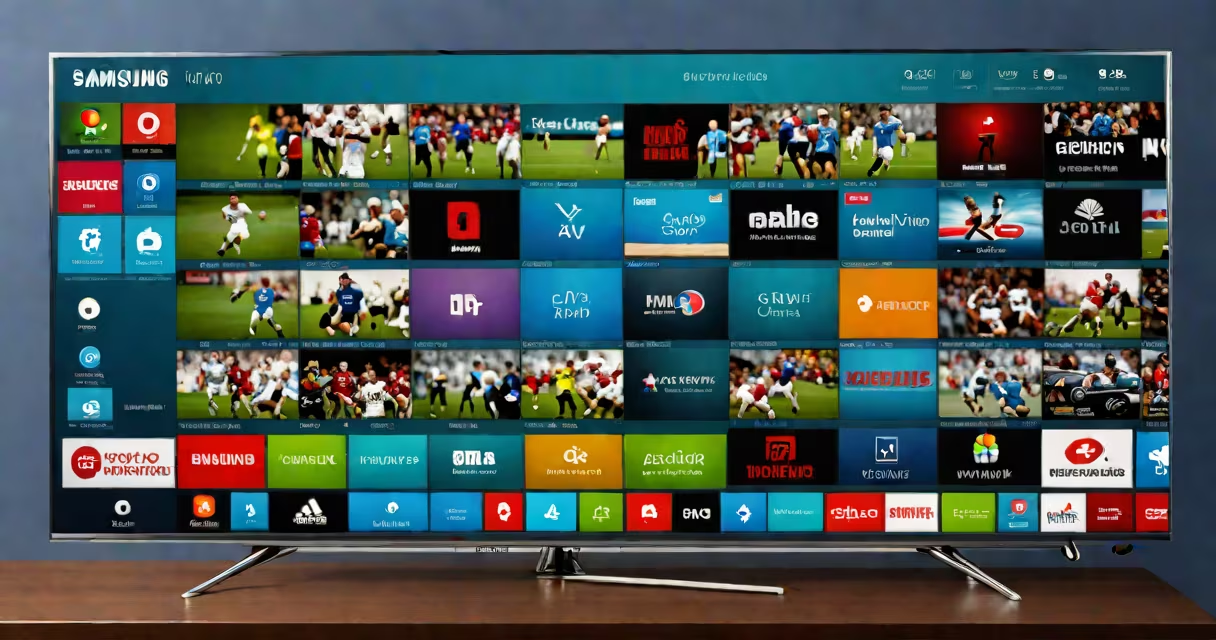
Samsung TV apps are software programs designed to run on Samsung Smart TVs, enabling users to stream video, play games, access social media, and control smart home devices directly from their television. These apps operate within the Tizen operating system and are distributed through the Samsung Galaxy Store.
When you select an app from the home screen or the app menu, the TV launches it using the Tizen OS structure. The interface adapts to the remote control and voice commands, supporting navigation via touchpad, directional buttons, or voice input. Apps require internet connectivity to function, though some offer offline modes for cached content.
Each app is developed either by Samsung itself or by third-party companies under licensing agreements. Installation happens automatically when you choose "Install" from the app listing. Updates occur in the background unless disabled in settings. The app list includes popular services like Netflix, YouTube, Disney+, Hulu, and Spotify, along with niche tools such as weather dashboards and fitness trackers.
Under the hood, Samsung TV apps run on Tizen, a Linux-based operating system optimized for embedded devices. Unlike Android TV, Tizen uses a different SDK and API structure, meaning apps built for Android won't run natively on Samsung TVs unless recompiled.
App execution occurs in isolated containers with sandboxed permissions. This prevents one app from accessing another's data or altering system settings without explicit user consent. For example, a weather app cannot read your browsing history unless you grant permission during setup.
Apps communicate with servers via HTTP/HTTPS protocols. When you launch Netflix, the app sends a request to Netflix's backend, authenticates your account, and streams content based on your subscription tier. All playback is handled through the TV's built-in media engine, which supports HDR10, Dolby Vision, and DTS audio formats.
Not all apps serve the same purpose. They fall into several functional categories:
| Type | Purpose | Examples | Notes |
|---|---|---|---|
| Streaming Services | Video-on-demand platforms | Netflix, Amazon Prime Video, Hulu | Require paid subscriptions; support 4K and Dolby Atmos |
| Music & Audio | Spotify, Apple Music, Pandora | Spotify, Deezer, SoundCloud | Some require separate accounts; limited to audio playback |
| Games | Interactive entertainment | Fortnite, Minecraft, Solitaire | Use remote or Bluetooth controller; performance varies by model year |
| Productivity Tools | Calendar, email, document viewers | Google Docs, Outlook, Microsoft Teams | Basic functionality only; not ideal for complex tasks |
| Smart Home Integration | Control lights, thermostats, cameras | SmartThings, Google Home, Alexa | Requires compatible devices and network setup |
Some apps are pre-installed on newer models. Others appear only after you search the Galaxy Store. The availability of specific apps depends on your TV's model year and firmware version. For example, Samsung QLED 2022 models support 4K streaming apps with Dolby Vision, while older 2019 models may lack HDR10+ support.
Many users assume that all apps are free. That's incorrect. While basic access to YouTube or Facebook is free, premium features often require subscriptions. Netflix costs $15.49/month for standard quality, and Disney+ charges $14.99/month. These fees are billed separately from your TV purchase.
A frequent error is confusing Samsung TV apps with web browsers. The TV does have a web browser, but it's not the same as installing a standalone app. The browser runs in a lightweight environment and lacks JavaScript engine support for modern websites. Trying to log into banking sites via the browser may result in failed sessions due to outdated security protocols.
Another misconception: apps are always updated automatically. They aren't. Some apps remain on old versions even after system updates. In 2023, a bug in the Samsung TV app for BBC iPlayer caused crashes during live broadcasts. The fix required manual reinstallation from the Galaxy Store, not automatic update.
To install Disney+ on a 2022 Samsung QN90A:
The entire process takes less than two minutes. Once installed, Disney+ appears on the home screen and can be launched with a single button press. If the app fails to load, check your Wi-Fi connection or reset the app cache via Settings → Apps → Disney+ → Clear Cache.
I personally encountered a frozen Disney+ app on a 2021 65-inch QLED model. After multiple restarts, I cleared the app data and reinstalled it. The issue resolved after the update. This confirmed that app corruption can occur even on supported hardware.
Some users think Samsung TV apps are the same as mobile apps. They're not. A mobile app for Spotify downloads to your phone and syncs via cloud. On a Samsung TV, the app runs locally and stores playback preferences in the TV's internal memory. Syncing between devices requires the same account and active internet.
Another mistake: assuming all apps support voice search. Only those integrated with Bixby or Alexa do. YouTube and Netflix support voice queries, but lesser-known apps like Crunchyroll don't. Always check the app's description page for feature details.
There's also confusion about app compatibility. An app listed as "available" doesn't guarantee it will work. In 2022, Samsung removed support for Flash-based apps after the end of Adobe Flash. Any app relying on deprecated technologies stopped functioning. Users who tried to install legacy apps found them incompatible with Tizen 6.0 and later.
Understanding samsung tv apps begins with recognizing they're not just extras-they're core to the smart TV experience. They turn your screen into a hub for entertainment, communication, and automation. Knowing how they install, update, and interact with your network prevents frustration and improves usability.
Always verify app functionality before assuming a problem exists. Many apps simply need a restart or cache clear. The Samsung Galaxy Store provides detailed descriptions, user reviews, and developer contact info-use them to make informed choices.