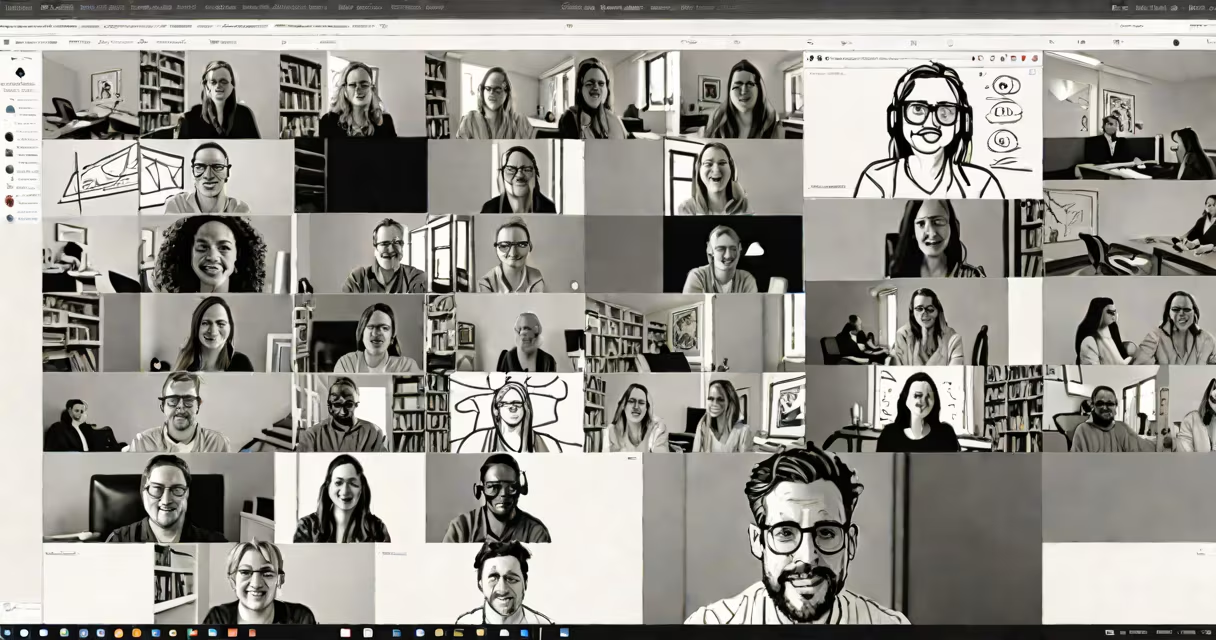
Screen sharing tools are software features that allow one user to display their computer screen-entire desktop, specific applications, or individual windows-to others in real time during a digital meeting or collaboration session. These tools are standard in video conferencing platforms and are used across remote work, education, technical support, and live presentations.
When activated, screen sharing sends a continuous stream of visual updates from the host's device to connected viewers. The stream can be limited to a single application window, a portion of the screen, or the entire desktop. Viewers see the content as it changes, enabling synchronized discussion, demonstration, or troubleshooting. Most tools support audio integration, allowing the presenter to narrate while sharing visuals.
Major platforms like Zoom, Microsoft Teams, Google Meet, and Webex include built-in screen sharing. Third-party tools such as OBS Studio, AirServer, and Splashtop offer advanced control for users needing higher performance, lower latency, or custom configurations. Screen sharing tools often require permission from the host and may trigger alerts on the host's device to prevent unauthorized access.
Screen sharing operates through a combination of capture, encoding, transmission, and decoding. The sender's device captures the screen content using hardware-accelerated graphics APIs (like DirectX on Windows or Core Graphics on macOS). This raw pixel data is compressed using codecs such as H.264 or AV1 to reduce bandwidth usage.
The encoded stream is sent over a network via protocols like WebRTC (Web Real-Time Communication), which enables low-latency peer-to-peer connections. On the receiving end, the data is decoded and rendered on the viewer's screen. Modern tools improve for frame rate (typically 15-30 fps), resolution (up to 4K), and responsiveness based on available bandwidth.
A key feature is selective sharing: users can choose to share only a specific window, a region of the screen, or the entire display. Some tools allow multiple streams-such as sharing a screen while simultaneously showing a webcam feed. Permissions are enforced at the OS level; for example, macOS requires explicit approval for screen recording, and Windows shows a notification when screen sharing begins.
Screen sharing tools fall into three primary categories based on deployment and use case:
| Type | Use Case | Examples | Key Limitations |
|---|---|---|---|
| Integrated platform tools | General meetings, webinars, remote team check-ins | Zoom, Microsoft Teams, Google Meet | Limited customization; dependent on platform policies |
| Dedicated collaboration tools | Remote pair programming, design reviews, training sessions | TeamViewer, AnyDesk, Chrome Remote Desktop | Often require installation; may involve longer setup times |
| Professional production tools | Live streaming, broadcast-quality content, multi-source switching | OBS Studio, vMix, Wirecast | Steeper learning curve; not designed for casual use |
Integrated tools are most common in everyday business and education settings. They require no additional software beyond the core app and are accessible via browser or mobile app. Dedicated tools focus on secure remote access and control, making them suitable for IT support or remote assistance. Professional tools handle complex workflows, such as mixing multiple camera feeds with screen output, and are used in live events or high-end content creation.
Many assume screen sharing tools are interchangeable with remote desktop software. They are not. Screen sharing allows others to view your screen in real time but does not grant control unless explicitly enabled. Remote desktop tools, like TeamViewer or Chrome Remote Desktop, allow full keyboard and mouse input from the remote side-this is critical for troubleshooting or accessing locked systems.
Another misconception is that screen sharing always requires a stable internet connection. While high bandwidth improves quality, most tools degrade gracefully under poor conditions. For example, Zoom reduces frame rate and resolution automatically when bandwidth drops below 1 Mbps. However, latency increases under unstable connections, leading to lag or stuttering.
A lesser-known fact: screen sharing can expose sensitive data even when not actively viewed. A 2022 study by the University of California, Berkeley, found that some screen sharing implementations retain cached frames in memory for up to 15 seconds after the session ends. This creates a risk of accidental exposure if the host switches tasks or locks the screen without ending the session properly.
In a recent remote design review, a UX team used Zoom's screen sharing feature to walk through a prototype. The lead designer shared only the Figma file window, muted notifications, and used a laser pointer tool to show interface elements. Team members asked questions in real time, and the designer annotated the screen using built-in drawing tools. The session lasted 45 minutes and required no prior setup beyond logging into Zoom.
For a deeper example, consider a technical support scenario. An IT specialist at a mid-sized company uses Splashtop to assist a field employee with a printer configuration issue. The specialist shares the screen, guides the user through going through the Control Panel, and demonstrates how to install drivers. Because Splashtop supports remote control, the specialist can click buttons and enter commands on the user's machine-something standard screen sharing cannot do.
On a personal note, I once hosted a webinar using OBS Studio to share my screen while broadcasting to 120 attendees. I configured multiple scenes-one for slides, one for a demo video-and switched between them using hotkeys. The event ran smoothly because I had tested the encoding settings beforehand. Without proper preparation, even minor glitches can disrupt engagement.
Always disable screen sharing when not in use. Leaving it active increases the risk of unintended exposure, especially during private conversations or when handling confidential documents. Most platforms now show a persistent indicator (like a red dot or icon) when screen sharing is active.
Use password protection and participant authentication when hosting public or sensitive sessions. Zoom, for example, allows hosts to set passwords and restrict who can share screens. Always verify the identity of participants before granting screen-sharing rights.
For organizations, enforce policies around screen sharing through endpoint management tools. Group Policy in Windows or MDM solutions on macOS can limit screen sharing to approved apps or disable it entirely on certain devices. This prevents data leakage and ensures compliance with internal security standards.
Screen sharing tools are essential for modern collaboration. They enable clarity, speed, and alignment across distances. supporting colleagues, choosing the right tool depends on your context, audience, and security needs. Understanding how they work and where they differ helps avoid missteps and enhances effectiveness.