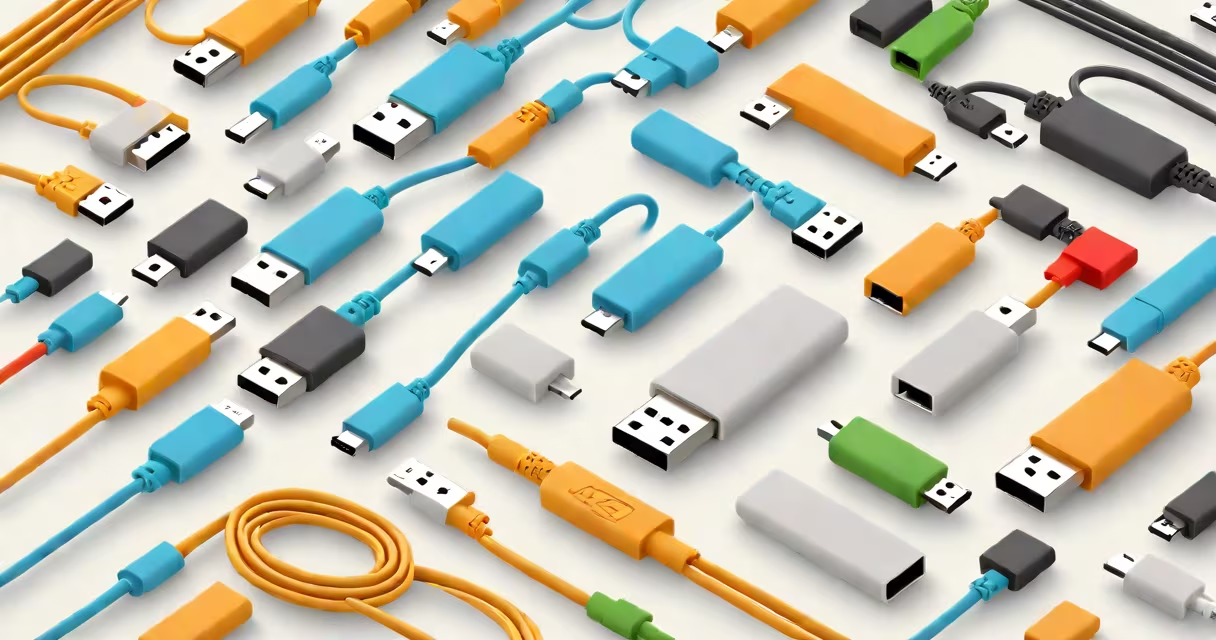
What type of USB cable refers to the physical connector shapes and internal wiring standards that define how devices connect to computers, chargers, and peripherals. The most common types are USB-A, USB-B, Micro-USB, Mini-USB, and USB-C, each designed for specific use cases and data transfer speeds.
USB cables differ in shape, pin configuration, and supported protocols. The connector type determines compatibility with devices. For example, a USB-A plug fits standard computer ports, while a USB-C plug supports faster charging and higher data rates. Choosing the correct type ensures proper function and avoids damage from mismatched connections.
Each USB cable type uses a standardized set of pins inside a plastic housing. These pins carry power, ground, and data signals. The physical design controls how the cable connects to a port and whether it supports features like fast charging or video output.
Data transfer speed depends on both the cable's internal wiring and the USB version it follows. A USB 2.0 cable maxes out at 480 Mbps, while a USB 3.2 Gen 2 cable can reach 10 Gbps. Power delivery varies too: USB-C cables with USB PD (Power Delivery) can supply up to 100 watts, enough to charge laptops.
Using a low-quality or incorrect cable risks slower charging, data corruption, or even hardware damage. For example, a USB-A to Micro-USB cable rated for only 500 mA may fail to charge a high-power smartphone properly.
The table below outlines the primary USB cable types, their typical applications, and performance limits.
| Type | Connector Shape | Typical Use Cases | Max Speed | Max Power |
|---|---|---|---|---|
| USB-A | Rectangular, flat | Desktops, keyboards, older phones | 480 Mbps (USB 2.0) | 2.5W (5V/500mA) |
| Micro-USB | Smaller, trapezoidal | Older Android phones, Bluetooth speakers | 480 Mbps (USB 2.0) | 2.5W |
| Mini-USB | Smaller than Micro-USB | Legacy cameras, early tablets | 480 Mbps | 2.5W |
| USB-C | Small, reversible, oval | Laptops, modern phones, tablets, monitors | 10 Gbps (USB 3.2 Gen 2) | 100W (USB PD) |
USB-C is now the dominant standard for new devices due to its reversibility, higher bandwidth, and support for fast charging. Apple adopted USB-C for iPhones starting with the iPhone 15 series, replacing Lightning. This shift aligns with EU regulations requiring a universal charging standard by 2024.
USB-A remains widespread in desktops and peripherals. However, its limited speed and non-reversible design make it less ideal for mobile use. Micro-USB was once standard for Android devices but is being phased out in favor of USB-C.
Many users assume all USB cables are interchangeable. That's false. A USB-A to Micro-USB cable won't work with a USB-C-only device unless adapters are used. Even then, performance drops if the adapter doesn't support the required protocol.
Another misconception is that longer cables always slow data transfer. While signal degradation can occur beyond 3 meters for USB 2.0, certified cables up to 5 meters maintain full speed. The key factor is compliance with USB-IF certification standards.
A non-obvious fact: Not all USB-C cables support high-speed data or fast charging. A basic USB-C to USB-C cable may only handle 5Gbps data and 15W charging. To achieve 10Gbps and 100W, the cable must be labeled "USB 3.2 Gen 2" or "USB PD 3.0."
I replaced the charging cable on my Samsung Galaxy S23 with a generic USB-C to USB-C cable bought online. After a week, the phone charged slowly and sometimes failed to charge at all. Testing revealed the cable lacked proper shielding and didn't meet USB-IF's electrical specifications. Replacing it with a certified USB-C cable resolved the issue.
According to the USB Implementers Forum (USB-IF), only cables passing the USB-IF certification program can legally display the official USB logo. Over 90% of counterfeit cables fail basic compliance tests, leading to poor performance or safety risks.
For reference, the USB-IF maintains a list of certified products at www.usb.org/certified-products.
Match the cable type to your device's port. Check the port shape and look for logos: USB-A has a flat rectangle, USB-C is small and symmetrical, Micro-USB is trapezoidal with a slightly angled edge.
When buying, prioritize cables with the USB-IF logo. Avoid cables sold in bulk with no branding. For high-performance tasks like transferring large video files or connecting external displays, use USB 3.2 or USB4-compatible cables.
For example, if you're using a MacBook Pro with a Thunderbolt 4 port, a USB-C cable that supports USB4 and DisplayPort Alt Mode enables 4K video output and 40Gbps data transfer. A cheaper cable without these features will limit functionality.
Apple Watch users should use a certified apple watch usb c cable for reliable charging and syncing. Non-certified cables may cause intermittent connection issues or fail to charge fully.
Understanding what type of USB cable you need prevents frustration and protects your devices. Always verify port compatibility, check for USB-IF certification, and match the cable's capabilities to your device's requirements.