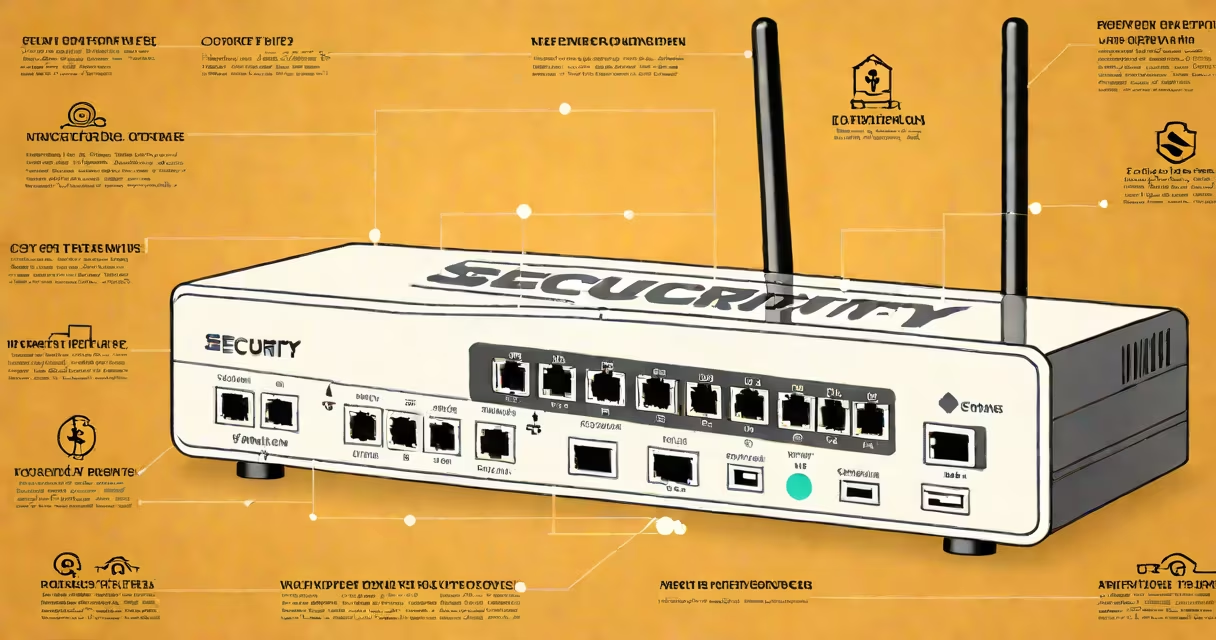
The security key on a router is a unique alphanumeric code printed on a label attached to the device's exterior, usually on the side or back. This code enables secure connection to your Wi-Fi network during initial setup and is required for devices to authenticate and join the network.
Most routers generate a default security key during manufacturing, which remains unchanged unless manually reset. The key is not stored in the router's memory for remote access-it is physical and static. You'll need it to connect smartphones, laptops, smart TVs, and other devices to your wireless network.
For most users, the security key is the WPA/WPA2 passphrase used to encrypt traffic between devices and the router. It is not the same as a username or admin password, which are used to access the router's configuration interface.
The security key authenticates devices attempting to connect to your Wi-Fi network. When a device tries to join, it sends the key to the router. The router checks it against its stored value. A match grants access; a mismatch blocks the connection.
This process prevents unauthorized devices from joining the network. Without the correct key, even if a device detects the Wi-Fi signal, it cannot establish a secure link. This is especially important in shared living spaces or public areas where multiple networks may be visible.
Some routers allow you to change the security key later through the web-based administration panel. Accessing this requires logging in with the router's admin credentials, which are often printed on the same label as the security key.
The security key is almost always located on a sticker affixed to the router's side, back, or bottom. These labels contain essential network information, including:
Common label formats include:
| Label Type | Typical Placement | Key Visibility |
|---|---|---|
| Rectangular plastic sticker | Back or side panel | Clear, printed text |
| Adhesive paper label | Bottom surface | May fade over time |
| Integrated printed text | On router casing | Resistant to wear |
Some manufacturers place the key in a separate field labeled "Password," "Passphrase," or "Wi-Fi Password." Others group it under "Wireless Settings" or "Security." Always check all label areas-especially corners and edges-where space is limited.
Many users confuse the security key with the router's admin password. The admin password lets you access the settings page (e.g., to change the Wi-Fi name or set parental controls). The security key is for connecting devices to the network.
Another error is assuming the key is stored digitally in the router's firmware. While some advanced models support changing keys via cloud services, standard consumer routers use static keys printed on labels. If you lose the label, recovery is not automatic.
Follow these steps to locate the security key on your router:
For example, a Netgear Nighthawk R7000 router has a label on the back that includes:
When setting up a new tablet, entering "7Jk3$Mn9Pq" connects it securely to the network. If the key doesn't work, verify that caps lock is off and that the characters are entered exactly as shown.
If the label is worn, torn, or missing entirely, you cannot recover the original security key through software. Routers do not store the key in accessible memory for retrieval.
Resetting the router to factory defaults erases all custom settings-including the Wi-Fi name and security key-but restores the original default key. To reset:
I once encountered a customer whose router had lost its label after being moved across a room. After resetting the device, the original key was restored, allowing them to reconnect all devices without needing to reconfigure the network.
If you've changed the key and forgotten it, the only way to regain access is to reset the router. There is no "forgot password" option for the Wi-Fi security key. This design prioritizes security over convenience.
Use a strong security key with at least 12 characters, combining uppercase letters, lowercase letters, numbers, and symbols. Avoid common phrases like "password123" or "admin."
Change the key periodically-every 3 to 6 months-to reduce exposure. Many routers allow you to update the key through the web interface. Go through to Wireless > Security and enter a new passphrase.
For enhanced protection, enable WPA3 encryption if your router supports it. WPA3 improves key exchange and protects against brute-force attacks. According to the Wi-Fi Alliance, WPA3 reduces the risk of offline dictionary attacks by 99% compared to WPA2.
Always keep the original label in a safe place. If you're setting up a network for a business or rental property, document the key in a password manager with encrypted storage. Never share it via email or messaging apps.
Understanding where to find the security key on your router ensures reliable network access and strengthens your digital privacy. The key is not hidden-it's designed to be visible and accessible at first use.