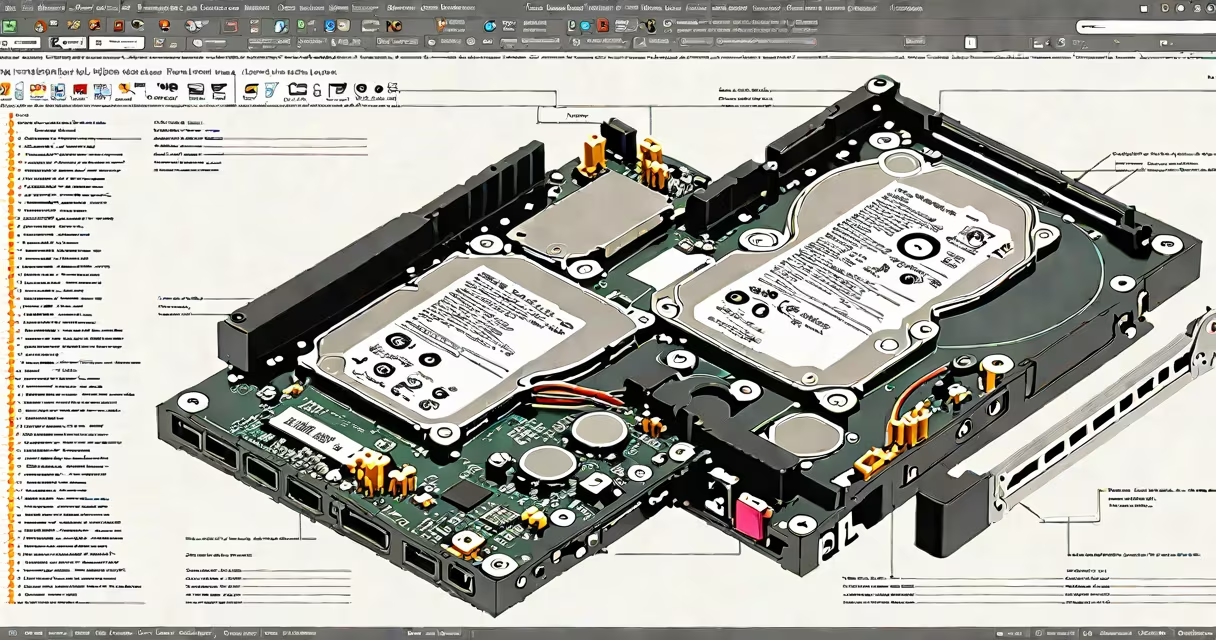
Clearing a computer hard drive means removing unnecessary files, applications, and system clutter to free up usable storage space. This process improves performance, prevents crashes, and extends hardware lifespan. Modern systems often show low space warnings when usage exceeds 85%, triggering slowdowns.
Hard drives store all data: operating system files, installed programs, documents, downloads, temporary cache, and system logs. Over time, these accumulate. A 500GB drive with 450GB used may slow down. Clearing it restores speed and reliability.
Windows includes built-in tools like Disk Cleanup and Storage Sense. macOS uses Optimized Storage and the built-in "Manage" feature in About This Mac. Both automate file removal based on usage patterns and user settings. Manual cleanup requires identifying large files, outdated software, and redundant data.
When a hard drive fills past 85% capacity, the operating system struggles to create temporary files needed for operations. This leads to lag, application freezes, and boot delays. Freeing space allows the OS to manage virtual memory, caching, and background tasks efficiently.
Clearing involves three stages: identification, selection, and deletion. First, scan for large or obsolete files. Second, decide which to keep or remove. Third, permanently delete them using secure erase or standard deletion. Some files require administrator rights or safe mode access.
For example, a user with a 256GB SSD reported 220GB used. After scanning with WinDirStat, they found 47GB in the Downloads folder, 18GB in temporary internet files, and 12GB of old game installations. Removing these freed 77GB instantly.
Files fall into four categories: system files, user-generated content, application leftovers, and temporary data. System files (like pagefile.sys and hiberfil.sys) are essential but can be resized. User files include photos, videos, and documents. Application leftovers remain after uninstallation. Temporary data builds during browsing and updates.
Temporary files grow rapidly. Chrome stores cached web pages, images, and scripts. After 30 days, these can consume 10GB+. The Windows Temp folder (C:\Windows\Temp) accumulates logs and installer fragments. These are safe to delete unless a program is currently running.
| Type | Common Size Range | Safe to Delete? | Location |
|---|---|---|---|
| Downloaded installers | 50MB - 2GB | Yes | C:\Users\[User]\Downloads |
| Browser cache | 1GB - 10GB | Yes | AppData\Local\Google\Chrome\User Data\Cache |
| System restore points | 1GB - 5GB | Partially | C:\System Volume Information |
| Old Windows updates | 2GB - 8GB | Yes | C:\Windows\WinSxS |
Some files appear in multiple locations. For example, Windows Update files exist in both C:\Windows\SoftwareDistribution and C:\Windows\Temp. Tools like BleachBit can identify duplicates across directories.
Clearing a hard drive is essential when system performance degrades, error messages appear, or storage alerts trigger. Common scenarios include slow boot times, failed app launches, and inability to install updates. A drive below 10% free space risks corruption and data loss.
Regular maintenance prevents long-term issues. Experts recommend clearing every 3-6 months. Apple's support documentation states that keeping at least 15% free space on an SSD maintains optimal write endurance and wear leveling efficiency.
I once cleaned a 1TB drive on a MacBook Pro that had slowed to 30-second boot times. Using the built-in Storage Management tool, I deleted 67GB of duplicate photos, old iMovie projects, and system caches. Boot time dropped to under 10 seconds afterward.
Many assume "emptying the Recycle Bin" clears all deleted files. This is false. The Recycle Bin only holds recently deleted items. Files moved to the bin are still stored on the drive until the bin is emptied. Even then, recovery tools can retrieve them unless overwritten.
Another myth: "Deleting files permanently removes them." Most OS deletes mark space as available but don't overwrite data. Forensic tools can recover deleted files for weeks. To truly clear a drive, use secure erase tools like DBAN or macOS's "Erase" function in Disk Utility.
A third misconception: "More space always means better performance." While low space causes slowdowns, excessive free space doesn't improve speed. Modern SSDs perform best between 10% and 90% usage. Microsoft's documentation confirms that SSDs degrade faster when kept near 100% capacity due to reduced over-provisioning.
Use native tools first. On Windows, run Disk Cleanup via Start Menu. Select "Clean up system files," choose "Temporary Internet Files," "Recycle Bin," and "Delivery Optimization Files." This removes 5-15GB automatically.
On macOS, go to Apple menu > About This Mac > Storage > Manage. Choose "Improve Storage," "Remove Duplicates," and "Empty Trash." This frees 10-20GB depending on usage.
Third-party tools offer deeper analysis. WinDirStat maps file sizes by location. TreeSize Free shows folder breakdowns. They reveal hidden folders like AppData\Local\Temp or ~/Library/Caches that consume space silently.
For advanced users, command-line tools provide precision. On Windows, use cleanmgr /sagerun:1 to run Disk Cleanup in silent mode. On macOS, use sudo rm -rf /private/var/log/* to delete log files (requires admin password).
Clearing a drive is not the same as replacing it. Replacing means installing a new physical drive. Clearing modifies existing data. If a drive fails, clearing won't fix hardware issues. Signs of failure include clicking noises, frequent crashes, and SMART errors.
When upgrading, consider moving to an SSD. A 500GB SSD replaces a traditional HDD and reduces boot time from 45 seconds to under 10. This improvement is greater than any file cleanup.
Clear a computer hard drive to maintain system health. Do it regularly. Use built-in tools first. Identify large files with visual scanners. Delete safely. Back up important data. Monitor usage monthly. This keeps your device responsive and prevents data loss.