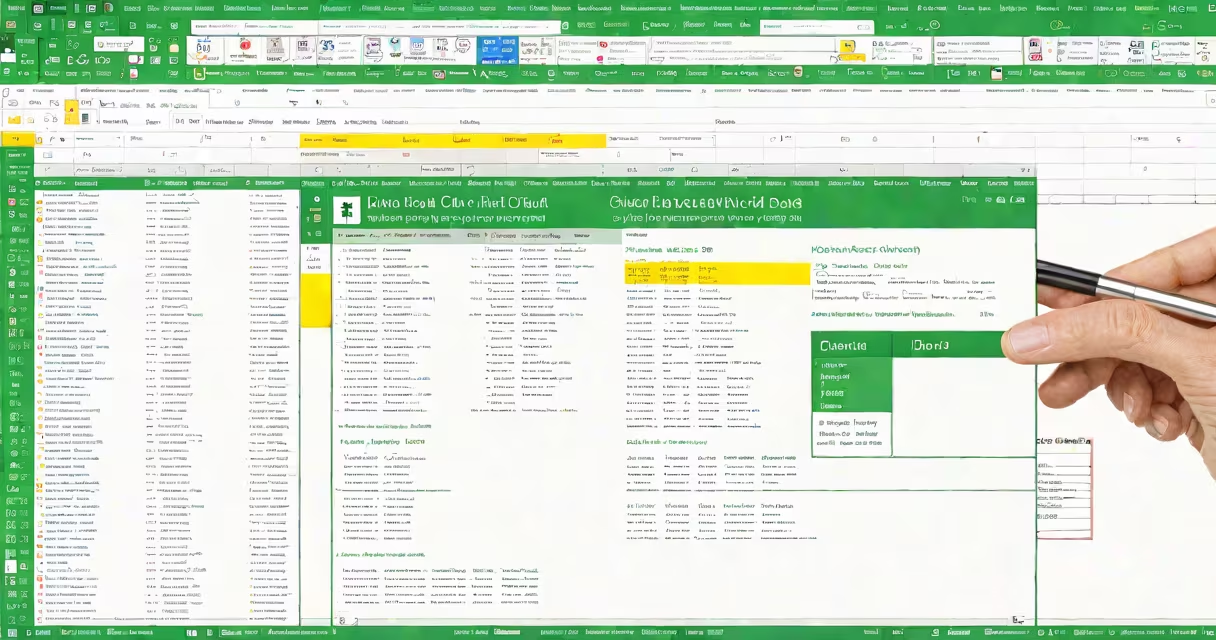
Open a CSV file in Excel by selecting File > Open, browsing to the file, and confirming the import settings. Excel treats CSV files as plain text with comma-separated values, automatically placing each field into a separate column.
CSV stands for Comma-Separated Values. It's a plain-text format that stores tabular data using commas to separate fields and new lines to separate rows. Unlike Excel's native .xlsx format, CSV files don't preserve formulas, formatting, or multiple worksheets. They're designed for simple data exchange between applications.
When you open a CSV file in Excel, the software detects the structure and attempts to split data into columns based on commas. This process can fail if the original data contains commas within fields-such as addresses or product descriptions-leading to misaligned data. Always verify the result after opening.
Excel doesn't treat CSV files as structured spreadsheets during import. Instead, it parses the raw text line by line, splitting each line at comma characters. The first row is typically interpreted as column headers, and subsequent rows become data entries.
If your CSV file uses a different delimiter-like semicolons or tabs-Excel may misinterpret the layout. For example, a German-style CSV using semicolons as delimiters will appear as a single column in Excel unless manually corrected during import.
Excel's import engine includes a wizard that allows you to specify the delimiter, choose data types, and preview the result before finalizing the import. This step prevents common issues such as dates being read as text or numbers formatted incorrectly.
There are two primary ways to open a CSV file in Excel: direct opening and the Data Import Wizard. Direct opening is faster but less flexible. Using the wizard gives you control over formatting and structure.
| Method | Best For | Control Level | Common Issue |
|---|---|---|---|
| Double-click file | Quick access to clean, well-formed data | Low | Data misalignment due to embedded commas |
| File > Open | Files with special formatting or non-standard delimiters | Medium | Forgetting to adjust import settings |
| Data > Get Data > From Text/CSV | Large files, complex structures, or repeated imports | High | Initial learning curve |
The Get Data method is available in Excel 2016 and later. It provides a dedicated interface for setting encoding, delimiter type, and column data types. This reduces errors and improves consistency when processing multiple files.
CSV files are widely used in data exchange between systems. Databases, web applications, and analytics platforms often export data in CSV format because it's lightweight, universally supported, and easy to generate programmatically.
For example, a sales team might export monthly performance data from a CRM system as a CSV. An analyst then opens the file in Excel to create pivot tables, charts, and summaries. Without proper handling, commas in customer names or product codes can break the structure.
A real-world example: A company exported employee records from HR software. One field contained "Smith, John, Sales Manager" as a single entry. When opened in Excel, this split into three columns, corrupting the data. The fix required importing via the wizard and specifying that the field was enclosed in quotes.
Many users assume that opening a CSV file in Excel preserves all original formatting. This is false. Excel applies default styles, font sizes, and alignment. Any custom formatting from the source application is lost.
Another misconception is that CSV files support formulas or cell references. They do not. A CSV file is pure data. If you need calculations, you must recreate them in Excel after import.
Some users try to open CSV files using older versions of Excel (pre-2007) with limited success. These versions lack the modern import pipeline and may truncate long rows or misread Unicode characters. Microsoft recommends using Excel 2016 or later for reliable CSV handling.
One non-obvious fact: Excel defaults to UTF-8 encoding when opening CSV files, but if the file was saved in a different encoding-like Windows-1252 or ISO-8859-1-special characters (e.g., é, ñ, ü) may display incorrectly. To avoid this, always check the encoding during import.
I once imported a CSV file containing customer feedback from a survey tool. The file had 12,000 rows and included free-text responses with commas. After double-clicking the file, Excel split each response into multiple columns. I spent 45 minutes fixing the layout until I switched to the Data Import Wizard. Selecting "Delimited" and choosing "Comma" as the separator restored the correct structure.
After opening a CSV file in Excel, review the data for accuracy. Check that:
For advanced workflows involving multiple files or automated processing, consider using Power Query. It allows you to load, clean, and change CSV data in bulk. This is especially useful for reports that update daily.
Understanding how to open a CSV file in Excel ensures accurate data analysis and prevents costly mistakes in reporting. Always validate the import, especially with complex or internationalized data.