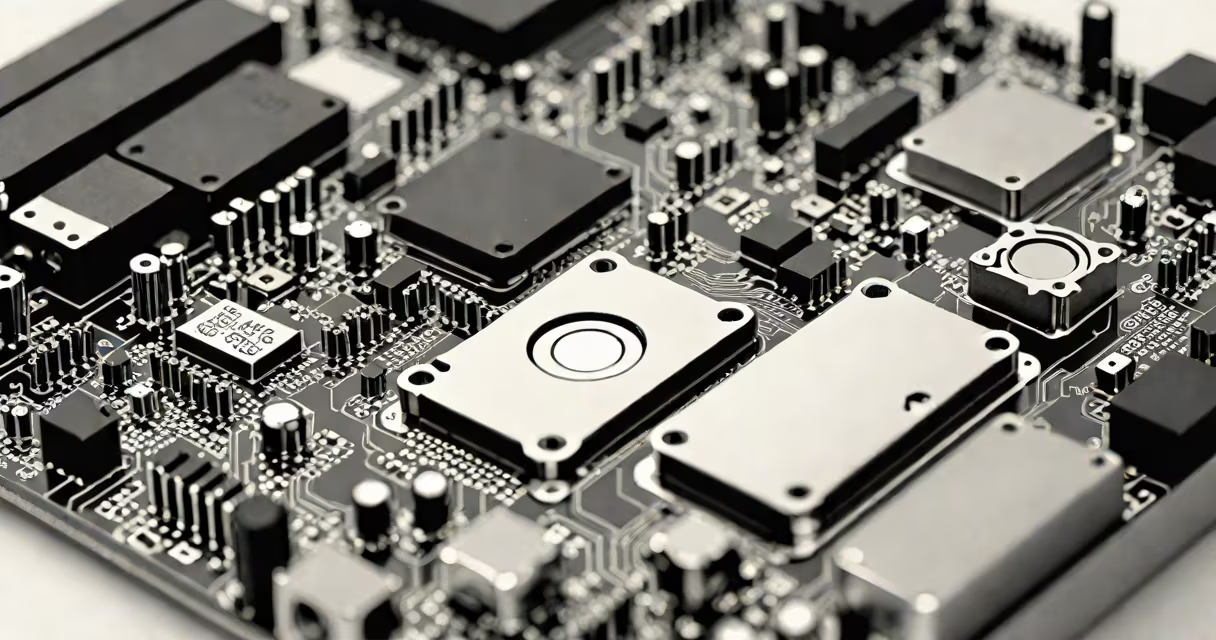
A storage device in computer is a hardware component that retains digital data persistently, even when power is off. It holds operating systems, applications, documents, media files, and system settings. Unlike RAM, which loses data when powered down, storage devices maintain information indefinitely.
These devices use magnetic, electronic, or optical methods to store data. They connect internally via SATA, NVMe, or M.2 interfaces, or externally through USB, Thunderbolt, or SD card slots. The most common types are hard disk drives (HDDs), solid-state drives (SSDs), USB flash drives, and memory cards.
Storage devices read and write data using binary patterns-sequences of 0s and 1s. In HDDs, data is stored magnetically on spinning platters. A read/write head floats nanometers above the surface, moving rapidly to access specific sectors. Each sector holds 512 bytes of data, organized in tracks and cylinders.
SSDs use NAND flash memory, a type of non-volatile semiconductor. Data is stored in cells within memory chips. When the system writes data, it alters the charge state of floating-gate transistors. This process allows faster access than mechanical parts, with no moving components. SSDs achieve random read speeds up to 7,000 IOPS, compared to HDDs' 100-200 IOPS.
Flash drives and SD cards use similar NAND technology. They're small, portable, and ideal for transferring files between computers. However, they have limited write cycles-typically 3,000 to 10,000 per cell-before degradation occurs.
The following table outlines major storage types, their typical capacities, speeds, and use cases:
| Type | Max Capacity | Typical Speed (Read) | Use Case |
|---|---|---|---|
| HDD (SATA) | 20 TB | 150-200 MB/s | Long-term data archiving, budget desktops |
| SSD (NVMe PCIe 4.0) | 8 TB | 7,000 MB/s | Operating system drives, high-performance workstations |
| USB Flash Drive | 2 TB | 100-400 MB/s | File transfer, bootable OS images |
| SD Card (UHS-II) | 1 TB | 300 MB/s | Cameras, drones, embedded systems |
Internal storage devices usually connect via SATA III (6 Gbps), NVMe over PCIe (up to 14 GB/s), or M.2 form factor. External devices rely on USB 3.2 Gen 2 (10 Gbps) or Thunderbolt 4 (40 Gbps).
Many assume that "storage" and "memory" are interchangeable. But memory (RAM) is volatile and temporary-used during active operations. Storage devices hold data permanently. Confusing them leads to performance issues. For example, running a video editing program with only 4GB of RAM and a slow HDD causes lag, even if the system has 1TB of free space.
Another myth is that SSDs last longer than HDDs. While SSDs don't suffer from mechanical wear, they degrade due to write endurance. A consumer-grade SSD may fail after 300 terabytes written (TBW)-a figure that varies by model. In contrast, HDDs typically survive 5-10 years under normal use, according to Backblaze's annual drive failure reports.
Also, not all storage devices are equal in durability. A USB flash drive left in a pocket can fail from physical shock. A 2.5-inch SSD used in a laptop withstands more vibration than a 3.5-inch HDD. Always handle removable media carefully.
I once configured a Linux development machine using a 1TB NVMe SSD and a 4TB HDD. The SSD hosted the OS, IDE, and project repositories. The HDD stored backups, virtual machines, and media files. Boot time dropped from 45 seconds (on an older HDD) to 6 seconds. Compilation times improved by 40% due to faster disk I/O.
When I accidentally unplugged the external backup drive during a sync, the system didn't crash. The OS continued running because critical data resided on the internal SSD. That moment confirmed how important separation of roles is: fast storage for active tasks, large-capacity storage for archives.
Storage devices impact system responsiveness. A slow drive increases application load times and delays startup sequences. According to Microsoft's analysis of Windows 10 boot times, systems with SSDs boot 50% faster than those with HDDs.
Data integrity depends on proper file systems. NTFS (Windows), ext4 (Linux), and APFS (macOS) manage metadata, permissions, and journaling. Journaling prevents corruption during unexpected shutdowns by logging changes before committing them. Without it, a power loss during a file save could render the entire partition unreadable.
For security, encryption is essential. Full-disk encryption tools like BitLocker (Windows), FileVault (macOS), and LUKS (Linux) protect data at rest. Even if a drive is stolen, encrypted content remains inaccessible without the key.
Understanding what is a storage device in computer clarifies how data persists across sessions. It's not just about capacity-it's about speed, endurance, and reliability. Choose the right device based on workload, budget, and usage patterns. For routine computing, a 500GB SSD offers optimal balance. For media libraries or backups, pair an SSD with a high-capacity HDD or NAS.