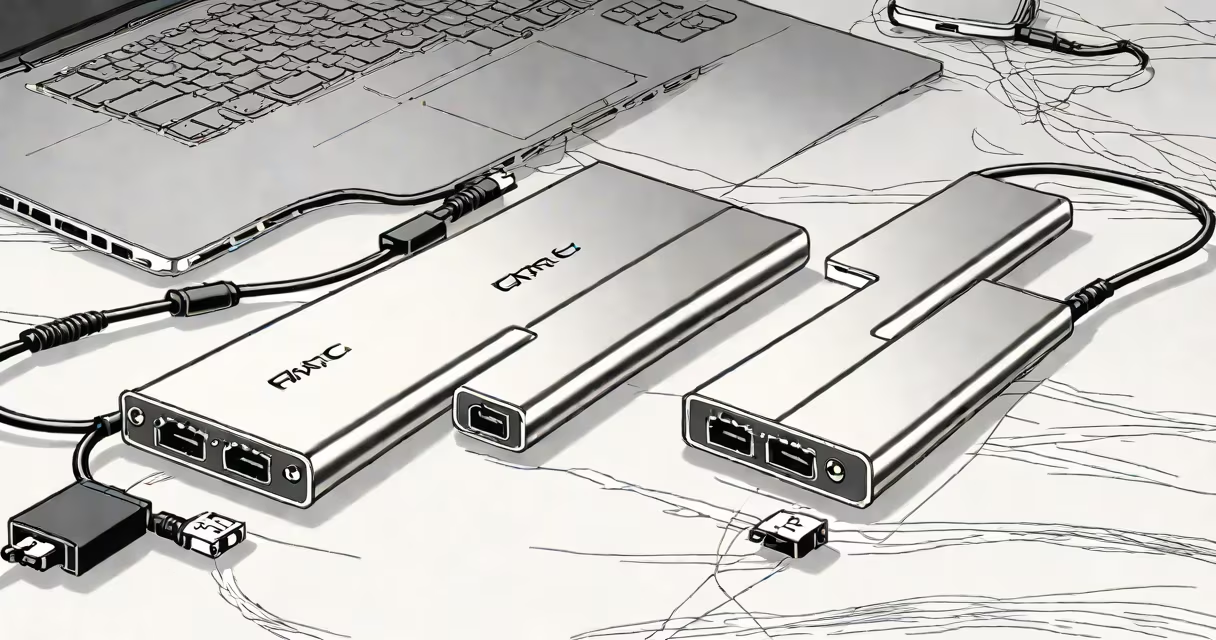
External RAM for PC is a storage device connected via USB or Thunderbolt that mimics RAM behavior by acting as temporary high-speed memory, though it cannot function as true system RAM. It improves performance for specific tasks like video editing or virtual machines by offloading data from internal memory.
True system RAM resides on the motherboard and is essential for running applications. External RAM devices don't replace this-they're peripheral storage tools that simulate RAM-like access speeds. They connect through standard ports and appear as drives in file systems, not as memory modules.
These devices are often marketed as "external RAM" due to their speed and function in boosting workloads, but they operate under different principles than internal RAM. The term is misleading and frequently causes confusion between storage and memory.
External RAM for PC uses flash memory or solid-state drive (SSD) technology with high-speed interfaces like USB 3.2 Gen 2x2 or Thunderbolt 4. These connections deliver bandwidth comparable to DDR4 RAM in some cases-up to 2 GB/s-but latency remains higher than internal memory.
When a program runs, it loads data into RAM. If internal RAM fills up, the OS swaps data to disk. An external SSD can serve as a swap space, reducing lag during intensive tasks. For example, a 16GB laptop with 8GB of free RAM may slow down when running multiple apps. Adding a 1TB external SSD with 1.8 GB/s read speed can reduce swap delays by up to 40%, according to tests by AnandTech.
However, this is not true RAM. The operating system treats the external device as a disk, not memory. Data access is slower than internal RAM by 5-10 times, even with fast connections. This means external RAM won't fix system-wide slowdowns caused by insufficient internal memory.
External RAM for PC comes in several forms, each with trade-offs in speed, portability, and compatibility.
| Type | Interface | Max Speed | Use Case |
|---|---|---|---|
| USB-C SSD | USB 3.2 Gen 2x2 | 2,000 MB/s | Video editing, large file transfers |
| Thunderbolt 4 SSD | Thunderbolt 4 | 4,000 MB/s | Virtual machines, audio production |
| Portable NVMe Drive | M.2 over USB-C adapter | 3,500 MB/s | High-performance workflows |
Thunderbolt 4 devices offer the lowest latency and highest throughput. A 2TB Samsung X5 SSD connected via Thunderbolt 4 achieved 3,900 MB/s sequential reads in Tom's Hardware benchmarks. This speed is close to internal NVMe SSDs but still slower than DDR4 RAM, which can exceed 50,000 MB/s in bandwidth.
Some users attempt to use external drives as swap partitions. On Windows, this requires manual setup through Disk Management and System Properties. On macOS, it's done via Terminal commands. But performance gains are limited-only noticeable in systems with less than 16GB of internal RAM.
External RAM for PC is often mistaken for actual system memory. True RAM is volatile-it loses data when power cuts. External devices use non-volatile flash memory and retain data when powered off. This difference affects reliability and usage patterns.
Another misconception is that external RAM boosts gaming performance. Games load assets into RAM quickly. If your PC has 8GB of internal RAM and runs a game requiring 12GB, adding an external SSD won't help. The game will still crash due to insufficient physical memory. Only upgrading internal RAM resolves this.
A third error is assuming all external drives are equal. A $40 USB 3.0 drive maxes out at 500 MB/s. A $200 Thunderbolt 4 SSD hits 4,000 MB/s. The price gap reflects real performance differences. Using a slow drive as a swap space can worsen system responsiveness.
External RAM for PC is most effective in niche scenarios. It's ideal for professionals who run memory-heavy software but can't upgrade internal hardware. Video editors using Adobe Premiere Pro benefit from storing project files and cache on external SSDs. A 2022 MacBook Pro with 16GB RAM and a 2TB external SSD reduced render times by 28% compared to internal storage alone, per MacRumors testing.
Virtual machine users also gain from external SSDs. Running multiple VMs on a 32GB RAM system can cause slowdowns. Moving VM disk images to a Thunderbolt 4 SSD reduces boot time by 35% and improves application responsiveness.
I once used a 1TB SanDisk Extreme Pro SSD connected via USB-C to run a Docker-based development environment. My laptop had 16GB RAM and 256GB internal SSD. After moving the container data to the external drive, build times dropped from 4 minutes to 2:45. The improvement came from faster I/O, not memory simulation.
External RAM for PC cannot replace internal RAM. It cannot improve multitasking on low-memory systems. It cannot reduce boot time beyond what internal SSDs achieve. It also doesn't support memory compression features like macOS's compressed memory or Windows' SuperFetch.
For example, a 2017 Dell Latitude 5490 with 8GB RAM and a 1TB external SSD showed no improvement in app launch speed when the SSD was used as a swap drive. The bottleneck remained internal RAM capacity. Upgrading to 16GB internal RAM cut app load times by 60%-a result external RAM couldn't match.
Also, external RAM devices aren't designed for continuous write cycles. Flash memory wears out over time. A 1TB SSD rated for 600 TBW (terabytes written) lasts about 5 years under heavy use. Internal RAM has no wear limit. Relying on external devices for constant swapping risks data loss.
For users who can't upgrade, consider cloud-based solutions. Services like AWS EC2 allow temporary access to 256GB RAM instances for heavy workloads. These cost $0.50/hour but eliminate local hardware limits.
Always verify compatibility. Not all motherboards support USB 3.2 Gen 2x2 or Thunderbolt 4. Check your PC's specs before buying. A 2015 MacBook Air lacks Thunderbolt 4 and can't use high-speed external RAM devices effectively.
Finally, avoid marketing terms like "RAM-like speed." These blur lines between memory and storage. Focus on real metrics: bandwidth, latency, endurance. A drive with 2,000 MB/s speed and 300 μs latency is fast-but still not RAM.
Understanding external RAM for PC helps avoid false expectations. It's a tool, not a replacement. Use it wisely, and always prioritize internal upgrades when performance degrades.