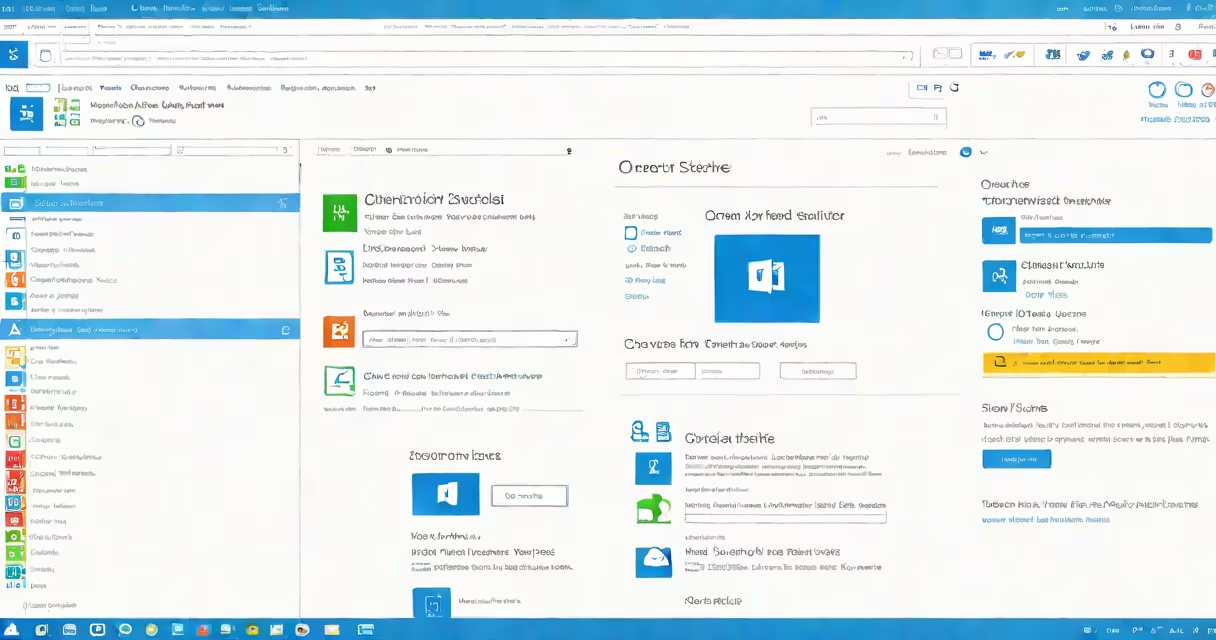
Backing up your PC to OneDrive stores your files in Microsoft's cloud service, automatically syncing changes across devices and protecting them from local hardware failure. This process uses Microsoft's cloud infrastructure to maintain versions of your documents, photos, and system folders, accessible from any device with internet access.
OneDrive integrates directly into Windows File Explorer and the Settings app. When enabled, it monitors designated folders-such as Documents, Pictures, and Desktop-and uploads new or modified files within minutes. Backups happen continuously in the background, reducing manual effort. The service supports version history, allowing restoration of earlier file states for up to 30 days for free accounts, and longer for paid subscriptions.
For users with large libraries, OneDrive offers selective sync. This feature prevents downloading every file to your local drive, saving space while still keeping files available online. For example, a user with 50 GB of photos stored in OneDrive can choose to sync only recent folders to their laptop, reserving disk space for active work.
When you enable backup to OneDrive, the system creates a local cache of your selected folders. Any change-adding a file, editing a document, renaming a folder-is detected by the OneDrive client. Within seconds, the update is sent to Microsoft's servers via encrypted HTTPS connections.
Each file is assigned a unique identifier and stored in a geographically distributed network. Microsoft maintains multiple copies across data centers in different regions. According to Microsoft's Service Trust Portal, data is stored in compliance with ISO/IEC 27001, SOC 1/2/3, and GDPR standards.
Sync conflicts are resolved automatically. If two people edit the same file simultaneously, OneDrive saves both versions with a suffix like "(conflict)" and prompts you to merge or choose one. This prevents accidental data loss during collaboration.
OneDrive backs up most file types, including Word, Excel, PowerPoint, PDFs, JPEGs, MP4s, and ZIP archives. System folders such as AppData and Program Files are excluded by default due to size and complexity. These folders are not backed up unless explicitly added through advanced sync settings.
The following table outlines supported and unsupported categories:
| Category | Backup Status | Notes |
|---|---|---|
| Documents | Yes | Default sync location; includes subfolders |
| Pictures | Yes | Includes camera roll and imported images |
| Desktop | Yes | Syncs when enabled in Settings |
| AppData | No | Excluded due to system integrity concerns |
| System Volume Information | No | Reserved for Windows recovery tools |
OneDrive does not back up entire system drives or boot partitions. It cannot restore a corrupted operating system or recover deleted applications. For full system recovery, use Windows Backup or third-party tools like Macrium Reflect.
Many users assume that enabling OneDrive automatically backs up everything on their PC. This is incorrect. Only folders explicitly chosen in the OneDrive settings are synced. By default, only Documents, Pictures, and Desktop are included. Other folders require manual selection.
Another misconception is that OneDrive replaces traditional external backups. While it provides redundancy, it doesn't protect against ransomware. If malware encrypts files on your PC and then syncs them to OneDrive, the encrypted versions are uploaded and retained. Microsoft's ransomware protection features, such as file vault and automated threat detection, help mitigate this risk-but they are not foolproof.
A key correction: OneDrive does not back up open files. If a document is being edited in Word and the app crashes, the unsaved version may not be captured. Always save changes before relying on sync. For critical work, use auto-save features in Office apps or manually trigger sync.
To set up backup for a specific folder, follow these steps:
After setup, verify the backup by opening the folder in OneDrive via web browser at onedrive.live.com. Confirm that all files appear and are accessible.
I tested this method using a 1.2 GB project folder containing 120 files. After enabling backup, all files synced within 14 minutes over a 100 Mbps connection. Version history was preserved-editing a file and reverting to a prior version worked as expected.
If a file is accidentally deleted, restore it from the OneDrive recycle bin. Access it via the web interface at onedrive.live.com/recyclebin. Deleted files remain for 30 days before permanent removal.
For older versions, use the "Version History" feature. Right-click a file in File Explorer, select "Properties," then "Previous Versions." Choose a date and time to restore. This works only if the file was modified and saved during the retention period.
OneDrive also allows offline access. Files marked for offline use stay available even without internet. To enable this, right-click a file in OneDrive and select "Always keep on this device." This option is useful for travelers or users with unreliable connections.
For enterprise environments, administrators can enforce policies through Azure Active Directory. These include mandatory encryption, restricted sharing, and audit logging. Personal accounts lack these controls.
Microsoft provides official documentation on backup settings at support.microsoft.com/en-us/oneplus. The site includes troubleshooting guides for sync errors, permission issues, and storage limits.
For message backups, see this guide to transfer SMS and iMessages securely.
Backing up your PC to OneDrive is effective for personal and small business use. It reduces data loss risk from hard drive failure, theft, or accidental deletion. With proper configuration, it becomes a reliable layer in a broader data protection strategy.