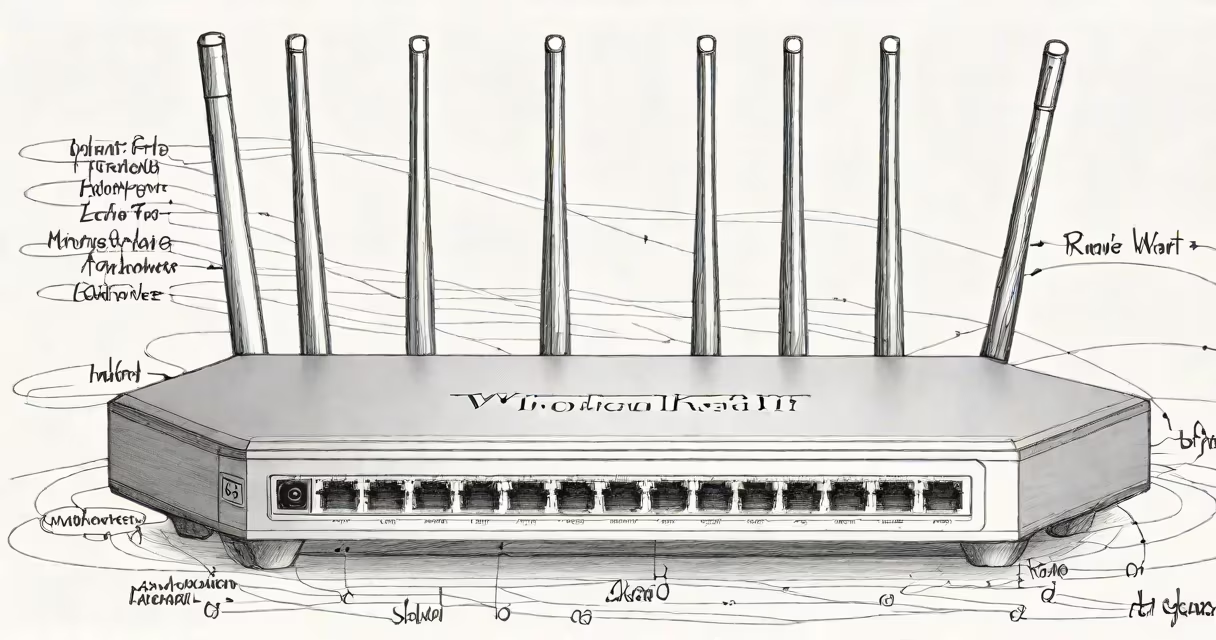
To find out what router you have, check the label on the device's underside or back for the model number and manufacturer name. You can also access the router's web interface through a browser by entering its IP address (like 192.168.1.1) and logging in with admin credentials.
The physical label is the fastest method. Most routers display the model number, serial number, and MAC address on a sticker. For example, a Netgear Nighthawk R7000 shows "Model: R7000" and "Serial: XXXXXXXX" on the back. This label also includes the default login page URL, often http://www.routerlogin.net or http://192.168.1.1.
If the label is missing or damaged, use your computer's command prompt or terminal. On Windows, run ipconfig /all and look for the "Default Gateway" under your active network connection. On macOS or Linux, use netstat -nr | grep default. The gateway IP is usually the router's address. Enter it into a browser to access the admin panel.
There are three primary ways to determine your router model: physical inspection, software-based detection, and network scanning. Physical inspection is most accurate and immediate. Software methods require access to a connected device and may not always reveal the exact model.
Software-based detection relies on the router's web interface or mobile app. Many manufacturers provide apps like Google Home, Netgear Armor, or ASUS Router. These apps can auto-detect the router and display the model name. However, they depend on the router supporting the service and being properly configured.
Network scanning tools such as Advanced IP Scanner or Fing can detect devices on your network and sometimes report the device type. While useful for identifying unknown devices, they rarely list the exact router model unless the device broadcasts detailed information via SNMP or UPnP.
| Method | Accuracy | Required Access | Best For |
|---|---|---|---|
| Label on device | High | Physical access | Immediate model confirmation |
| Web interface login | Medium-high | Network access, admin password | Users who lost the label |
| Command-line tools | Medium | Device with terminal access | Advanced users or remote troubleshooting |
| Network scanner apps | Low-medium | Mobile or desktop app | Quick device discovery, not model-specific |
Many people assume their ISP-provided router is a branded model like TP-Link or Linksys. That's not always true. ISPs often use custom firmware on generic hardware. A router labeled "Comcast Xfinity Gateway" may actually be a Netgear D6300 with modified branding. Checking the actual model number prevents incorrect support requests.
Another mistake is confusing the router's IP address with its model name. Entering 192.168.1.1 into a browser takes you to the admin page, but the title bar may show "Router Login" or "TP-Link" even if the device is a different brand. Always verify the model number on the device itself.
A non-obvious fact: Some routers use a single model number across multiple firmware versions. For example, the Asus RT-AC86U appears in several regional variants (RT-AC86U, RT-AC86U-AC, RT-AC86U-AX). The model number alone doesn't distinguish between them. You must cross-reference the serial number or firmware version to confirm exact specifications.
I once helped a user whose router had no visible label after moving homes. The device was a small, black box with four Ethernet ports and a blinking LED. Using a laptop connected via Ethernet, I opened Command Prompt and ran ipconfig /all. The output showed:
Default Gateway . . . . . . . . . : 192.168.1.1I entered 192.168.1.1 into Chrome, logged in with the default credentials (admin/admin), and navigated to the Status tab. Under "Device Information," the system displayed "Model: TP-Link Archer C7 v5." This matched the model number printed on the original packaging stored in a drawer.
Without the label, the process took less than five minutes. The correct model number allowed me to download the latest firmware from the official TP-Link site and update the device's security settings.
You need the exact model number when upgrading firmware, replacing parts, contacting technical support, or setting up advanced features like VLANs or QoS. For example, if you're troubleshooting slow speeds, knowing whether your router supports 802.11ac or 802.11ax matters. A router with 802.11n only won't deliver high-speed Wi-Fi to newer devices.
Manufacturers publish detailed specifications online. According to the Netgear Support Site, each model has a dedicated page listing supported frequencies, maximum throughput, and antenna count. Without the model number, you cannot verify compatibility with new standards.
For users managing multiple networks, knowing the model helps avoid configuration errors. A user running a home office with a separate guest network reported intermittent disconnections. After checking the model (Linksys WRT3200ACM), I discovered it required a specific firmware patch for stable 5GHz operation. Updating to the latest version resolved the issue.
Knowing your router model ensures you get accurate help, avoid incompatible upgrades, and maintain a secure network. Always start with the physical label. If that's gone, use the gateway IP and login to the web interface. This method works reliably across brands and models.