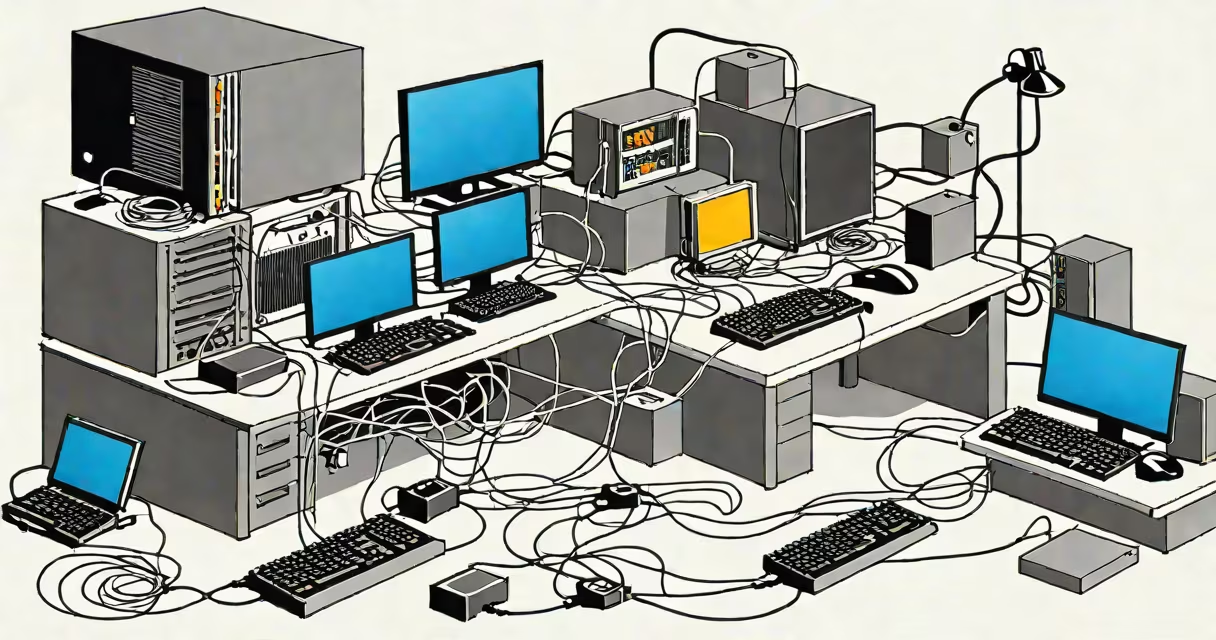
Connecting a computer to a network enables access to shared files, printers, the internet, and internal systems. This process uses either a physical Ethernet cable or Wi-Fi, depending on hardware and configuration. The correct setup ensures stable communication between devices on the same local network.
Network connectivity begins with a physical or wireless link to a router or switch. A wired connection uses an Ethernet cable plugged into the computer's network port and the router's LAN port. Wireless connections rely on Wi-Fi radio signals from a router broadcasting a network name (SSID) and password. Once the link is established, the computer receives a unique IP address through DHCP, allowing it to communicate within the network.
Modern operating systems handle most network tasks automatically. Windows 11 and macOS Ventura assign IP addresses, configure DNS settings, and manage authentication with minimal user input. However, manual adjustments may be needed for static IP assignments, VLAN tagging, or troubleshooting connectivity issues. Network configuration tools such as Windows' Command Prompt or macOS' Terminal provide direct control over network interfaces and diagnostic functions.
When a computer boots and connects to a network, it sends a DHCP discovery packet asking for an IP address. The router responds with an offer containing an IP, subnet mask, default gateway, and DNS server details. The computer accepts the offer and configures its network stack accordingly. This process completes in under two seconds on most home networks.
If the network uses a static IP, the user must manually enter values such as 192.168.1.100 for the IP, 255.255.255.0 for the subnet, and 192.168.1.1 for the gateway. Failure to match these settings with the network's configuration results in isolation from other devices and no internet access.
After configuration, the computer performs a ping test to verify reachability. For example, running ping 8.8.8.8 in Command Prompt checks if the system can reach external servers. Success indicates a working internet path. If the ping fails, further diagnostics are required.
Wired and wireless setups differ in speed, reliability, and security. Ethernet cables support speeds up to 10 Gbps with Cat6 or Cat6a cabling, while Wi-Fi 6 (802.11ax) delivers up to 9.6 Gbps in ideal conditions. Real-world performance typically ranges from 200 Mbps to 1 Gbps for both, depending on distance, interference, and device capabilities.
| Connection Type | Max Speed (Typical) | Latency | Security Level | Use Case |
|---|---|---|---|---|
| Ethernet (Cat6) | 1 Gbps | 1-5 ms | High (physical access required) | Gaming, video editing, server access |
| Wi-Fi 6 (5 GHz) | 900 Mbps | 10-30 ms | Medium (encrypted, but signal can be intercepted) | Laptop use, streaming, mobile devices |
| Wi-Fi 5 (802.11ac, 5 GHz) | 400 Mbps | 20-50 ms | Medium | General office use |
For consistent performance, wired connections are preferred in environments requiring low latency and high bandwidth. Wireless setups offer mobility and convenience but are vulnerable to interference from microwaves, Bluetooth devices, and neighboring networks.
Users often assume that a blinking network light means a working connection. That indicator only confirms physical link status, not data flow. A computer may show "connected" in the taskbar but still fail to access websites due to incorrect DNS settings or firewall blocks.
A frequent error occurs when multiple devices share the same static IP. For example, assigning 192.168.1.50 to two computers causes a conflict. The router detects duplicate addresses and drops one device from the network. This results in intermittent disconnections and failed pings.
To resolve, check the assigned IP using ipconfig (Windows) or ifconfig (macOS). Look for an IPv4 Address field. If it shows 169.254.x.x, the computer failed to obtain an IP via DHCP and is using APIPA (Automatic Private IP Addressing). This indicates a problem with the router or cable.
Running ipconfig /release then ipconfig /renew forces a new DHCP request. On macOS, use sudo ipconfig set en0 DHCP to renew the lease. These commands reset the network interface and often restore connectivity.
In a small business, five employees use laptops and desktops connected to a single router. The IT manager sets up a static IP pool for printers and servers: 192.168.1.10-19. Desktops use DHCP. When a new employee joins, they plug their laptop into a wall port using a Cat6 cable. The computer automatically detects the network and requests an IP.
During setup, the user sees a notification: "Connected to network." They open a browser and try to load www.google.com. The page loads slowly. Running ping 1.1.1.1 returns replies, confirming internet access. But ping google.com fails because the DNS resolver is unreachable.
The fix: Change the DNS setting. Enter 1.1.1.1 and 1.0.0.1 (Cloudflare's public DNS). After applying, the browser loads pages instantly. This demonstrates that internet access requires both IP connectivity and functional DNS resolution.
"Connecting to the network" is not the same as "connecting to the internet." A computer can be on the same local network as a printer and still lack internet access if the router's WAN port is disconnected or the ISP is down. Similarly, a device may show "connected" to Wi-Fi but fail to reach external sites due to DNS misconfiguration.
Another misunderstanding involves network adapters. Some users assume that a missing Wi-Fi icon means the adapter is broken. In reality, the driver may be disabled or the wireless radio turned off via a function key (Fn+F2 on many laptops). Checking Device Manager (Windows) or System Information (macOS) reveals whether the adapter is recognized and enabled.
Some believe that connecting via Ethernet eliminates the need for a password. This is false. Even wired networks can require authentication through WPA3 encryption or enterprise protocols like 802.1X. A company's internal network may require a username and password even when physically plugged in.
I once spent 45 minutes diagnosing why my desktop wouldn't access the internet despite showing "connected" on the network icon. The issue was a corrupted DHCP client service. Restarting the service via Services.msc resolved the problem. The computer had previously obtained an IP but lost it during a power surge. Rebooting the router didn't help. Only resetting the network stack did.
This experience reinforced that visual indicators don't guarantee functionality. Always test with basic commands like ping 192.168.1.1 (router) and ping 8.8.8.8 (external). If the first succeeds but the second doesn't, the issue lies beyond the local network - likely in routing or DNS.
Once configured, a computer can reliably access shared resources, cloud services, and remote systems. Proper setup prevents downtime and supports productivity across personal and professional environments.