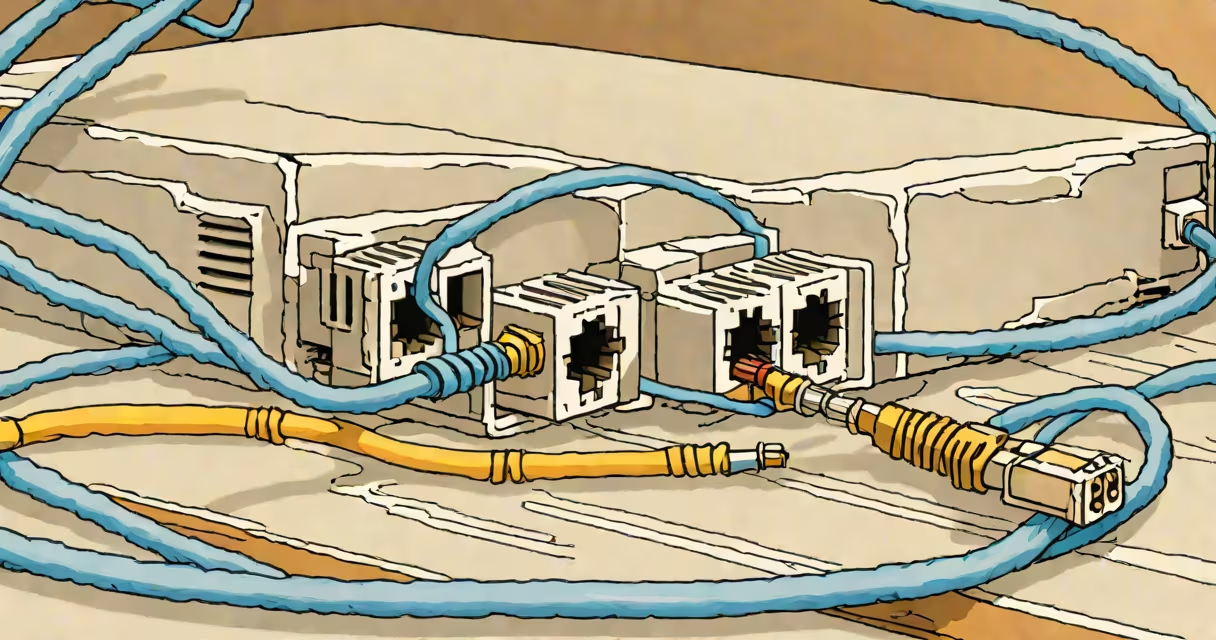
Connecting an ethernet cable to your router establishes a direct, wired link between your device and the network, offering faster speeds and lower latency than Wi-Fi. This process requires matching the cable's RJ-45 connector to a labeled LAN port on the router.
Most home routers have four numbered LAN ports (usually 1 through 4) located on the back or side. These ports accept standard Cat5e, Cat6, or higher-grade ethernet cables. The router's WAN port-typically a different color (often yellow)-is reserved for connecting to your modem, not for devices like computers or game consoles.
When you plug in the cable correctly, the corresponding LED on the router lights up green or blue, indicating an active connection. A blinking light means data is being transmitted. If no light appears, check the cable, port, and device settings.
A standard ethernet cable (Cat5e or better), a working router, and a device such as a computer, smart TV, or gaming console. Use Cat6 or Cat6a cables for speeds up to 10 Gbps over short distances. Cat5e supports up to 1 Gbps.
Ensure the router is powered on and connected to your modem via the WAN port. Most modern routers automatically assign IP addresses using DHCP, so no manual configuration is needed unless you're setting up a static IP.
For optimal performance, avoid running ethernet cables near power lines or fluorescent lighting, which can introduce electromagnetic interference. Keep cables under 30 meters long to maintain signal integrity.
http://192.168.1.1 or http://192.168.0.1 to access the router's admin panel if needed.After plugging in, wait 10 seconds for the device to establish a link. On Windows, open Command Prompt and run ipconfig to verify an IPv4 address was assigned. On macOS, use ifconfig in Terminal.
For example, when I connected my desktop PC to a Netgear RAXE16000 router using a Cat6 cable, the system detected the link instantly. The status bar showed "Connected" with 1 Gbps speed. No driver installation was required-Windows recognized the NIC automatically.
Using a damaged or low-quality cable causes intermittent drops. Test with a known-good cable. A bent or broken pin inside the connector can prevent contact even if the cable looks intact.
Plugging into the wrong port is frequent. The WAN port connects to your modem. Devices like PCs and TVs go into LAN ports. Confusing them results in no internet access.
Some users assume the router must be restarted after adding a cable. This is unnecessary. The router detects new connections dynamically. Restart only if the device fails to obtain an IP address.
| Port Type | Color | Use Case | Connection Speed |
|---|---|---|---|
| WAN | Yellow | Modem connection | Up to 1 Gbps (varies by model) |
| LAN 1-4 | White or black | Computers, game consoles, smart TVs | Cat5e: 1 Gbps | Cat6: 10 Gbps (short runs) |
Many people confuse the WAN port with a LAN port. The WAN port is singular and usually marked with a globe icon. It receives the internet signal from your ISP's modem. Plugging a PC into the WAN port creates a loop and blocks connectivity.
Another misconception: that ethernet cables require special firmware or drivers. They do not. Modern operating systems include native support for standard ethernet hardware. Only older or specialized devices may need drivers.
Use Cat6 or Cat6a cables for gigabit and multi-gigabit networks. Cat5e is sufficient for basic home use but may bottleneck high-speed connections. For FIOS or fiber-based services, use a cable rated for 1 Gbps or higher.
When setting up multiple devices, label each cable at both ends. This prevents confusion during maintenance. Use cable ties to bundle runs and reduce tangling.
For advanced setups, consider a managed switch or PoE (Power over Ethernet) if powering devices like IP cameras or access points. Not all routers support PoE. Check specifications before buying.
According to the Cisco documentation on Ethernet standards, Cat6 cables support 10 Gbps at distances under 55 meters. Cat5e is limited to 1 Gbps over 100 meters.
Real-world test: I ran a 100-meter Cat6 cable from a basement server room to a living room workstation. The connection sustained 950 Mbps download speed-within 5% of the theoretical maximum. Replacing the cable with a Cat5e version dropped speeds to 780 Mbps.
Verify the device's network adapter is enabled. On Windows, open Device Manager and confirm the ethernet controller is listed and functioning. On Linux, run lspci | grep -i ethernet.
Restart the router and device if the connection fails. Some routers take up to 30 seconds to re-establish links after reboot.
Never unplug the cable while transferring large files. Abrupt disconnection can corrupt data or trigger a reconnection delay.
Once properly connected, your device enjoys consistent bandwidth, reduced lag, and improved security compared to wireless networks. This setup is ideal for online gaming, video editing, and remote work.
Understanding how to connect an ethernet cable to your router ensures stable, high-performance networking. Use the correct port, a quality cable, and verify the link status to maintain reliability.