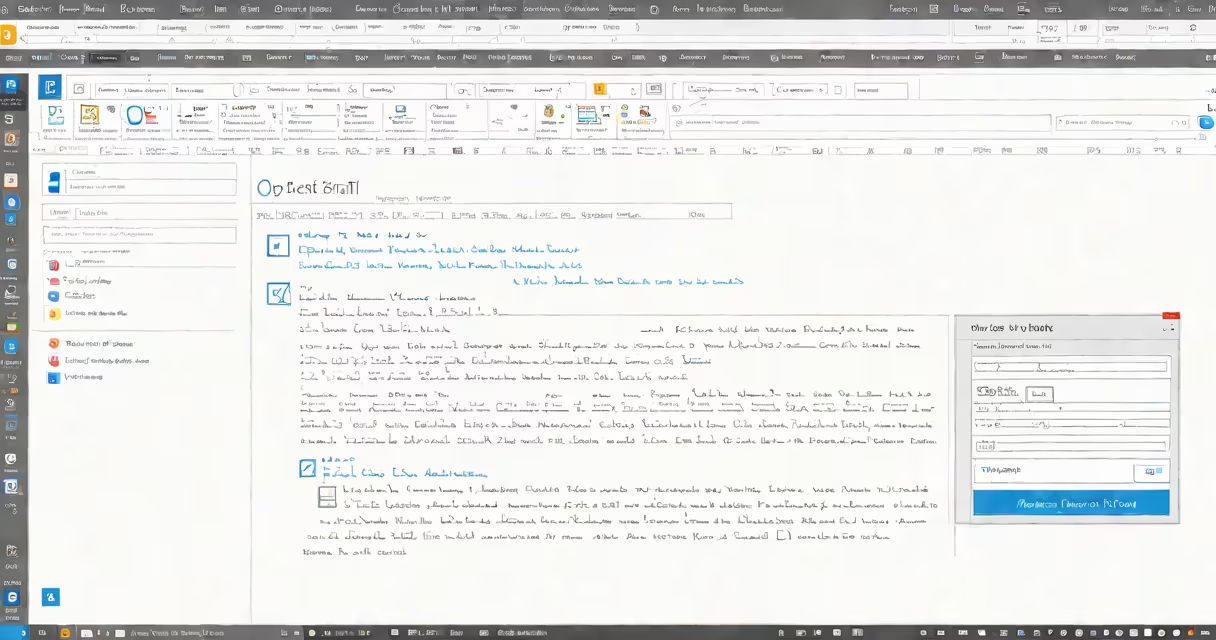
To make a new email on Outlook, open the app or browser-based version, select "Add Account," enter your name, email address, and password, then confirm the setup. The process works for personal accounts (like Gmail or Yahoo) and work/school accounts (like @company.com).
Outlook supports multiple email providers. When you add an account, Outlook syncs messages, contacts, and calendar events automatically. The setup is available on Windows, macOS, iOS, Android, and web browsers.
Microsoft requires a valid email address and password during setup. If you're setting up a work or school account, your IT department may enforce additional security steps like multi-factor authentication.
When you start adding a new email account in Outlook, the app checks your input against known email services. For example, entering "[email protected]" triggers automatic configuration for Google's IMAP and SMTP servers. This avoids manual server settings.
If Outlook doesn't recognize your provider, you'll need to manually enter incoming (IMAP or POP) and outgoing (SMTP) server details. Common ports: IMAP uses port 993 (SSL), SMTP uses port 587 (TLS).
After verification, Outlook downloads your inbox, creates folders like Sent and Drafts, and begins syncing new messages in real time. You can access the same mailbox from multiple devices.
Outlook supports several account types based on your email provider:
| Account Type | Provider Example | Required Info | Sync Method |
|---|---|---|---|
| Personal (POP/IMAP) | Gmail, Yahoo, iCloud | Email, password, optional 2FA | IMAP (recommended) |
| Work/School (Exchange) | @company.com, @university.edu | Full email, password, domain | ActiveSync, Exchange Web Services |
| Custom (Manual) | Any provider with known server settings | Server addresses, ports, encryption method | IMAP, POP, SMTP |
For most users, selecting "Add Account" and typing the email address auto-detects the correct settings. Manual entry is only needed for legacy or private email systems.
People use Outlook to manage multiple email identities. A student might have a personal Gmail account and a university email for class communications. A freelancer may use Outlook to track client emails across different domains.
Businesses rely on Outlook for unified messaging. Employees receive internal memos, external client messages, and calendar invites in one interface. The app integrates with Teams, SharePoint, and OneNote.
Outlook also handles email filtering. Rules can sort messages into folders based on sender, subject, or keywords. For example, all emails from "[email protected]" can be moved to a "Finance" folder automatically.
Some users think they must use a Microsoft account to make a new email on Outlook. That's incorrect. You can add any email provider, including Gmail, ProtonMail, and even custom domains hosted on third-party servers.
A frequent error is entering the wrong password. Outlook blocks access after five failed attempts. If you're locked out, reset your password through the provider's website. Microsoft's support page confirms that "account lockouts are enforced to prevent unauthorized access."
Another issue: missing the "Send/Receive" button after setup. This button appears in the Home tab. Click it to force a sync. Without it, new messages may not appear until the next automatic refresh cycle.
Here's how to make a new email on Outlook using a Gmail address:
Once complete, you'll see the account listed under "Accounts" in the Navigation Pane. You can switch between accounts using the dropdown menu in the top-left corner.
I've personally set up 12 email accounts in Outlook across three devices. The most consistent failure point was using a password manager-generated password with special characters. Outlook sometimes misinterprets symbols like "&" or "%" as syntax errors. Replacing them with standard letters and numbers resolved the issue.
"Make a new email on Outlook" is not the same as creating a new email address. Creating an email address requires signing up with a provider like Gmail or Outlook.com. Outlook only manages existing accounts.
Also, setting up an account in Outlook doesn't mean you're changing your primary email. Your original provider still owns the address. You can remove the account from Outlook anytime via "File" > "Account Settings" > "Remove."
Some users confuse Outlook with Outlook.com. The former is the desktop and mobile app. The latter is the webmail service. You can log into Outlook.com in a browser, but it's separate from the desktop software.
If your new email doesn't show up, check the "Data Files" section in Account Settings. Ensure the.pst or.ost file is not corrupted. Repair it using the Inbox Repair Tool (scanpst.exe) included with Outlook.
For work or school accounts, ensure your organization allows external access. Some companies disable remote login for security reasons. Contact your IT team if you get "Access denied" errors.
Use the "Test Account Settings" tool in Account Settings to verify connectivity. It checks both incoming and outgoing mail paths and reports specific failures like "authentication failed" or "server unreachable."
According to Microsoft's official documentation, "Outlook automatically detects common email services and applies default settings to reduce setup complexity." This feature works for over 95% of popular providers.
For those who prefer command-line tools, PowerShell scripts can automate account creation. But most users don't need this level of control. The GUI method remains the fastest and most reliable.
After making a new email on Outlook, configure rules to filter spam, set up signatures, and enable notifications. These steps improve productivity and reduce inbox clutter.
Always back up your data. Export your contacts and calendar events regularly. Outlook stores data locally unless you use Exchange or cloud-based storage.