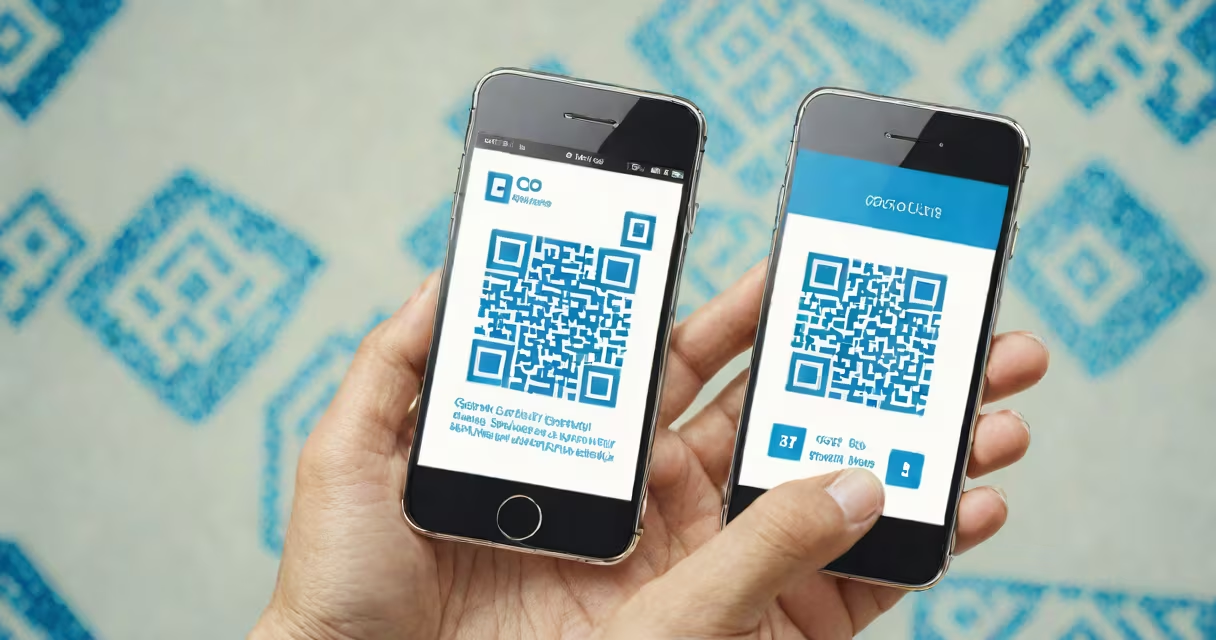
"my qr code scanner" refers to the software function or app on your smartphone that captures and decodes QR codes-two-dimensional barcodes that store data like web links, contact details, or payment instructions. It turns a visual pattern into actionable information instantly.
QR codes are designed to be read quickly by cameras and processors. When you point your phone's camera at a QR code, the device uses image recognition to locate the square pattern, decode the embedded data, and then act on it-opening a website, saving a contact, or initiating a payment.
The term "my qr code scanner" often describes the default camera app on Android or iOS, which automatically detects QR codes without needing a separate app. Some users also install dedicated apps like Google Lens or QR Code Reader by Scan for enhanced features such as history tracking or batch scanning.
Your phone's camera captures the QR code as a digital image. The scanner then applies a series of algorithms to detect the position markers (the large squares in the corners), align the grid, and decode the black-and-white modules inside. Each module represents a binary digit (0 or 1), forming a string of data.
Once decoded, the system checks the data format. If it's a URL, the phone opens the browser. If it's contact information in vCard format, it prompts you to save the entry. For payment codes like those used in Apple Pay or Google Pay, the app sends the encrypted data to the payment processor.
A single QR code can hold up to 4,296 alphanumeric characters. That's enough for a full webpage URL, a short document, or even a small file link. The data is stored in a structured way using error correction levels (L, M, Q, H), meaning the code can still be read even if 30% of it is damaged.
There are three main types of QR code scanners:
| Type | Use Case | Examples |
|---|---|---|
| Built-in camera | Quick, everyday scans | iOS Camera app, Samsung Galaxy Camera |
| Dedicated apps | Advanced features, history, bulk scanning | Google Lens, QR Code Reader by Scan, ZXing |
| Custom enterprise tools | Inventory tracking, secure authentication | Internal company apps, hospital systems |
Most smartphones since 2015 have native QR code support. On iPhone, the camera app recognizes QR codes automatically. On Android, Google's Camera app and many OEM versions do the same. This eliminates the need to download extra software for basic use.
For users who scan frequently-such as event staff, retail workers, or students-the difference between a basic and advanced scanner matters. Advanced tools offer features like auto-save history, cloud sync, barcode export, and integration with spreadsheets.
Many people assume that QR codes require a special "scanner" device. In reality, nearly every smartphone made after 2010 can read them using the standard camera. You don't need a flashlight, a special lens, or a subscription.
Another myth is that QR codes are insecure. While they can lead to malicious websites, the risk lies in the destination-not the code itself. A QR code is just a data container. The security depends on whether the user trusts the source.
According to the National Institute of Standards and Technology (NIST), QR codes are not inherently vulnerable. Their strength lies in the encryption of the payload, not the format. Scanning a QR code from an untrusted source remains risky-but so does clicking any unknown link.
In 2023, a university in Texas replaced paper course syllabi with QR codes posted on classroom doors. Students used their phones' built-in cameras to scan the codes and access updated materials, including video lectures and assignment deadlines.
One student reported scanning a code that redirected to a phishing site. The university later confirmed the code had been tampered with. However, the incident highlighted that the issue wasn't the scanner-it was the lack of verification. The institution now requires all QR codes to be hosted on a secure domain and verified through a central dashboard.
This example shows that "my qr code scanner" is not the problem. It's the context and source of the code that determine safety. Always verify the URL before proceeding, especially if prompted to enter login details.
Use your phone's default camera app for most tasks. It's fast, secure, and doesn't require installation. If you scan dozens of codes daily, consider a dedicated app with history and filtering features.
Never scan codes from untrusted sources-especially those posted in public spaces like bus stops, parking lots, or flyers. These may redirect to malware sites or steal personal data.
I once used a QR code at a conference to register for a session. The code didn't work. After checking the lighting and alignment, I realized the printer had used low-contrast ink. The scanner couldn't detect the edges. I switched to a high-contrast version and succeeded. This taught me that physical quality matters as much as digital capability.
"my qr code scanner" is not a standalone hardware device. It's a software function. You don't need a $50 scanner. Your phone is already equipped.
It's also not a replacement for manual data entry. Scanning is faster, but errors can occur if the code is blurry, angled, or partially covered. Always double-check the result before acting.
Finally, it's not a privacy tool. Scanning a code reveals your IP address and device info to the server hosting the linked content. Use a private browsing mode if you're concerned about tracking.
Understanding how "my qr code scanner" functions helps you use it safely and effectively. paying for a coffee, the ability to scan a QR code is now a standard part of daily life.