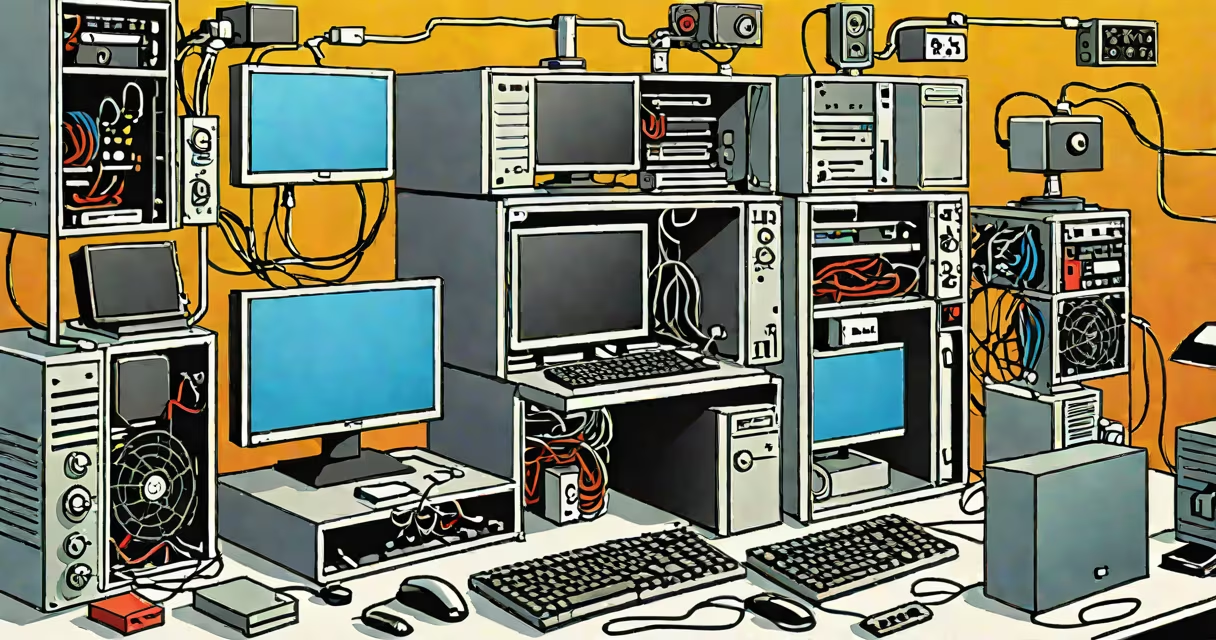
The configuration of computer refers to the specific combination of hardware and software components installed in a system, defining its capabilities, performance limits, and compatibility with applications. This includes physical parts like the processor, memory, storage, and graphics card, as well as installed operating systems and software settings.
Configuration determines how fast a computer runs, what programs it can run, and how many tasks it handles simultaneously. For example, a machine with a 3.6 GHz Intel Core i7, 16 GB of RAM, and a 1 TB SSD performs differently than one with a 2.4 GHz AMD Ryzen 3, 8 GB of RAM, and a 500 GB HDD. The first system supports video editing and gaming; the second struggles with multiple browser tabs.
Modern systems report configuration details through built-in tools. On Windows, running msinfo32 in the Run dialog displays a full system report. On macOS, selecting "About This Mac" shows processor speed, memory size, and disk capacity. These reports include both hardware and software layers, such as the version of the OS and available drivers.
Each component in a computer contributes to function. The central processing unit (CPU) executes instructions. Random-access memory (RAM) stores data currently in use. Storage devices-HDDs or SSDs-hold the operating system, applications, and files. Graphics processing units (GPUs) render images and video.
These components communicate via buses and interfaces. The motherboard connects them using standards like PCIe and SATA. A mismatched interface can limit performance. For example, installing a high-speed NVMe SSD into a motherboard with only SATA III ports restricts bandwidth to ~600 MB/s, even though the drive supports ~3,500 MB/s.
Software configuration also affects behavior. The operating system manages access to hardware. Installing a 64-bit OS enables use of more than 4 GB of RAM. Choosing a lightweight Linux distribution allows older hardware to run smoothly. Misconfigured network settings can prevent internet access, even with working hardware.
Configurations vary based on device type and intended use. Desktops, laptops, servers, and workstations have distinct setups tailored to their roles.
| Type | Typical CPU | RAM Range | Storage Type | Use Case |
|---|---|---|---|---|
| Desktop | Intel Core i7/i9, AMD Ryzen 7/9 | 16-64 GB | SSD (NVMe preferred) | Gaming, video editing, development |
| Laptop | Intel Core i5/i7, AMD Ryzen 5/7 | 8-32 GB | SSD (m.2 or SATA) | General use, travel, office work |
| Server | Intel Xeon, AMD EPYC | 64-1 TB | RAID arrays, enterprise SSDs | Data hosting, virtualization, databases |
| Workstation | High-core-count CPUs, professional GPUs | 32-128 GB | Multiple SSDs, RAID 10 | CAD, 3D rendering, scientific computing |
Custom configurations are common in specialized environments. A video editor might pair a workstation with dual NVIDIA RTX 4090 cards and 128 GB of ECC RAM to handle 8K footage in real time. A developer might build a laptop with a 16-core AMD Ryzen Threadripper and 64 GB of DDR5 RAM for compiling large codebases quickly.
People often mistake "configuration" for "specifications." While related, they differ. Specifications list individual component values-e.g., "16 GB RAM, 1 TB SSD." Configuration describes how those components interact within the system. Two computers with identical specs may behave differently due to BIOS settings, driver versions, or thermal design.
A frequent error is assuming higher clock speeds always mean better performance. A 3.8 GHz CPU with four cores may underperform a 3.2 GHz chip with eight cores in multi-threaded tasks. Modern workloads rely more on core count and efficiency than raw frequency. According to Intel's official documentation, the performance-per-watt ratio matters more in sustained workloads than peak clock speed.
Another misconception is that adding more RAM always improves speed. Once the system uses all available RAM, additional memory provides no benefit. Over-provisioning can lead to wasted resources and increased power draw. The optimal amount depends on workload-8 GB suffices for web browsing; 32 GB is needed for virtual machines.
In 2022, I assembled a custom desktop for a freelance video editor. The goal was to edit 4K ProRes clips without lag. I selected a 12-core AMD Ryzen 9 5950X, 64 GB of DDR4-3600 RAM, and two 2 TB NVMe SSDs in RAID 0 for fast read/write speeds. The GPU was an NVIDIA RTX 3080 with 10 GB VRAM.
After installing Windows 11 Pro and configuring the BIOS for maximum performance, the system handled 10 simultaneous 4K streams in Adobe Premiere Pro. Rendering times dropped from 45 minutes to under 12 minutes compared to a prior machine with similar CPU but only 32 GB RAM and a single SSD.
This setup reflects a balanced configuration: components were matched for bandwidth, power delivery, and cooling. The motherboard supported PCIe 4.0, allowing the SSDs to reach near-peak speeds. Without proper configuration, even high-end parts can bottleneck.
When evaluating a new machine, focus on the full configuration-not just the brand name. A Dell Latitude with an Intel Core i5 and 8 GB RAM differs from a Lenovo ThinkPad with the same CPU but 16 GB RAM and a faster SSD. The latter handles multitasking better.
Understanding the configuration of computer enables informed decisions about performance, cost, and longevity. It's not just about numbers-it's about how those numbers work together in practice.